Note:
This module is available from N3uron version 1.22.0.
Note:
Before starting the configuration, a new module instance must be created. Click here for more information about creating Module instances.
Module Configuration
.gif)
.png)
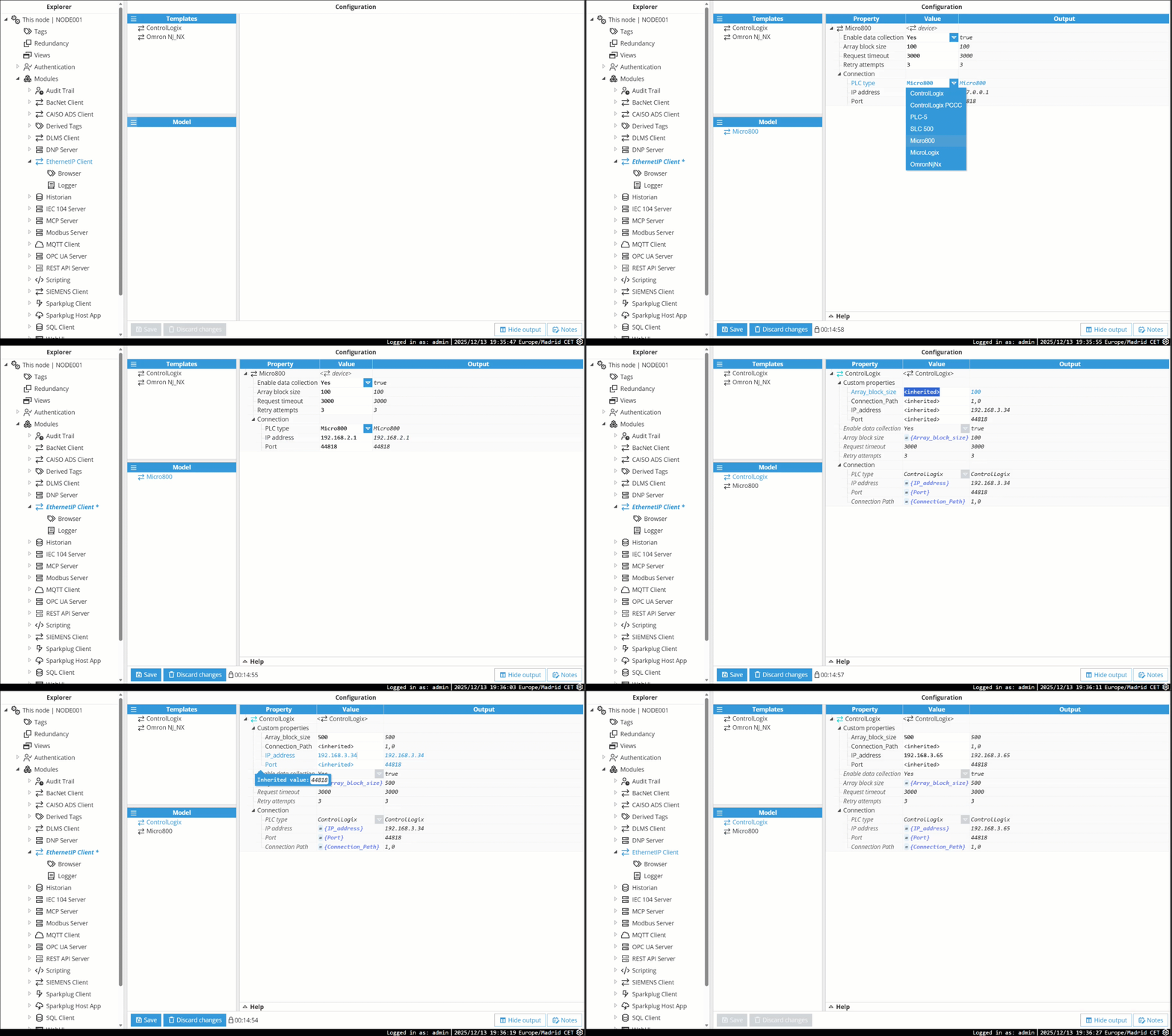
To create a new EtherNet/IP Client device (or instantiate one from a template), follow the numbered steps in the image:
Go to System → Config.
In the Explorer panel, expand the Modules section.
Select the newly created EtherNet/IP Client module instance, which in this case is named EthernetIP Client.
In the Model panel, click the ≡ menu and choose New device.
Choose the following options from the dropdown menu:
Select device to create a new one from scratch directly in the model.
To create a device from a Template, select the new device from the available Templates. In this example, there are two templates for ControlLogix and Omron NJ/NX types of PLCs.
Tips:
Using templates is a great idea when working with multiple PLCs of the same type, since you just need to instantiate the template as many times as needed and tweak the settings through Custom properties like IP address, Array block size, Port, Connection Path, etc.
Device Configuration
Setting | Description |
|---|---|
Enable data collection | Enable or disable data collection on this device. When disabled, the communication to this device remains inactive, and the associated tags quality stays Bad - Uninitialized. |
Array block size | Specifies the number of elements to read in a single request when accessing array data. This setting is used to optimize performance by reducing the number of individual read operations. |
Request timeout | Defines the maximum amount of time to wait for a response from the device before considering the operation failed. |
Retry attempts | Specifies the number of times the system will retry a failed communication attempt before marking the device as unreachable. |
Array block size guidelines:
Only applicable when the Struct Type is set to Array.
The value must be within the range of 100 to 3000.
Larger block sizes improve performance by reducing overhead, but may increase memory usage and latency.
Request timeout guidelines:
Enter the value in milliseconds.
Valid range: 100 to 1,000,000 milliseconds (0.1 to 1000 seconds).
If the device does not respond within the specified time, the operation will be marked as failed, and the tag will not update.
Retry attempts guidelines:
Valid range: 0 to 1000
A value of 0 means no retries; a single failed attempt will be treated as a failure.
Higher values allow more tolerance for transient network issues but may delay error detection.
Notes:
Array block size
The array block size should not exceed the actual size of the array in the PLC.
Choosing a block size that is too large may result in read errors or inefficient communication.
Adjust the array block size based on the expected array size and performance requirements of the system.
Request timeout
A lower timeout value may improve responsiveness in detecting communication issues.
A higher timeout value may be necessary for slow networks or devices that take longer to respond.
Select a timeout that balances reliability and performance based on your network conditions and PLC behavior.
Retry attempts
Use higher retry values for unstable or noisy networks.
Use lower values for time-sensitive applications where fast failure detection is important.
The retry logic is applied per request and works in combination with the Timeout setting.
Setting | Description |
|---|---|
PLC type | Specifies the type of PLC that the driver will communicate with. This parameter determines how the driver formats and interprets the communication with the target device. |
PLC Type | Description |
|---|---|
ControlLogix | ControlLogix-class PLCs (including CompactLogix). |
PLC-5 | Allen-Bradley PLC-5 series. |
SLC 500 | Allen-Bradley SLC 500 series. |
ControlLogix PCCC | ControlLogix-class PLC using PCCC protocol. |
Micro800 | Allen-Bradley Micro800 series. |
MicroLogix | Allen-Bradley MicroLogix series. |
Omron NJ/NX | Omron NJ/NX series PLCs. |
Notes:
The ControlLogix PCCC type is intended for ControlLogix PLCs communicating using legacy PLC/5 protocol (PCCC).
For CompactLogix PLCs, use ControlLogix.
Setting | Description |
|---|---|
IP address | Specifies the IP address of the target PLC. This is a required parameter and must be set to the IPv4 address of the PLC that the driver should connect to. |
Port | TCP port number to connect to. Default port for Ethernet/IP is 44818. Valid range: 1 to 65535. |
Connection Path | Defines the routing path used to reach the target PLC when intermediate routing is required. This is typically necessary when the PLC uses a dedicated Ethernet module (rather than a built-in Ethernet port) or when communication is routed through another device acting as a bridge. For example, a connection path is required when accessing ControlLogix, CompactLogix, PLC-5, MicroLogix, or SLC processors through a ControlLogix gateway. Format: Enter a comma-separated list of integers that defines the route. Each pair typically represents:
Examples:
|
Guidelines:
Use standard IPv4 format (e.g., 192.168.1.10).
The PLC must be reachable from the node's network interface.
Ensure that firewall rules and network configurations allow TCP communication on the required ports.
Tips:
1 typically refers to the backplane port.
The specific values depend on your network layout and hardware configuration. Consult your system documentation or configuration tools for accurate route information.
Note:
Ensure the port is permitted and not in use by any other application.
Incorrect or missing route paths may result in connection errors or data access failures.
Tag Configuration
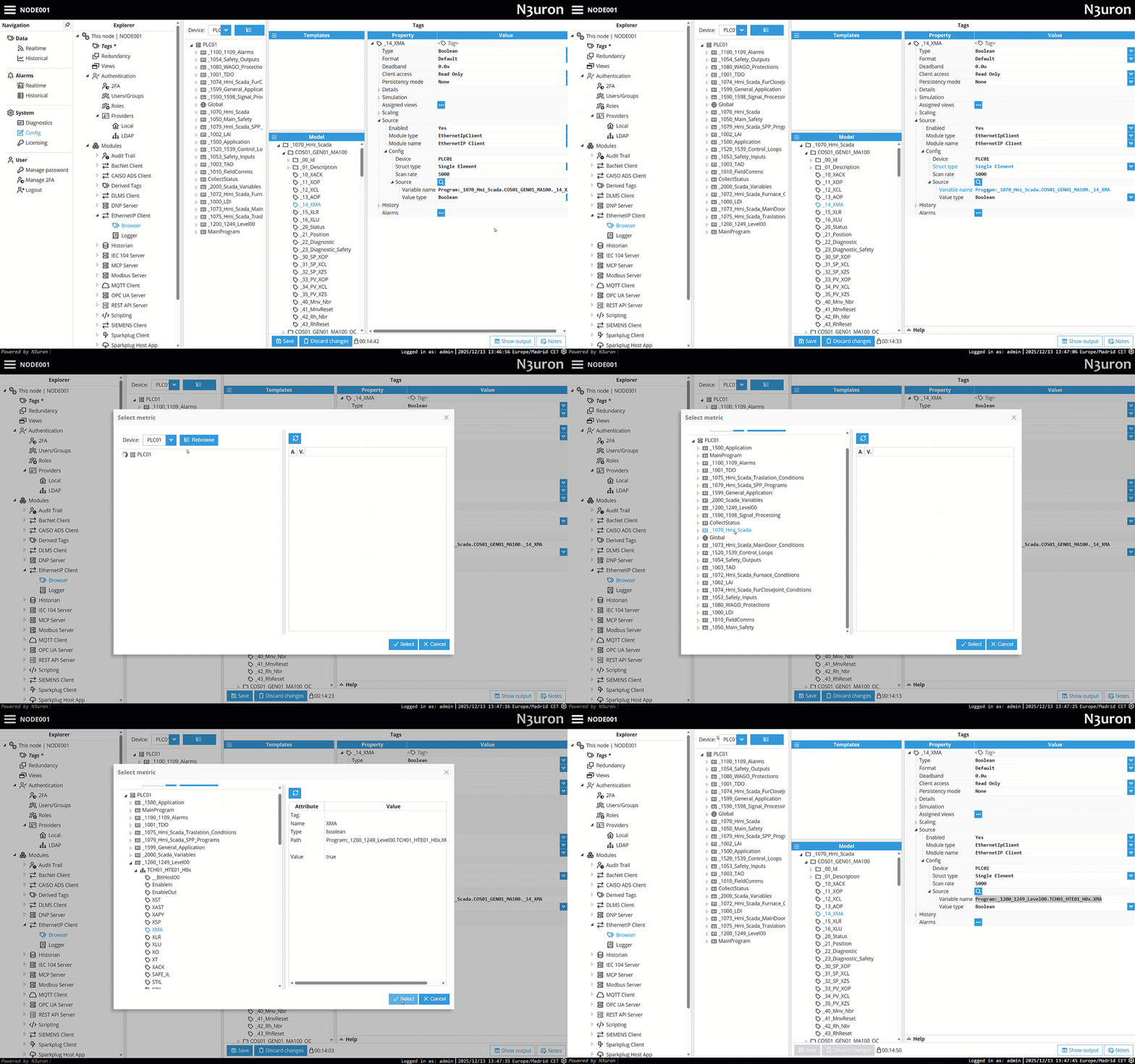
Once you’ve created and set up the EtherNet/IP device in the instantiated module, you can create tags and link them to the device either manually or by using the EtherNet/IP Client’s Browser. Select the desired device, then drag and drop the tags you wish to add into the Tag Model.
.gif)
The Source section links each tag to the EtherNet/IP Client module and defines how the tag value is obtained from or written to the device.
.png)
Setting | Description |
|---|---|
Enabled | The source module provides the tag's value, quality, and timestamp when enabled. If the source is not enabled, the tag acts as a memory tag. |
Module type | Type of the module used to obtain the tag's value, quality, and timestamp. |
Module name | Name of the module instance used to obtain the tag's value, quality, and timestamp. |
Config → Device | Specifies the name of the target device to which the tag is linked. This value must match the name of a device previously defined in the module configuration. The connection details for communicating with the PLC—such as IP address, PLC type, and route path—are configured within that device entry. Usage:
Example Workflow:
|
Config → Struct type | Specifies the structure of the data being accessed in the PLC.
|
Config → Scan rate | Defines how often the tag is refreshed by reading its value from the PLC. Examples:
|
Source → Variable name | Defines the full name of the tag or memory address to access within the PLC. The format depends on the PLC type.
If accessing a tag inside a user-defined program, prefix it with the program name using the following format: Program:<ProgramName>.<TagName> Example: Program:MainRoutine.MotorSpeed accesses the tag MotorSpeed within the program MainRoutine.
|
Source → Value type | Defines the data type of the value being read from or written to the PLC. Choose the type that best represents the format and size of the PLC tag you're working with. Supported Types:
|
Note:
Tag model browsing for Omron PLCs is not supported.
Guidelines Struct type:
Choose Single element for scalar variables or individual data points.
Choose Array when you intend to read or write multiple consecutive elements as a block.
Ensure the data type and element count match the array's actual definition in the PLC.
Selecting the correct structure is essential for accurate data handling and to prevent communication errors.
Guidelines Scan rate:
Enter the scan rate in milliseconds.
Lower values result in faster updates but increase network and CPU load.
Higher values reduce system load but may delay the detection of value changes.
Notes:
Device name
If the name of the Device does not match an existing device, the tag will fail to resolve or communicate.
Changing the name of a device in the module configuration requires updating all associated tags to use the new name.
Scan rate
The scan rate should be selected based on the priority and frequency of change of the tag's value.
Critical or fast-changing data may require lower scan rates.
For infrequently changing values, a higher scan rate can improve performance.
Variable name
Ensure the name or address matches exactly what is defined in the PLC program.
Some common abbreviations and shorthand formats are supported automatically.
Incorrect variable names may result in tag resolution errors or data read/write failures.
Tips:
To replace a Variable name that a tag points to with another variable in the device, use the Browser shortcut in the tag source configuration. Just click the Search icon next to the Config → Source label and select the desired tag.