---
title: "SNMP Client | Examples | N3uron KB V1.22"
slug: "snmp-client-examples"
description: "The N3uron SNMP Client module allows exchanging data with SNMP V1 and V2c agents"
updated: 2025-09-30T15:55:33Z
published: 2025-12-23T11:33:53Z
canonical: "docs.n3uron.com/snmp-client-examples"
---
> ## Documentation Index
> Fetch the complete documentation index at: https://docs.n3uron.com/llms.txt
> Use this file to discover all available pages before exploring further.
# Examples
## Connecting to a Moxa Remote I/O Device from N3uron Using SNMP Client
This is a detailed step-by-step guide to connecting to a Moxa remote I/O device from **N3uron** using the **SNMP** **Client** module.
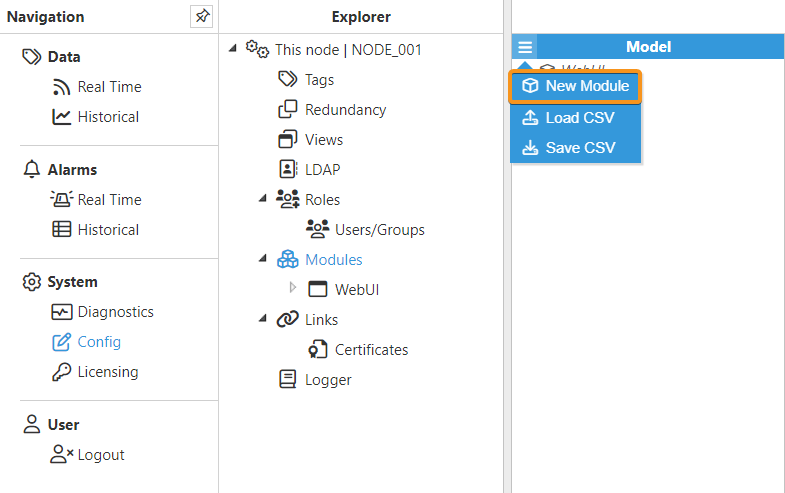
- **Step 1:** Create the module: *(*Config => Modules => Model => New Module*)*.
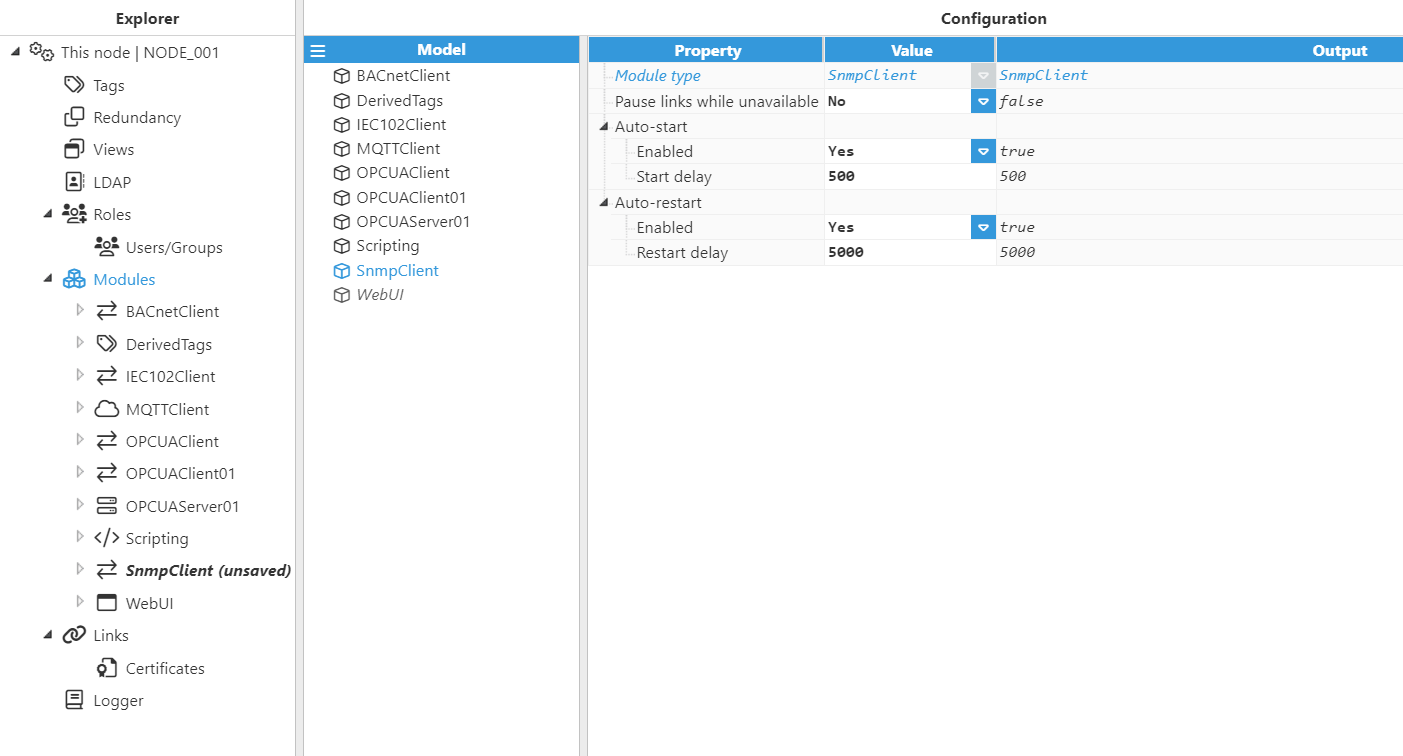
- **Step 2:** Provide a name for the module (in this case SnmpClient), assign the module type (in this case SnmpClient), and save the new configuration.
.png)
- **Step 3:** Configure the **Logger** and **API** sections (usually the default values are sufficient). Save the configuration.
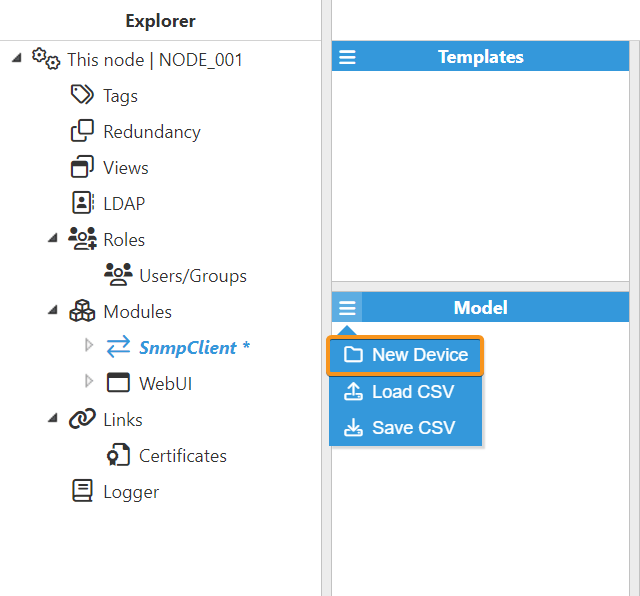
- **Step 4:** Click the button on the left-hand side of the **Model** header, select **New Device**, and give it a name. In this case, Moxa1212.
- **Step 5:** Configure the SNMP Client to connect to the PLC.
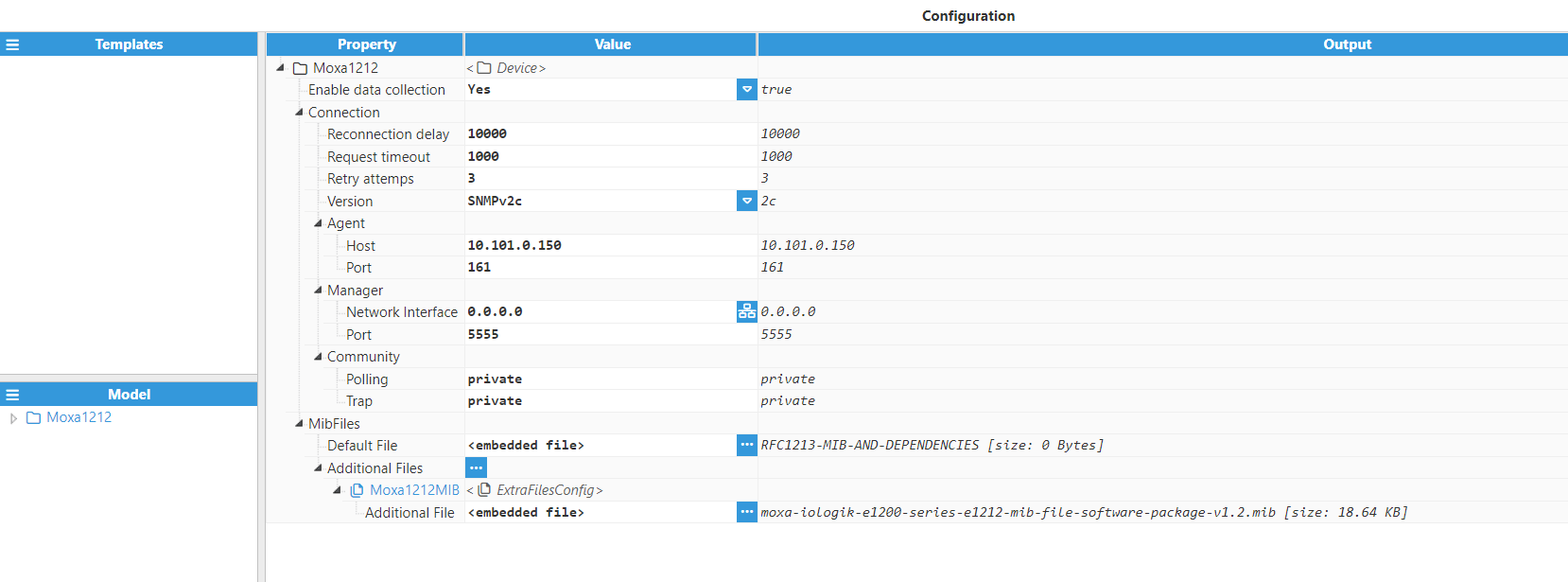
Parameters:
- **Enable data collection:** Yes**.**
- **Connection:**
- **Reconnection delay:** 10000**.**
- **Request timeout:** 5000**.**
- **Retry attempts: **3.
- **Version:** SNMPv2c.
- **Agent:**
- **Host:** Hostname/IP address of the target device.
- **Port:** Agent port number to connect to.
- **Manager:**
- **Network Interface:** Click on the **Network interface** **discovery** button to the right of the **Network interface** field and select the corresponding interface of the network we want to connect to. 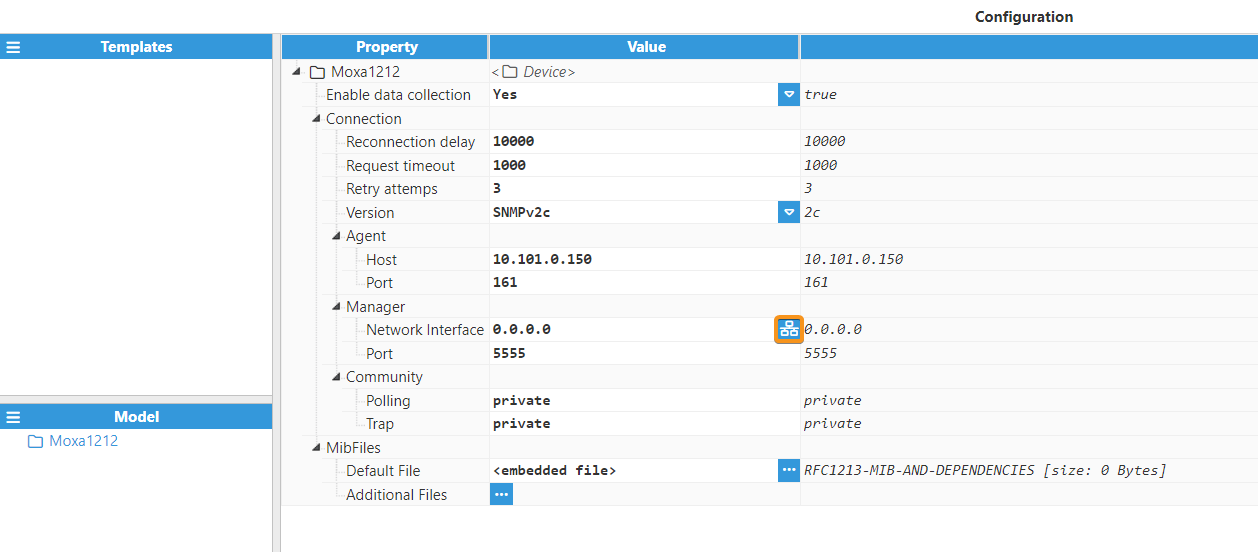
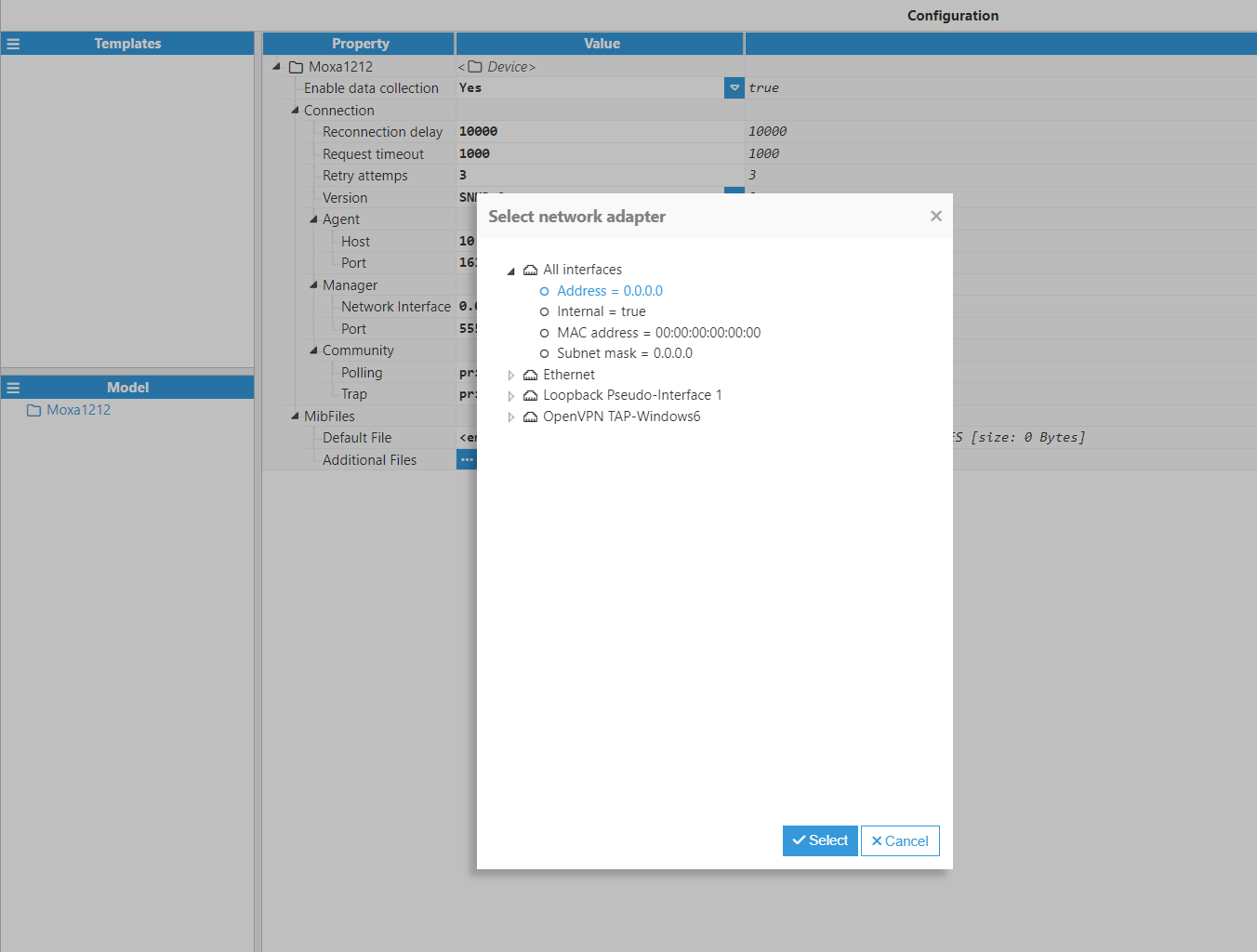
- **Port: Port for incoming notifications.**
- **Community:**
- **Polling:** private**.**
- **Trap:** private**.**
- **Default File:** RFC1213-MIB, including its dependencies: RFC1155-SMI, RFC-1212, RFC1158-MIB, SNMPv2-SMI, SNMPv2-TC.
- **Additional Files:** Load the following file provided by the manufacturer moxa-iologik-e1200-series-e212-mib-file-software-package-v1.2.mib.
At this point, the connection is now ready and we can move on to creating new tags.
- **Step 6:** In the **Explorer** panel, select **Tags.** In the **Model** panel, create a new tag, and name it DIO01.
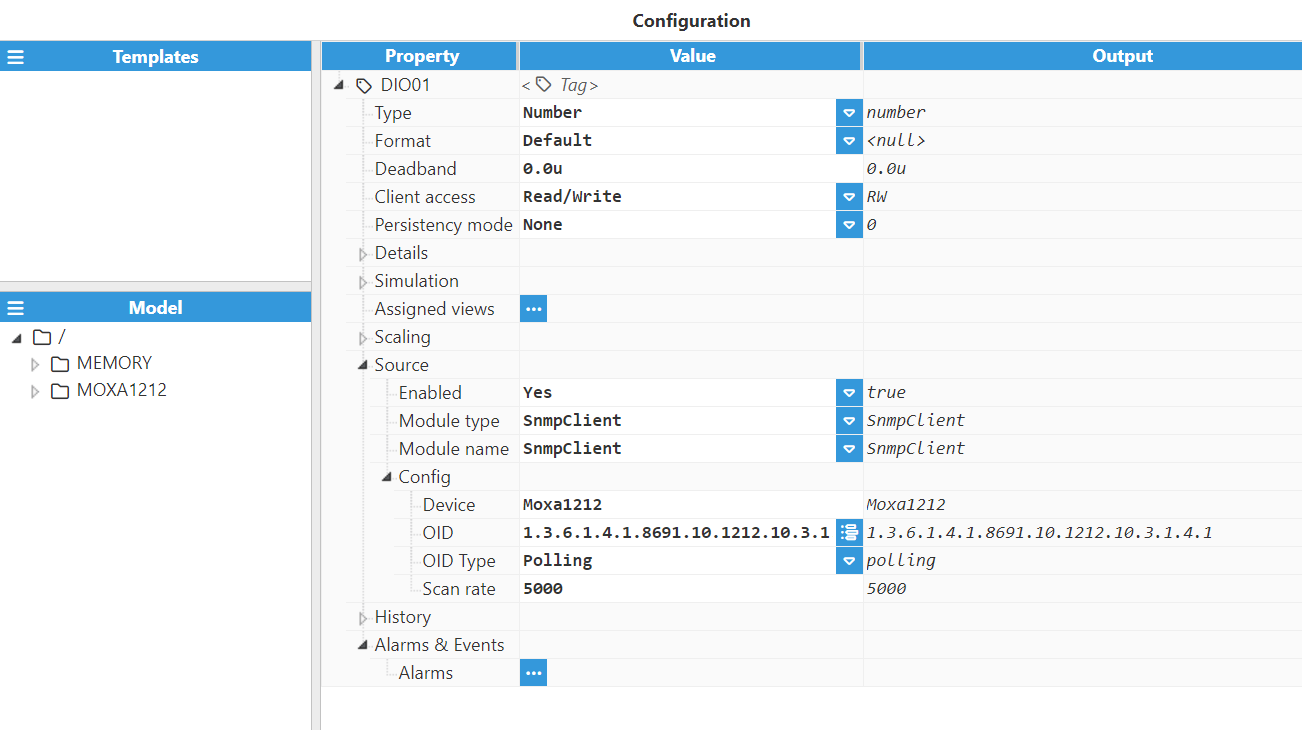
- **Step 7:** Set the configuration parameters properly:
- **Type:** Number.
- **Format:** Default.
- **Client Access:** RW.
- **Source:**
- **Enabled:** Yes.
- **Module type:** SnmpClient.
- **Module name:** SnmpClient.
- **Config:**
- **Device:** Moxa1212.
- **OID: OID value for requesting information. Users can browse for the corresponding OID by clicking on the button on the right hand side of the **OID** field. Once the browser is open, the different OIDs with their attributes and values can now be found.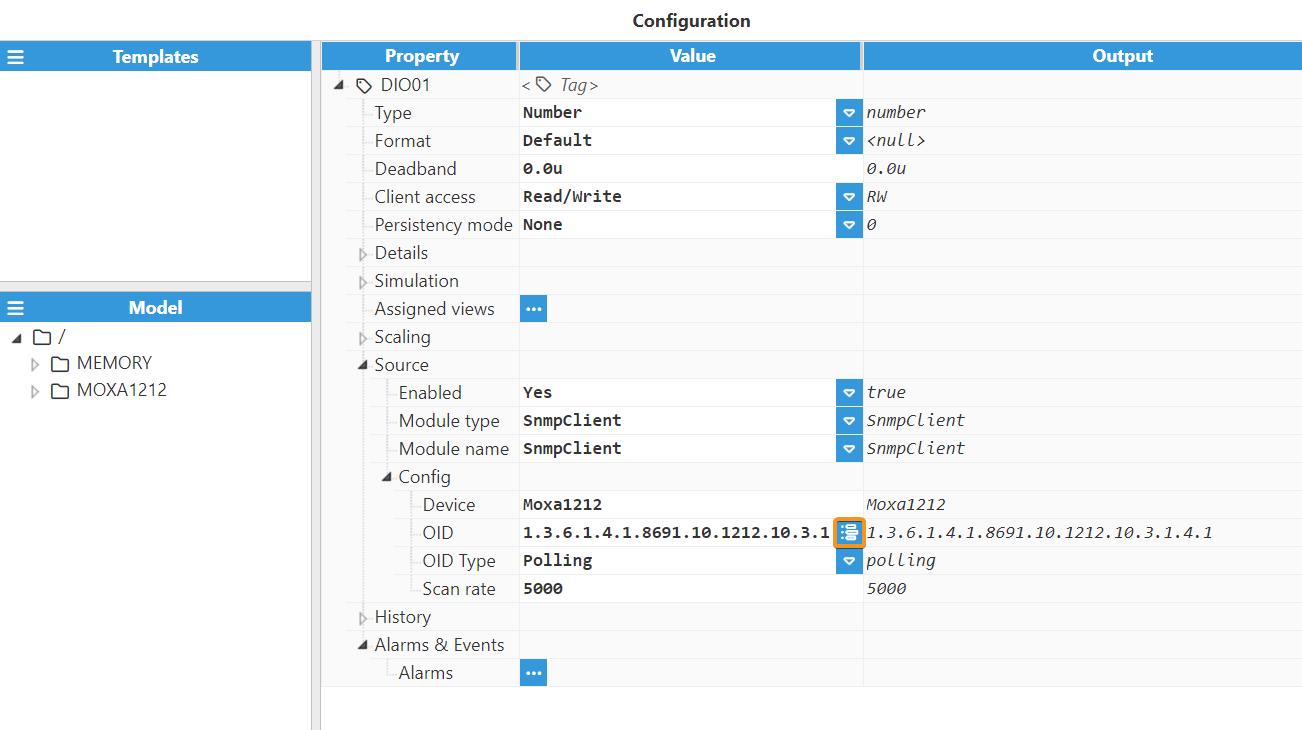 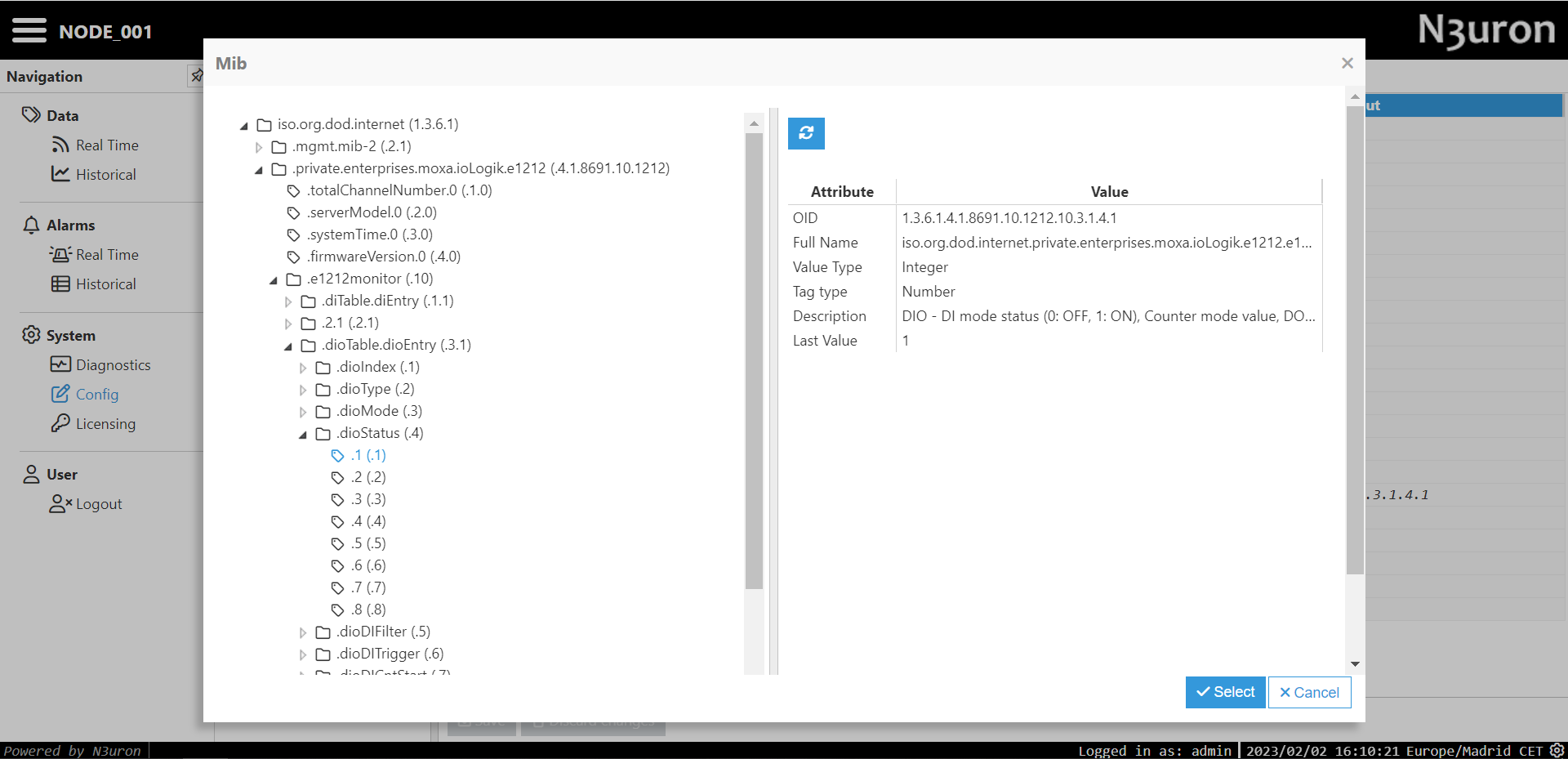**
- **OID Type:** Polling.
- **Scan rate:** 5000.
- **Step 8:** Finally, head to the ****Data**/****Real-Time section** in the **Navigation** panel, where you should now be able to see all data read from that device.

[SNMP Client Full Product Details](https://n3uron.com/iiot-platform-modules/snmp-client/)