Note:
This module is available from N3uron version 1.22.0.
Note:
Before starting the configuration, a new module instance must be created. Click here for more information about creating Module instances.
Recommendation:
Ensure your data model includes well-structured, contextualized metadata with clear descriptions, engineering units, and proper normalization for each data point. Implement a consistent naming hierarchy with meaningful, readable paths—this enables AI agents to navigate and interpret your data model efficiently on the first pass, minimizing tool calls, token consumption, and time to insight. While descriptive prompts, system prompts, or RAG-based reference materials can compensate for cryptic naming, comprehensive naming conventions and metadata provide the most reliable foundation for effective AI integration.
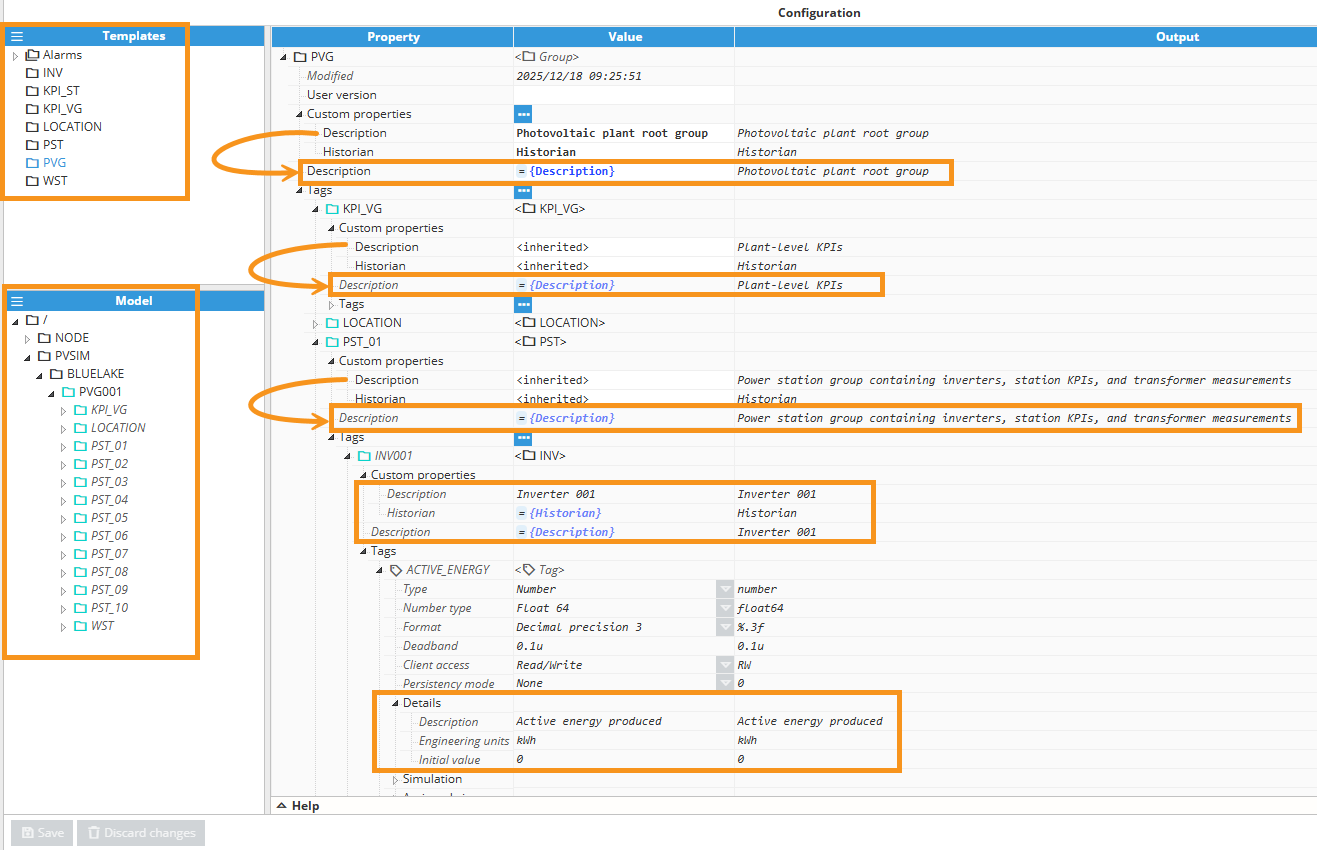
N3uron’s Templates help you standardize tag structures and metadata across assets by defining them once and creating reusable instances that inherit the template’s properties. This makes it easy to apply consistent descriptions, units, and configuration patterns at scale—while keeping models readable and maintainable as projects grow.
Templates Overview
Module Configuration
By selecting the MCP Server in the explorer tree menu under the Modules section, users can configure how the module accepts connections. The following screenshot shows the different available options for MCP Server Configuration:
.png)
Server:
Setting | Description |
|---|---|
Mode | Selects which protocol(s) the MCP Server will listen on (HTTP, HTTPS, or both if available). |
HTTP:
Setting | Description |
|---|---|
TCP port | Specifies the HTTP port number for connecting to the MCP Server. The valid range is 1 to 65535. Any other application on the same machine may not use this port. (e.g., 4003 in the example). |
Network interface | Specifies the interface for accessing the MCP Server via HTTP. You can either select the network interface by clicking the browse button or enter the IP address manually (e.g., 0.0.0.0 to listen on all interfaces). |
HTTPS:
Setting | Description |
|---|---|
TCP port | Specifies the HTTP port number for connecting to the MCP Server. The valid range is 1 to 65535. Any other application on the same machine may not use this port. (e.g., 4003 in the example). |
Network interface | Specifies the interface for accessing the MCP Server via HTTPS. You can either select the network interface by clicking the browse button or enter the IP address manually (e.g., 0.0.0.0 to listen on all interfaces). |
.png)
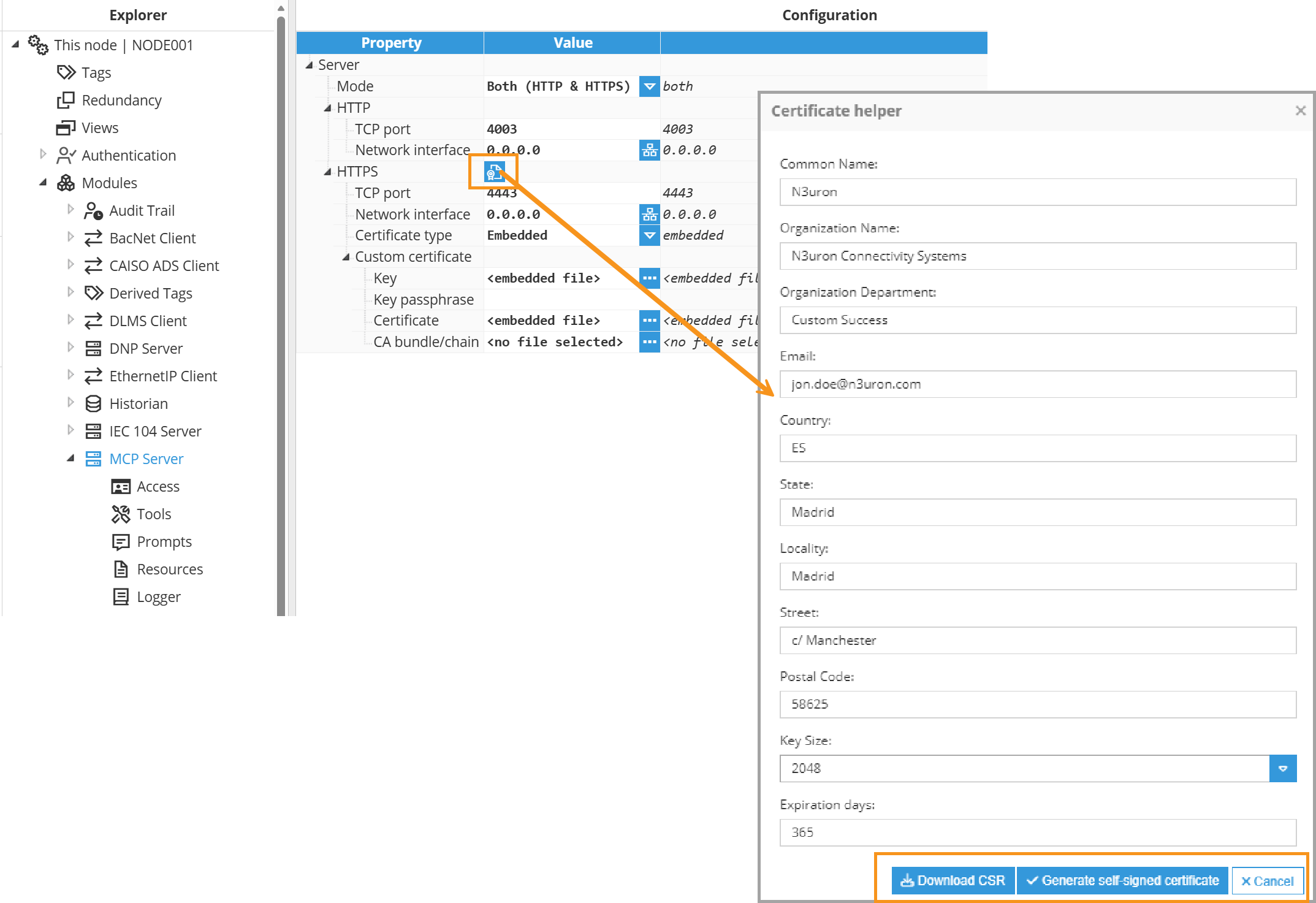
Certificate helper: Facilitates establishing HTTPS connections with custom self-signed certificates, offering control over the certificate generation process. To open the self-signed Certificate helper, right-click on the icon next to the HTTPS title section, and then fill out the form.
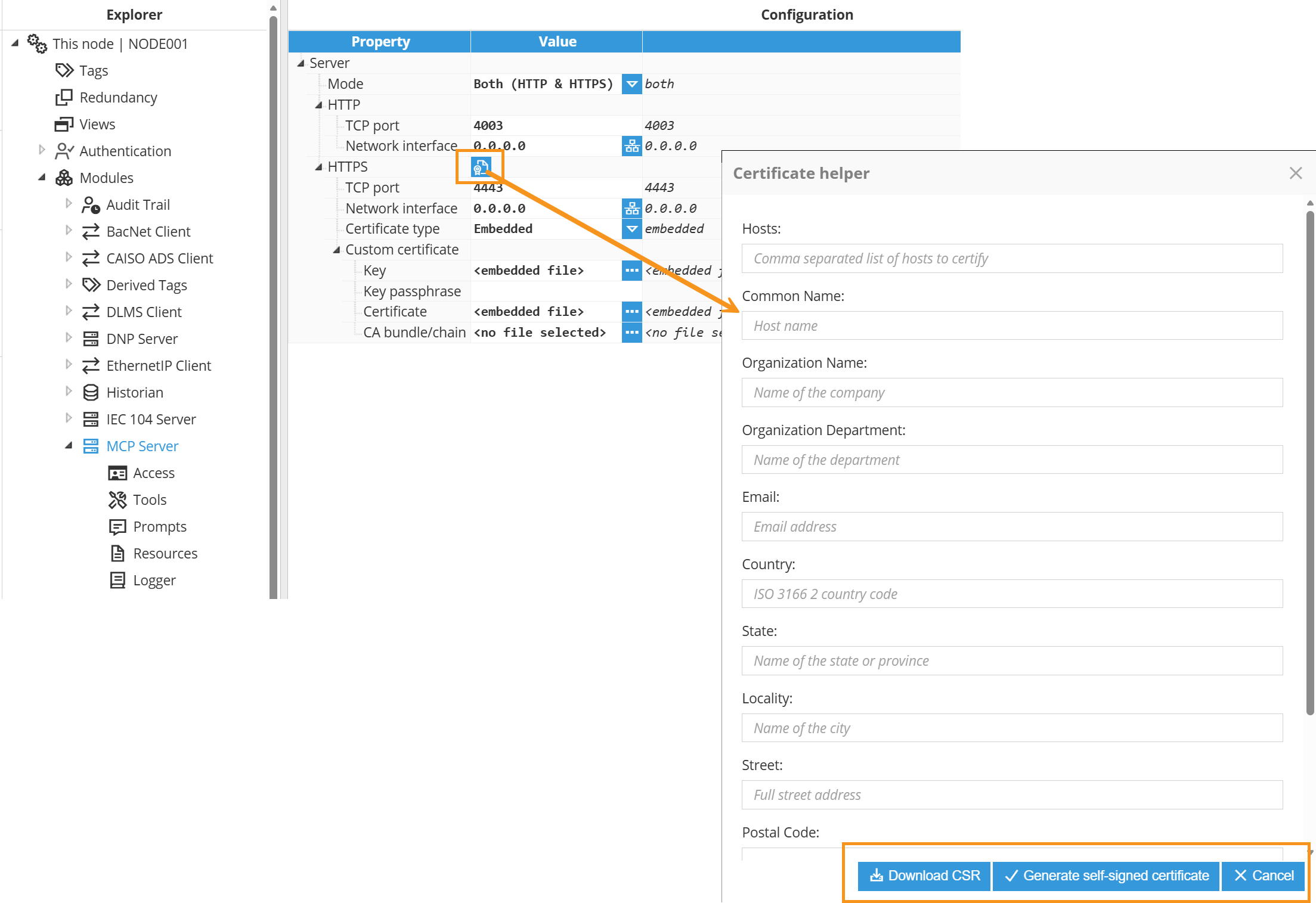
Setting | Description |
|---|---|
Common Name | The fully qualified domain name (FQDN) for which the certificate is being requested. This is typically the domain name of the server where the certificate will be installed (e.g., www.example.com). |
Organization Name | The legal name of the organization or company that is requesting the certificate. |
Organization Department | The specific department or division within the organization that is requesting the certificate. |
The email address associated with the organization or individual requesting the certificate. | |
Country | The two-letter ISO code representing the country where the organization is located (e.g., US for the United States, CA for Canada, ES for Spain). |
State | The full name or abbreviation of the state or province where the organization is located. |
Locality | The city or locality where the organization is located. |
Street | The street address of the organization's physical location. |
Postal Code | The postal or ZIP code of the organization's location. |
Key Size | The size of the cryptographic key pair to be generated for the certificate, measured in bits. Common key sizes include 2048 bits or 4096 bits. |
Expiration Days | The number of days until the certificate expires. This determines the validity period of the certificate before it needs to be renewed. |
When filling out the form to generate the CSR, ensure that all information provided is accurate and matches the organization's official details. This information will be embedded in the CSR and subsequently used to issue the SSL/TLS certificate.
Certificate type:
Setting | Description |
|---|---|
Self-signed | The server will automatically create and sign a certificate using an internal certification authority, which can be downloaded by clicking on the ellipsis button on the right side of the Self-signed certificate field. This certification authority is valid for all the MCP Server instances and must be imported into each MCP Client that will access the MCP Server via HTTPS. |
Embedded | The provided certificates will be embedded in the configuration file. When selecting the Embedded option, the following custom certificate parameters will be available:
|
File path | File path where the certificate files are located, with a hot-reload option. The path is relative to the data/<instance name>/cert/ folder. When selecting the File path option, the following custom certificate parameters will appear:
|
Note:
The key for the embedded certificate file will be secure and cannot be downloaded.
Sessions:
Setting | Description |
|---|---|
Max concurrent sessions | Maximum number of simultaneous MCP sessions accepted by the server. When this cap is reached, new initialize requests are rejected with HTTP 503. Set to 0 to disable the cap and allow unlimited concurrent sessions (use at your own risk). Default: 100. |
Idle timeout (s) | Sessions are closed and their resources released after this many seconds without any request. The timer is reset on every request to the session. Set to 0 to disable the idle timeout (sessions live until explicitly closed). Maximum: 172800 (2 days). Default: 600 (10 minutes). |
OAuth 2.0:
Setting | Description |
|---|---|
Enable OAuth 2.0 | Enables the OAuth 2.0 endpoints required for clients like Claude.ai or ChatGPT to authenticate. When enabled, the Issuer URL must be configured. |
Issuer URL | Public URL of this server as OAuth clients will see it. This must be the URL reachable from the internet, not the local bind address (0.0.0.0). Example: https://my-server.company.com:3041. If behind a reverse proxy or NAT, use the public proxy URL. |
Access token lifetime (s) | Validity period of the OAuth access token, in seconds. Minimum: 60. Default: 3600 (1 hour). |
Refresh token lifetime (s) | Validity period of the OAuth refresh token, in seconds. Minimum: 60. Default: 86400 (24 hours). Must be strictly greater than the access token lifetime. When a refresh token is used, a new pair is issued and the previous one is immediately invalidated. |
Note:
OAuth 2.0 is an alternative to the static Bearer Token described under Access Configuration below, intended for end-user connectors that cannot inject a static token. Both authentication modes are used simultaneously, as the Bearer token serves as the API token. The permission rules configured under Access Configuration apply regardless of which mode a client used to authenticate.
Note:
Sessions and OAuth 2.0 settings are available from N3uron version 1.22.4.
What is OAuth 2.0?
OAuth 2.0 is an open authorization standard that lets a client application obtain limited, time-bound access to a protected resource without ever handling a long-lived secret. Instead of embedding a static credential in the client, the user is redirected to the resource server, authenticates once, and the server issues a short-lived access token (plus a longer-lived refresh token) that the client presents on each request and renews automatically.
In the MCP Server, OAuth 2.0 is the authentication method for end-user connectors such as Claude or ChatGPT, which connect to a remote URL and cannot inject a static Bearer Token. When it is enabled, the module publishes the OAuth 2.0 endpoints these clients use to run the authorization flow and to refresh their tokens, using the parameters described in the table above.
OAuth 2.0 setup
OAuth 2.0 lets end-user clients such as Claude or ChatGPT authenticate against the MCP Server without a static Bearer Token. The MCP Client must be able to reach the server at the configured Issuer URL.
In the Explorer tree, go to Modules → MCP Server → OAuth 2.0 and set Enable OAuth 2.0 to Yes.
.png)
Set the Issuer URL to the public address where clients will reach the server, for example https://<hostname>:<port>. If the server is behind a reverse proxy or NAT, use the public proxy URL. Do not use the local bind address (0.0.0.0). Save and restart the module when prompted.
Under Access Configuration, create an Access Token, set its permissions, and copy the Bearer Token (it cannot be retrieved after saving).
In the client, enter the Issuer URL follow by /mcp.
https://<issuer-url>/mcp
The client opens the OAuth 2.0 authorization flow in the browser.On the N3uron Authorize access page, paste the Access Token and click Authorize. The client is redirected back and connects.
.png)
Verify the connection by listing the available tools and running a simple request — for example, asking for the node's system status.
.gif)
Access Configuration
The MCP Server enforces token-based access control for exposed tools, prompts, resources, and the published tag model. Clients must present a valid token, and the server then enforces the configured permission rules to determine what the client can discover and what it is allowed to invoke.
.gif)
Access Token:
Setting | Description |
|---|---|
Enabled | If disabled, none of the access permissions granted will apply to this token. |
Token | The Bearer Token value is automatically generated when you click the button on the right side. |
Custom extensions access permissions:
Setting | Description |
|---|---|
Custom tools access | Allow access to custom defined tools. |
Custom prompts access | Allow access to custom defined prompts |
Custom resources access | Allow access to custom defined resources. |
Note:
Custom tools, prompts and resources have only two options: Allow, which grants full visibility to the MCP Client, or None, that provides neither visibility nor accessibility. Read or write access to the API is controlled within the actual Custom tool script.
Default Tools access permissions:
Setting | Description |
|---|---|
Alarm | Access to the tag alarm system. Allows querying, filtering, and managing alarm states, including active, cleared, acknowledged, and unacknowledged alarms across the tag namespace. |
Backup | Access and manage the node backup system. Allows creating, exporting, importing, and restoring complete node configuration snapshots, including all modules, tags, alarms, and settings. Essential for system maintenance, updates, and disaster recovery. |
Certificate | Manage X.509 certificates and certificate stores for modules. Handles SSL/TLS certificates for secure communications, including client certificates, server certificates, and certificate authorities. Supports various certificate types for different module needs. |
License | Manage node licensing system. Control software licenses, view license details, add new licenses, and handle license migrations. Essential for ensuring proper software authorization and managing licensed features. Manage node licensing system. Control software licenses, view license details, add new licenses, and handle license migrations. Essential for ensuring proper software authorization and managing licensed features. |
Link | Access and monitor node links and connections. Manage communication links between nodes in distributed architectures, including monitoring link status, health, and connectivity information across the network. |
Log | Access and manage system log files. Browse available log files from different modules and system components, and export log data for analysis, troubleshooting, and audit purposes. Essential for system monitoring and diagnostics. |
Module | A comprehensive module management system to control the entire module lifecycle (start, stop, restart), manage configurations, monitor instances, and handle installed modules. It’s essential for managing data sources, publishers, and custom modules within the ecosystem. |
Redundancy | Access to redundancy status with primary/backup nodes. If the primary fails, the backup node automatically takes over. |
System | Access and control node system functions. Monitor node health, restart services, manage system identifiers, and get system status information. Essential for node administration and system maintenance. |
Tag | The core tag namespace provides access to the tag model, enabling browsing of tag hierarchies, reading current values, retrieving detailed tag information, accessing historical data, and writing values. It serves as the primary interface for data acquisition and control. |
Tools access options:
None (zero tool visibility), Read (allow read operations), Read/Write (allow read and write operations).
Default Resources access permissions:
Setting | Description |
|---|---|
Logs | If enabled, logs can be accessed through the API. |
Alarms | If enabled, Alarms can be accessed through the API. |
Tags | If enabled, Tags will be accessible via the API. |
Resources access options:
Yes or No to allow the namespaces Logs, Alarms or Tags to be expose as resources.
Note:
Allowing Logs, Alarms, and Tags to be accessible as resources enables the MCP Clients to subscribe to changes in these namespaces. However, keep in mind that not all MCP Clients support this capability.
Model Context Protocol - Resources documentation
Tag model access filters:
Setting | Description |
|---|---|
Mode | Specifies whether the filter must include or exclude tags. |
Path | Specifies the path of the tag or group of tags to be filtered. |
Regex Pattern | This is a regular expression for filtering which tags will be included. By default, it is set to .*, meaning no filter is applied, and everything is allowed within the selected path. Further information about regular expressions can be found at RegExr. |
Note:
It is a mandatory to add a filter even when the whole model is going to be published.
Include filters are applied first and exclude filters are applied to the include filters' results.
MCP Client connection examples
To connect an MCP client to the N3uron MCP Server, the client must be able to reach the server and present valid credentials.
Required:
MCP Server endpoint (reachable from the client): http(s)://<hostname or ip address>:<port>/mcp
Authorization Bearer Token.
When using HTTPS, the client's trust in the server certificate requires the client to recognize and accept the server’s TLS certificate. This involves providing the certificate authority (CA) or a self-signed certificate if applicable; otherwise, the connection will fail.
Note:
Many MCP clients and MCP-related tools rely on Node.js. If an example in this section uses npx, Node.js must be installed on the client machine, since npm and npx are provided as part of the Node.js installation. This requirement applies only to client-side tooling, where applicable, such as clients or utilities that rely on Node.js-based commands like npx (for example, MCP Inspector or mcp-remote). It does not apply to the N3uron MCP Server itself.
Node.js can be downloaded from the official website.
MCP Inspector (testing client)
Run the MCP Inspector for HTTP
npx @modelcontextprotocol/inspectorRun the MCP Inspector for HTTPS
# Certificate must be installed in the system trust store first
$env:NODE_OPTIONS = "--use-system-ca"
npx @modelcontextprotocol/inspector
In the MCP Inspector UI:
Select Transport Type: Streamable HTTP
Set Server URL to http(s)://<host>:<port>/mcp
Add header: Authorization: Bearer <token>
Connect, then list and invoke tools, prompts, and resources to validate the end-to-end behavior.
Further information at this link: MCP Inspector - Model Context Protocol
.png)
MCPJam (Testing, debugging, and evaluation client for MCP servers)
Run the MCPJam for HTTP
npx @mcpjam/inspector@latestRun the MCPJam for HTTPS
# Certificate must be installed in the system trust store first
$env:NODE_OPTIONS = "--use-system-ca"
npx @mcpjam/inspector@latest
In the MCPJam UI:
Select Connection Type: HTTP
Set Server URL to http(s)://<host>:<port>/mcp
Select Authorization: Bearer Token
Enter the <Token>
Connect, then list and invoke tools, prompts, and resources to validate the end-to-end behavior.
Further information at this link: MCPJam - Test, debug, and evaluate MCP servers and apps
.png)
Flowise (Low-code AI workflow builder)
Flowise is a low-code platform for building AI workflows and agentic applications. By adding the N3uron MCP Server as a Custom MCP tool, Flowise workflows can access the tools exposed by N3uron and use them inside Chat flows, Agent flows, and Assistant applications.
In Flowise, add a Custom MCP tool and configure the MCP Server Config field with the remote N3uron MCP Server endpoint.
{
    "url": "https://localhost:4443/mcp",
    "headers": {
        "Authorization": "Bearer {{$vars.N3URON_AUTH_TOKEN}}"
    }
}.png)
Further information at this link: Docs - Flowise
Claude Desktop (claude_desktop_config.json)
{
  "mcpServers": {
    "n3remote": {
      "command": "npx",
      "args": [
        "-y",
        "mcp-remote@latest",
        "https://192.168.0.19:4443/mcp",
        "--transport",
        "http-only",
        "--allow-http",
        "--header",
        "Authorization:${AUTH_HEADER}"
      ],
      "env": {
        "AUTH_HEADER": "Bearer <YOUR_TOKEN>",
        "NODE_USE_SYSTEM_CA": "1"
      }
    },
    "n3local": {
      "command": "npx",
      "args": [
        "-y",
        "mcp-remote@latest",
        "http://localhost:4103/mcp",
        "--transport",
        "http-only",
        "--allow-http",
        "--header",
        "Authorization:${AUTH_HEADER}"
      ],
      "env": {
        "AUTH_HEADER": "Bearer <YOUR_TOKEN>"
      }
    }
  }
}
Further information at this link: Claude Desktop – Model Context Protocol (MCP)
AnythingLLM Desktop (anythingllm_mcp_servers.json)
{
  "mcpServers": {
    "n3remote": {
      "command": "npx",
      "args": [
        "mcp-remote@latest",
        "https://<ip/hostname>:4443/mcp",
        "--header",
        "Authorization:Bearer ${AUTH_TOKEN}"
      ],
      "env": {
        "AUTH_TOKEN":"<YOUR_TOKEN>",
        "NODE_USE_SYSTEM_CA": "1"
      }
    },
    "n3local": {
      "type": "streamable",
      "url": "http://localhost:4103/mcp",
      "headers": {
        "Authorization": "Bearer <YOUR_TOKEN>"
      }
    }
  }
}
Further information at this link: Docs - AnythingLLM
VS Code (mcp.json)
The configuration can be added at user level, so it is available across VS Code workspaces.
User-level configuration: ~/.config/Code/User/mcp.json
"n3remote": {
    "url": "https://localhost:4443/mcp",
	"type": "http",
	"headers": {
	    "Authorization": "Bearer <Your Token>"
	}
}
To configure the N3uron MCP Server only for the current workspace, create the following file inside the project folder. When VS Code asks for the token, enter only the token value, not Bearer, because the header already includes it.
Workspace-level configuration: .vscode/mcp.json
{
  "inputs": [
    {
      "type": "promptString",
      "id": "n3uron-token",
      "description": "N3uron Bearer Token",
      "password": true
    }
  ],
  "servers": {
    "n3remote": {
      "type": "http",
      "url": "https://localhost:4443/mcp",
      "headers": {
        "Authorization": "Bearer ${input:n3uron-token}"
      }
    }
  }
}
Further information at this link: Docs - VS Code
Antigravity (mcp_config.json)
{
  "mcpServers": {
    "n3remote": {
      "serverUrl": "https://localhost:4443/mcp",
      "headers": {
        "Authorization": "Bearer <YOUR_TOKEN>"
      }
    }
  }
}
Further information at this link: Docs - Antigravity
OpenCode (opencode.json)
Set the environment variable with the Bearer Token used in opencode.json.
export N3URON_AUTH_HEADER="Bearer <YOUR_TOKEN>"{
"$schema": "https://opencode.ai/config.json",
"mcp": {
"n3remote": {
"type": "remote",
"url": "https://<ip/hostname>:4443/mcp",
"headers": {
"Authorization": "{env:N3URON_AUTH_HEADER}"
},
"enabled": true,
"timeout": 60000
}
}
}Further information at this link: Docs - OpenCode
Librechat (librechat.yaml)
mcpServers:
  n3remote:
  type: streamable-http
  url: "http://<ip/hostname>:<http-port>/mcp"
  headers:
  Authorization: "Bearer <YOUR_TOKEN>"
  timeout: 900000
  autoConnect: true
Further information at this link: Github - LibreChat
Agentic Automation and Orchestration Platforms
Agentic automation/orchestration platforms provide a structured way to run AI-driven workflows across systems—combining model reasoning with triggers, actions, branching, and approvals.
By connecting the N3uron MCP Server, agents in these workflows can discover and use N3uron-exposed tools and resources via the Model Context Protocol (MCP).
This also supports multi-agent collaboration, including:
Agent handoffs as a workflow progresses (optionally gated by human approval)
Sharing context and intermediate results between steps/agents so work can be delegated and resumed reliably
Chaining actions through MCP for end-to-end trigger → decide → act execution.
Agent-to-agent communication can be standardized using an interoperability protocol such as Agent2Agent (A2A).
Further information at these links: