Note:
This module is available from N3uron version 1.22.0.
Resources are MCP primitives that expose data and content to MCP clients in a structured, discoverable format. The N3uron MCP Server can publish various types of operational and system information as resources, including module logs, alarm states, tag values, and embedded files. Resources provide a standardized way for AI models and applications to access MCP Server data without requiring specific API knowledge—clients simply discover available resources and request the ones they need.
Unlike tools that perform actions or prompts that provide instructions, resources are primarily informational. They represent data that can be read, monitored, and in some cases, subscribed to for real-time updates. This makes resources particularly useful for providing context to AI models, enabling documentation access, and supporting monitoring workflows.
Note:
Not all MCP clients fully support the resources primitive. Some clients may not implement resource discovery or retrieval, while others may support reading resources but not subscribing to updates. Additionally, subscription functionality (receiving automatic notifications when resource content changes) varies significantly across MCP client implementations. Verify your client's capabilities before relying on resource features in production workflows.
Configuring Resources
In the MCP Server module, resources are set up in two places: the Resources section, which defines embedded files and built-in resources for Logs, Alarms, and Tags that only require granted access in the Access section, which controls which resources are available to specific Bearer tokens.
Enabling built-in Resources
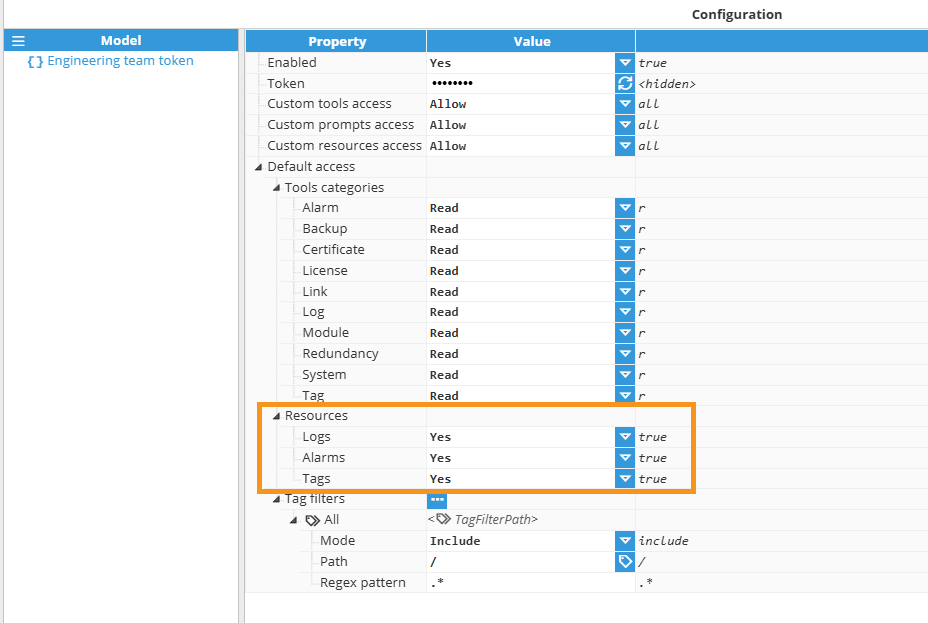
In the MCP Server Access configuration, each Authentication Bearer Token can be granted access to specific resource types. Navigate to the token configuration and locate the Resources section:
Resource Template | Description |
|---|---|
Logs | When enabled (Yes), exposes module log files as resources. MCP Clients using this token can access log content from all running module instances. |
Alarms | When enabled (Yes), exposes alarm information as resources. MCP Clients can access alarm status, configurations, and metadata. |
Tags | When enabled (Yes), exposes tag structures and values as resources. MCP clients can access tag metadata and current values through resource templates. Set to No to disable tag resource access. |
Logs
Module log files from instantiated N3uron modules. Each running module instance generates log files that record operational events, errors, warnings, and diagnostic information. When logs are enabled as resources, MCP Clients can read and subscribe to these log files to investigate issues, monitor system health, or provide historical context to AI-driven analysis.
Log resources are identified by the module name and include the complete log content in text format. They provide timestamped entries with logger levels (INFO, DEBUG, TRACE, WARN, ERROR) and detailed message content. This is particularly valuable for troubleshooting workflows where AI models need to examine error patterns, diagnose connectivity issues, or correlate events across multiple modules.
.gif)
Alarms
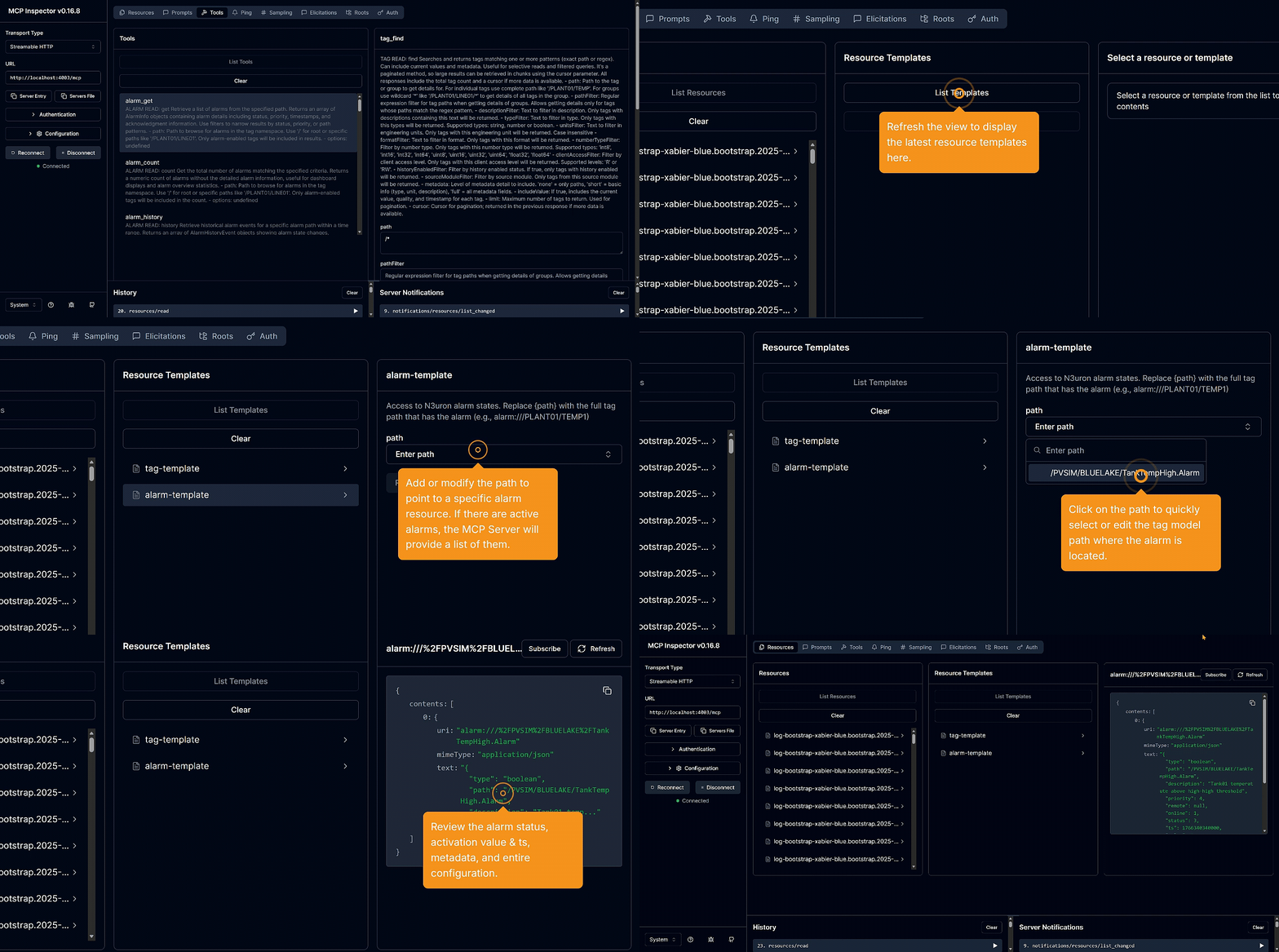
The Alarms resources provide current alarm states and configuration details from the N3uron alarm system. When enabled as resources, MCP Clients can read and subscribe to alarm status, alarm definitions, priority levels, acknowledgment status, etc. This allows AI models to incorporate alarm context into their analysis, understand system exceptions, and provide alarm-aware recommendations.
Alarm resources provide structured data about configured alarms, including paths, current states, timestamps, and metadata. Clients can use alarm resources to understand which conditions are currently abnormal, track alarm frequency patterns, or correlate alarms with other operational data.
Tag
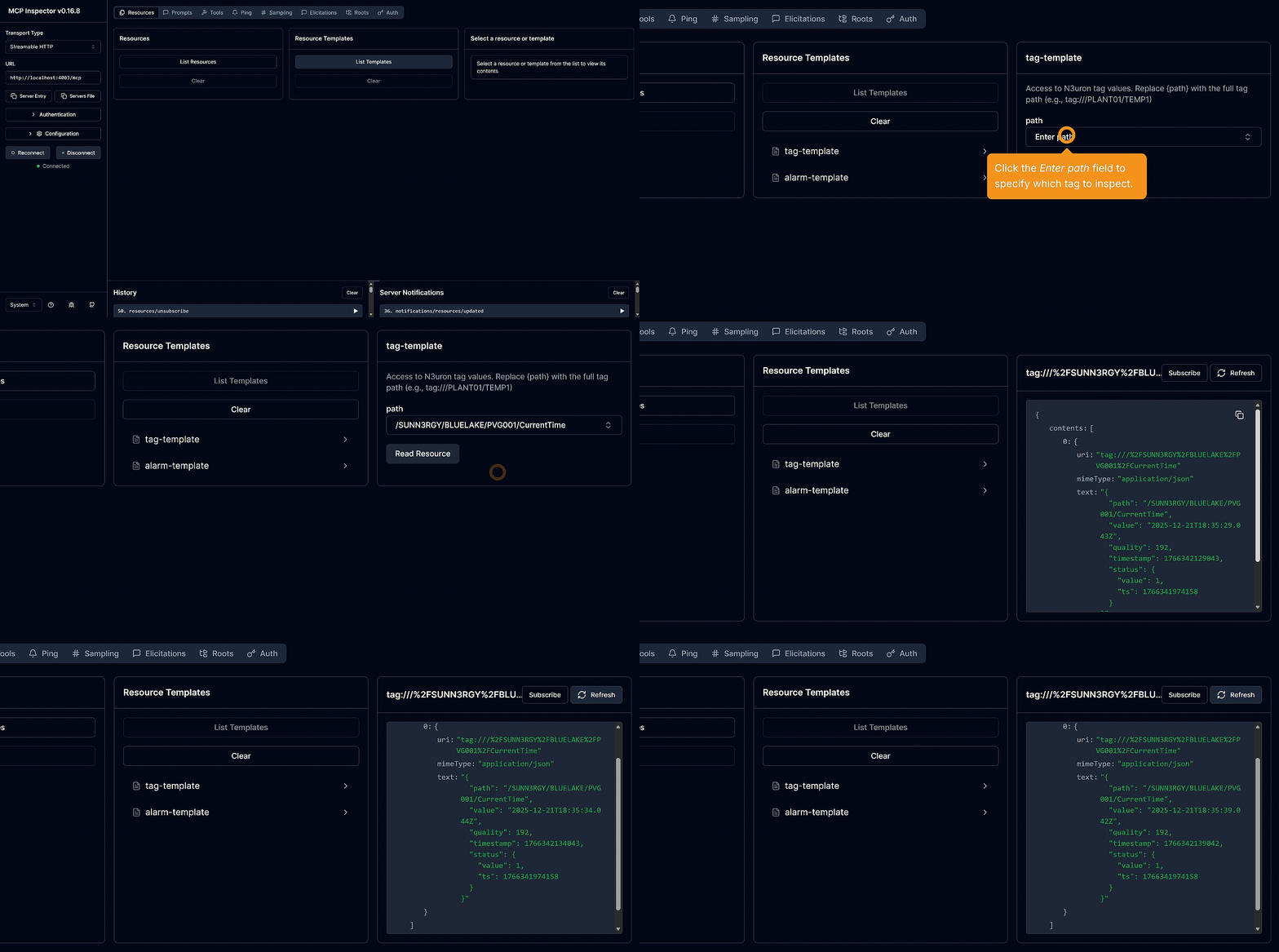
Tag structure and current values from the N3uron tag namespace. Tag resources expose the hierarchical organization of tags, their metadata (data types, units, descriptions), and current values. This provides MCP clients with a comprehensive view of the industrial data model and real-time operational state.
Tag resources are especially handy for AI models when they need an extra source of information beyond the tag namespace in the MCP Tools, and they also let models subscribe to tag changes. Paired with subscription features, tag resources can deliver real-time data updates to monitoring applications.
Note:
Not all MCP clients offer the full range of features; some only handle tool invocation and lack support for resource invocation or subscription.
Note:
Resource access is controlled at the token level. Different tokens can have access to different combinations of resource types, allowing fine-grained control over what information each MCP client can access. This is particularly important in multi-user or multi-application environments where different clients require different levels of system visibility.
Adding Embedded Files as resources
Custom files are uploaded and embedded within the MCP Server Resource section. These can include equipment datasheets, operation manuals, process documentation, configuration templates, or any reference material that provides valuable context to AI models. Embedded files are particularly powerful for enhancing AI understanding of specific equipment, processes, or operational procedures.
For example, embedding a PLC or Inverter datasheet as a resource allows AI models to reference exact specifications, I/O configurations, or communication parameters when troubleshooting connectivity issues or configuring new devices. Similarly, process documentation can help AI models understand operational context, safety constraints, or standard procedures.
To add embedded file resources, navigate to the Resources section in the MCP Server module. Select New Resource in the menu to create a new entry, then set up the following parameters:
Setting | Description |
|---|---|
Enabled | Enables or disables this resource. When disabled, the resource will not be discoverable or accessible to MCP Clients, even if they have resource access permissions. The default value is Yes. |
Name | Unique identifier for the resource. This is the name that MCP Clients use to discover and request the resource. Must be unique across all resources in this MCP Server instance. Use descriptive, lowercase names with underscores. |
Title | Human-readable display name for the resource. This title appears in resource listings and helps users understand the resource's content. Use clear, descriptive title case. |
Description | Detailed explanation of what the resource contains, when to use it, and what information it provides. This helps AI models and users understand the resource's purpose and content. Be specific about the type of information, format, and any special considerations. |
File | The actual file to embed as a resource. Click to upload a file from your local system. Supported formats include PDF, text files, images, JSON, XML, CSV, and other common document formats. The file is stored within the N3uron configuration and delivered to MCP clients on request. Maximum file size and supported formats may vary by deployment. |
.png)