The Tools Bar features multiple functionalities for interacting with the backend, user interface and visual elements.
Save/Discard changes
The Save changes button allows users to send changes to the backend to be saved, and Discard changes button discards changes made on the session and reload the most recently saved changes. These buttons will remain disabled when there are no pending changes to save in the configuration.
If any changes are applied to the project, a timer will be displayed showing the remaining inactivity period until the changes are reversed to previous project state, and keeping the project locked for other users to make changes. Making any changes on the project will refresh the timer.
Saving changes will force a refresh to all users connected to Designer and Viewer to update Web Vision version with the latest changes made.


Opened elements tabs
Opened tabs allow users to navigate between opened tabs and close them using the central mouse button or by clicking on the close (X) button. Tabs can be sorted by dragging and dropping them.

Snap grid
The Snap grid is used to fix positions when dragging a visual element inside a visual element container. When the snap is activated and the grid size is more than zero, a dotted grid will be applied over the root visual element currently displayed. This grid fixes dots as unique valid points to drop the dragged element to. The element drop position will be determined by the position of its origin.
Note:
Beginning with N3uron version 1.21.7, activating the Grid no longer necessitates the Snap to be activated, and conversely, Snapping requires the Grid to be activated.

Preview mode
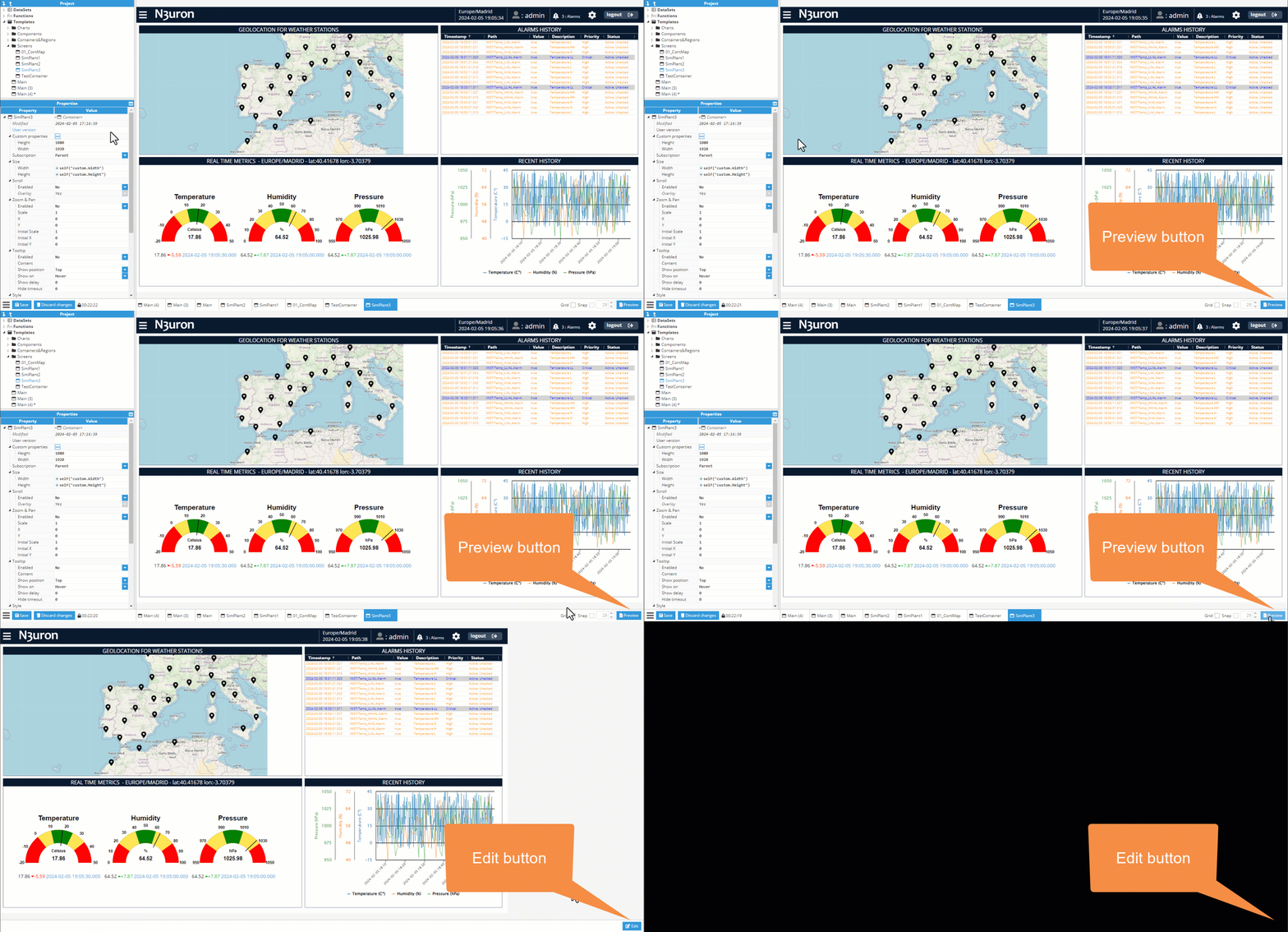
The preview button is located to the right of the buttons bar, and it is used to toggle between the editor and preview modes. On preview mode, any element selected and any modifications to visual elements will be deactivated, and trigger events will not require the control key to be held down for launch. The only visible interface displayed on preview mode is the edit button in the bottom-right corner for toggling back to the editor mode.
Burger menu
The burger button located to the left of the buttons bar displays multiple available actions:
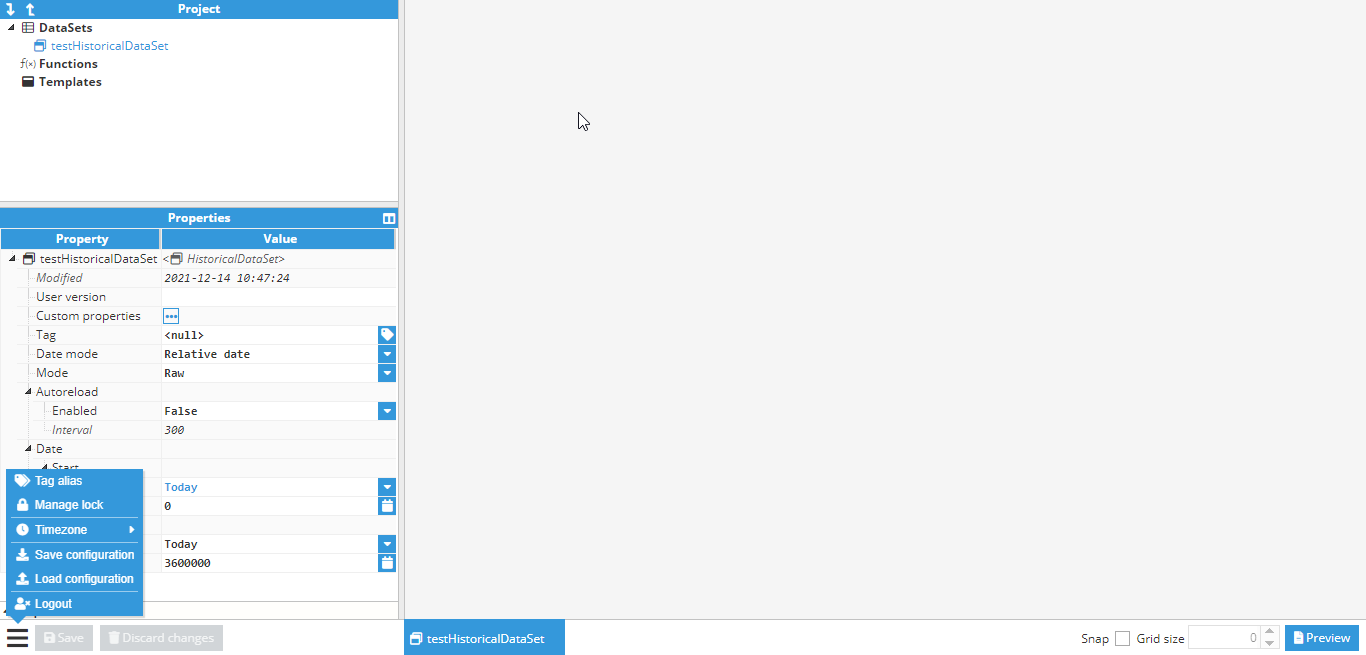
Tag Alias
When the Tag Alias entry is selected using the burger button menu, a popup will appear with a tree representing the alias tree generated for the current project. Users can define different tag groups and tag aliases from this tree. This alias or alias group can then be accessed using its tree path starting with @, and will return the element or tag associated with them.

Tag Aliases are utilized within Web Vision to access tags from the Data Model. By employing Aliases, the expressions of these tag paths can be simplified. In the image above, we are creating a Tag Alias for a tag with the full path /ENTERPRISE/AREA/LINE_A/CELL_01/AC_POWER. By utilizing Tag Alias, we can access this tag using the following syntax: @Enterprise/AC_POWER_CELL_01.
Suppose we want to create a new Gauge component, and and its value should be the value of the Tag Alias. In that case, we just need to use the following syntax @Enterprise/AC_POWER_CELL_01 in the value field of the Gauge component, as shown in the image below.

Once the project includes aliases, the tag picker helper can be used to toggle between different tag and alias views.
Manage lock
When the Manage lock burger menu entry is opened, a popup will appear with information about the current lock.
If any user made changes within the timeout period, that user will keep the WebVision editor locked for as long as the timeout period is configured, refreshing the countdown with every change made to the project. Saving changes will release the lock. When the web browser is disconnected from the backend, the configuration remains locked.
The user possessing the lock can release it any time, by pressing force unlock button in the Manage lock popup.

Save configuration
The Save configuration menu entry allows users to download the current configuration to local computer storage.
Load configuration
The Load configuration menu option allows users to upload a previously saved configuration to Web Vision. If the user has already modified the container, a warning popup will be displayed asking for permission to overwrite.
Logout
This menu option allows users to close the current session and return to the login page.