Actions are triggered when the event for which they were configured is triggered. Available actions are:
Writing and Operator Interactions
Write tag
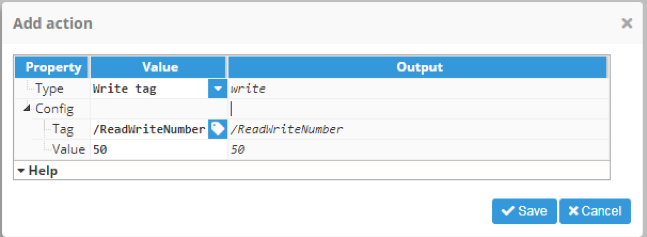
Write tag allows to write a new value on the the selected tag. It has two configurable fields:
Setting | Description |
|---|---|
Tag | Tag to write value to. |
Value | Value to write to tag. |
Write tag popup
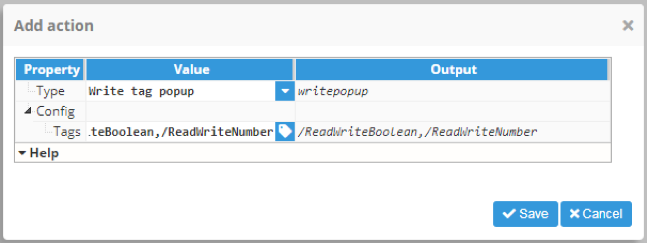
Write tag popup allows to write a list of comma separated tags. When the event is triggered, a popup will open allowing the user to write the new values to selected tags.
Write popup
This window opens when Write tag popup event is triggered, and presents information about the selected tags in a table and also allows values to be written to the tags. The table includes the following columns:
Setting | Description | |
|---|---|---|
Name | Tag path. | |
Type | Data type of the selected tag. | |
Current value | Current tag value. | |
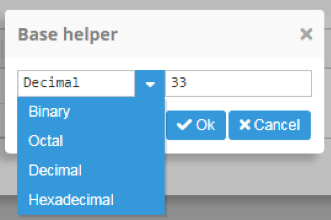
New value | New value to write to the tag. If the tag uses a numeric data type, a popup appears with a helper to convert values between numerical bases. This popup can open a new value dropdown option. | |
Base Helper | This popup can be called to help user to insert the new input with a valid value and format.
| |
Select field | Allows tags to be selected or unselected. Only new values for selected tags will be written. | |
Result | Result of writing operation. | |

Write tag popup static
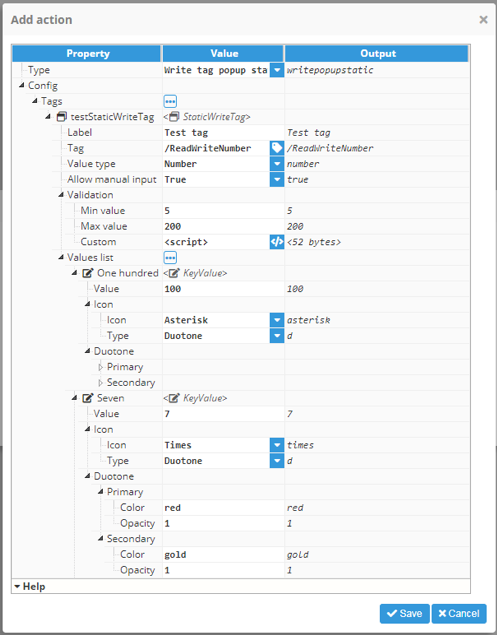
This action is similar to Write tag popup, with the main difference being that the tag properties are static and use action options instead of the Write tag popup, where they are read from the tag dynamically. This action allows multiple elements to be added, each representing a static tag definition with the following properties:
Setting | Description | |
|---|---|---|
Label | Text displayed in the Write popup instead of the tag path. | |
Tag | Tag path. | |
Value type | Permitted value type for writing to the tag. | |
Allow manual input | Allows users to enter a custom value instead of selecting only values from the predefined value list. | |
Validation | Available only when the value type is numeric. | |
Min value | Defines the minimum value that can be written. | |
Max value | Defines the maximum value that can be written. | |
Custom | Optional expression used to validate the input value before writing it to the tag. If the expression returns a message, the message is displayed as an error and the write operation is cancelled. | |
Additionally, a list of predefined values can be configured, which will be shown in the write popup as options in the new value dropdown.
Write popup static
This window opens when Write tag popup static event is triggered, and permits values to be written to tags with much more control over the values the operator can choose from. Each tag offers the following possibilities:
Setting | Description |
|---|---|
Label | Text used to describe the tag. |
Type | Type of value, such as Boolean, number, or string. |
New value | Input to write to the tag. This field can use a static list of values defined during action creation. Manual inputs can be disabled optionally, allowing only a value from the list of static values. |
Result | Displays the write operation result and the action validation result, including Custom validation and minimum or maximum value checks. |

Ack alarm
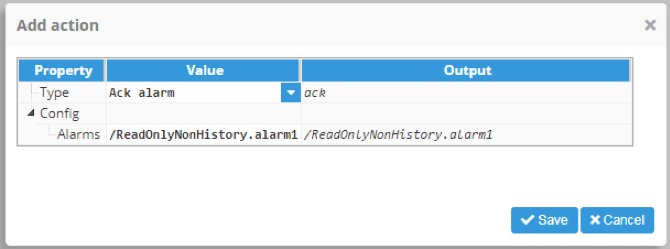
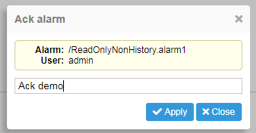
Ack alarm allows a comma separated alarms list to be added. When the event is triggered and the action executed, a popup will open showing info for the selected alarms and allowing them to be acked with a message.

Alarm Shelving
Shelve alarm
The Shelve alarm action temporarily shelves one or more alarms, preventing them from generating notifications or appearing as active alarms until they are manually unshelved or the shelving period expires, depending on the alarm configuration.

Property | Description |
|---|---|
Alarms | List of alarms to be shelved, separated by coma. Each entry must match the exact data model hierarchy path, using a dot (.) as separator between the full tag path and the alarm name. |
Shelve alarm popup
When the Shelve alarm action is executed, a dialog is displayed allowing the operator to configure the shelving period and provide an optional reason before applying the action.
|
|
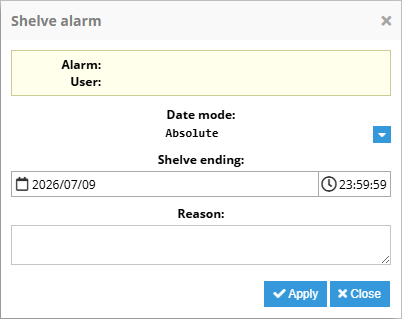
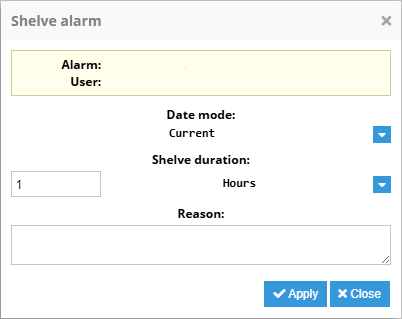
Property | Description | ||
|---|---|---|---|
Alarm | Displays the name of the alarm being shelved. | ||
User | Displays the user performing the shelving operation. | ||
Date mode | Specifies how the shelving expiration is defined. | ||
Absolute | Uses a fixed date and time when the alarm will be unshelved. | ||
Shelve ending | Defines the date and time when the alarm will automatically leave the shelved state. | ||
Current | Uses the amount of time the alarm will last shelved. | ||
Shelve duration | Defines the number and units of time of the shelve duration. | ||
Reason | Optional text describing the reason for shelving the alarm. This information can be used for auditing and operator traceability. | ||
Unshelve alarm
The Unshelve alarm action unshelves one or more alarms, that were previously shelved. If any specified alarm was not shelved when action is triggered, this action has no effects.

Property | Description |
|---|---|
Alarms | List of alarms to be unshelved, separated by coma. Each entry must match the exact data model hierarchy path, using a dot (.) as separator between the full tag path and the alarm name. |
Note:
Shelving alarms feature is available from N3uron version 1.22.4.
Datasets and Properties
Reload historical DataSet
Using this action, the selected historical dataset will reload its values independently of whether its needed or not. Multiple historical datasets are allowed by using a coma to separate each of the indicated dataset.
Set property
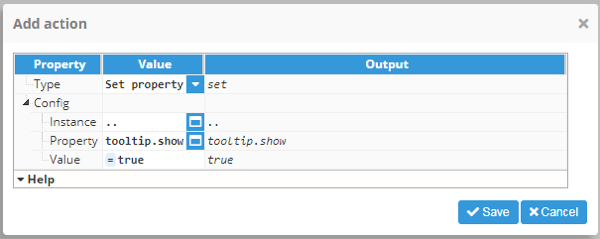
Allows a value to be set to the selected instance property. There are 3 properties:
Property | Description |
|---|---|
Instance | Target instance of property to be modified. |
Property | Property to set. |
Value | Value assigned to the selected property. |
Users and Session
User interface
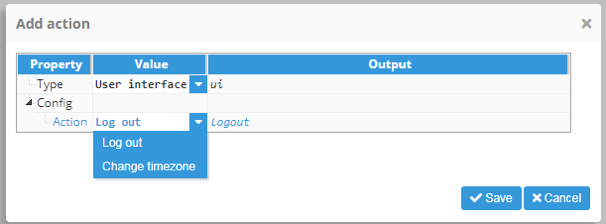
Allows user interface actions to be triggered: Logout and change time zone.
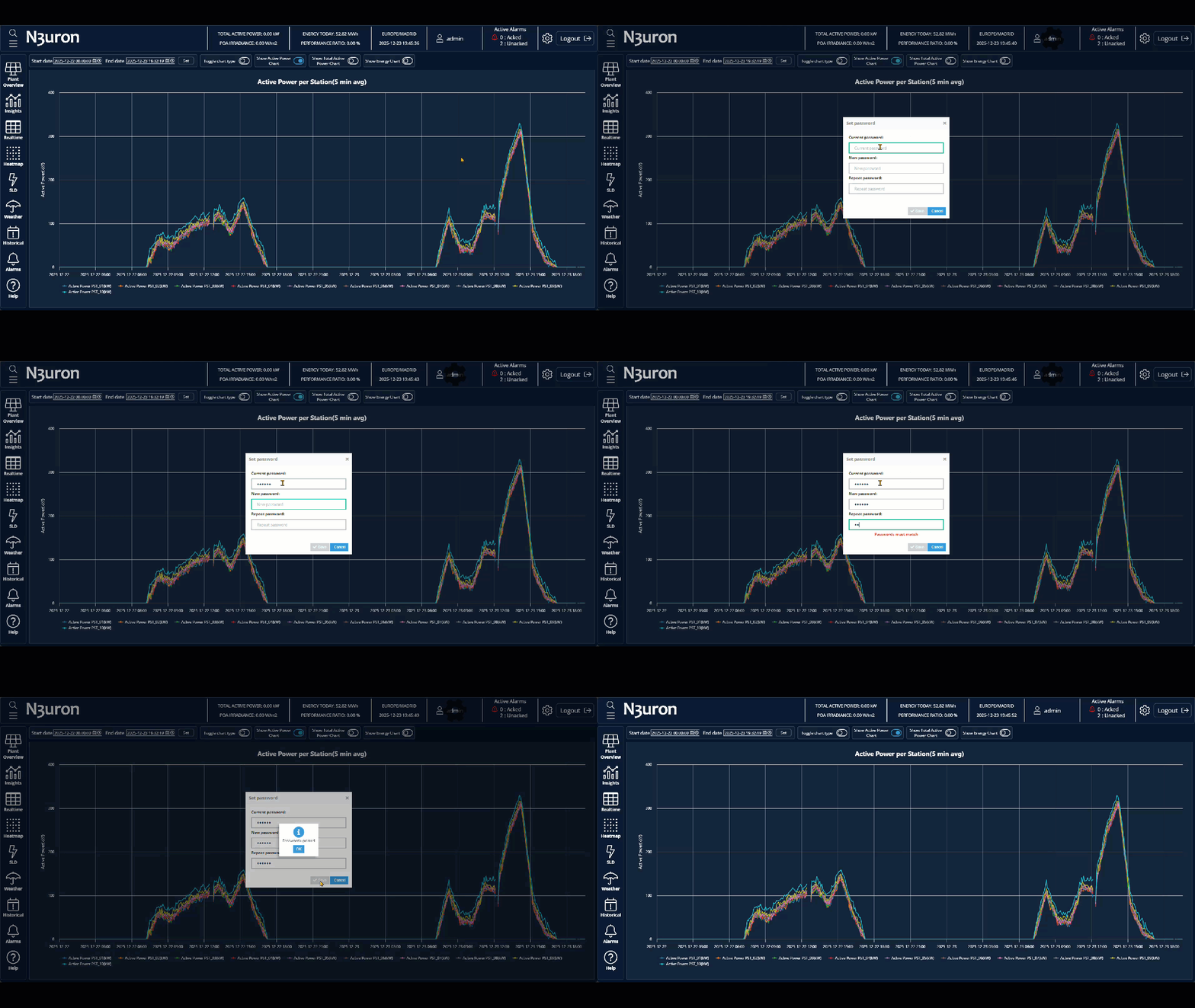
Change password
Shows a popup where the user can change its own login password.
Note:
This feature is available from N3uron version 1.22.0.
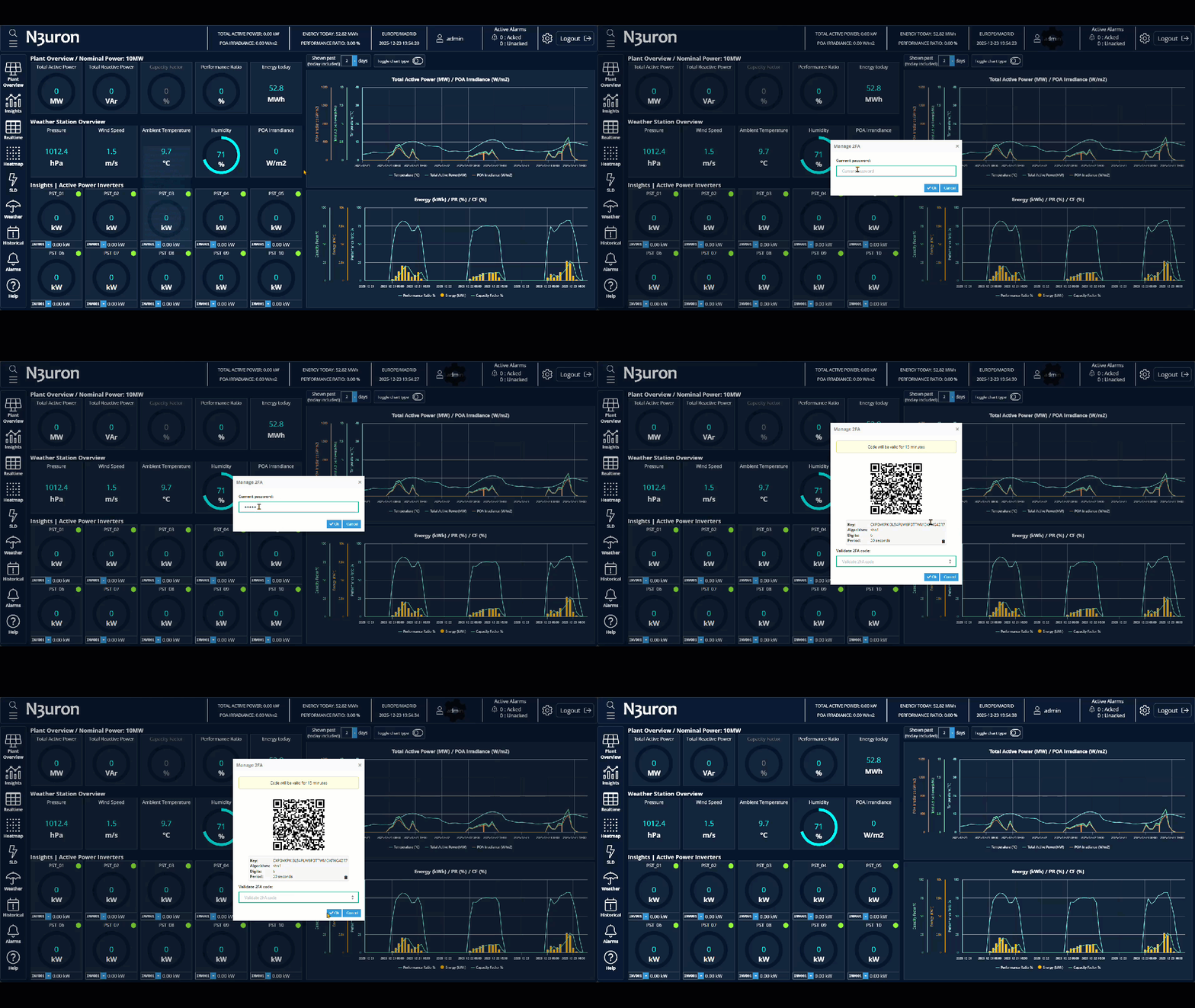
Manage 2FA
Shows a popup where the user can enable or disabled the 2FA.

Note:
This feature is available from N3uron version 1.22.0.
Action Flow
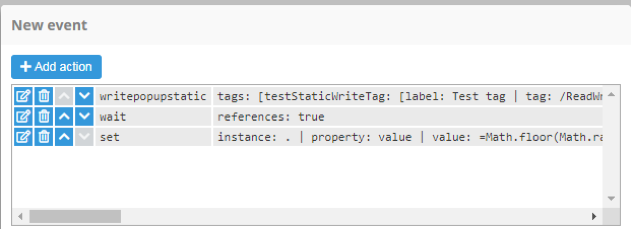
Wait for completion
Wait for completion forces all actions before it to be completed before continuing with the next action. It can be applied to any property, depending on the completion of actions. For example, the following image shows a wait for completion example that forces the writepopupstatic action to wait until the end before executing the specified action.
Wait for timeout
Wait for timeout forces a wait time of a predefined number of milliseconds before executing the next action.
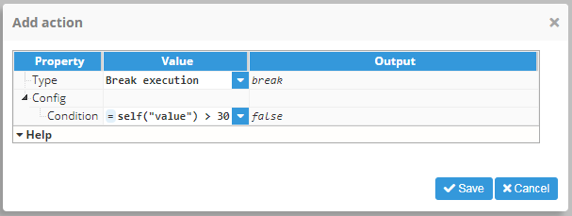
Break execution
Break execution allows the actions chain to be stopped for the selected event using a Boolean condition. This condition can be a simple true or false value but it can also be a reference to another property or expression.
Call Module Method
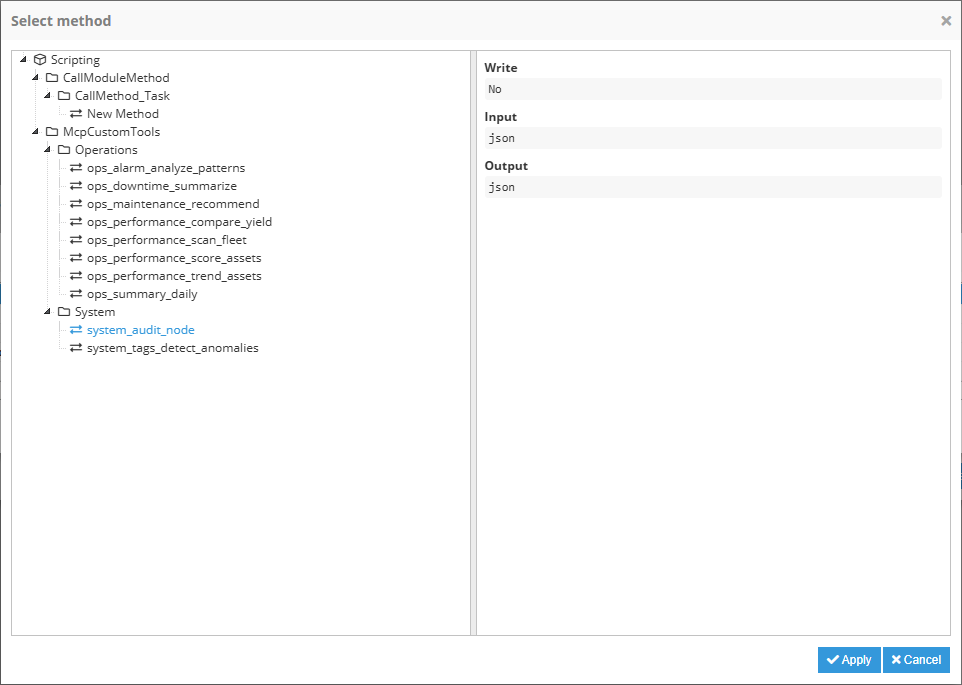
Call module method allows users to execute a Scripting method from Web Vision. This action is used when the use case of an interaction needs to delegate the execution logic, using a Scripting function for this purpose.

Property | Description |
|---|---|
Method | Specifies the name of the method to call within the target module instance. This value must exactly match the technical identifier defined in the server configuration. An input helper is available, showing all available methods for this purpose. |
Input | Optional input payload sent to the selected method. Use this field when the method requires parameters from the action execution. The input sent to Scripting method is the returning value of the expression configured on this property, the value assigned or null if left empty. The input type must match the configured on the module. |
Note:
Only Scripting method which task type is configured as 'Method' can be used on this Action type.
Note:
Call Module Method feature is available from N3uron version 1.22.4.
Navigation and Files
Open URL
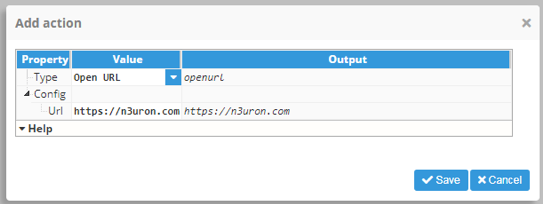
Open URL allows an URL to be added that will be opened as a new tab when the action is executed.
Set URL parameters
Updates URL parameters of the current session, forcing any urlParam(“parameter_name“) invocation to be recalculated.
Property | Description | |
|---|---|---|
Mode | Overwrite | Deletes all current parameters and replaces them with the ones defined in the action. |
Merge | Keeps the existing parameters updates the values where parameter names matches and adds the new parameters. | |
Params | List of parameters to be updated on URL parameters | |
Parameter | Name of the parameter to be added or updated. | |
Value | Value to be assigned to the parameter. | |

Open File
Open File opens a file in the /config/<Web Vision instance name>/docs/ folder. You must create the folder manually if doesn't exist. Example; manual.pdf.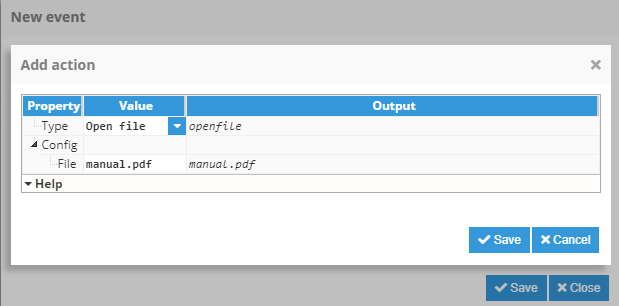
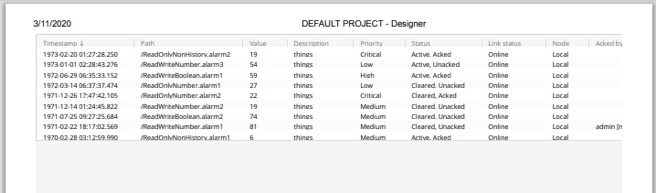
Print allows preview windows to be opened or a navigator to be built in print preview dialogs to show and print selected instances. Overflow (the content area inside the element that overflows the element size. For example, rows hidden in a table and only reachable using scroll) will be shown when printing.


Open historical
Open historical opens a popup for visualizing historical data. This popup allows different tags to be selected and their data with different parameters to be shown. Action configuration properties can be preselected when opening the popup and changed by the end-user in runtime. The following properties can be configured with default values:
Property | Description | |||
|---|---|---|---|---|
Tags | Comma-separated list of tags to be displayed. | |||
Path | Path to point to as root. | |||
Filter | Filters the available tags displayed by the selector. Note: This feature is available from N3uron version 1.21.5. | |||
Paths | Filters the tags that appear when a group is selected. | |||
Tags | Filters historical tags from the tag list. | |||
Autoreload | Manages automatic historical data refresh. | |||
Enabled | Enables or disables automatic reload. | |||
Interval | Reload interval in seconds. | |||
View | Defines the default view opened by the widget. | |||
View | Config or Content. | |||
Tabs | Only available for the Content view. Select Chart or Report. | |||
Legend | Shows the list of columns available on the popup and allows to sort and hide the columns as required. | |||
Config | Configuration parameters available in the Config view. | |||
Date mode | Defines how the displayed time range is specified. | |||
Relative | Selects dates relative to the current date. | |||
Offset | Offset relative to the current moment. | |||
Time | Absolute time offset applied to the relative offset. | |||
Absolute | Selects explicit start and end dates. | |||
Start | Absolute start date. | |||
End | Absolute end date. | |||
Current | Selects between a selected negative offset and the current moment. | |||
Current offset | Negative offset from the current date. | |||
Current units | Offset units (seconds, minutes, or hours). | |||
Mode | Description | |||
|---|---|---|---|---|
Aggregated | Allows users to aggregate data using different methods. | |||
Aggregation method | Tag configuration | Uses the aggregation method configured in the tag. | ||
Average | Returns the weighted time average during the aggregation period. | |||
Minimum | Returns the minimum value during the aggregation period. | |||
Maximum | Returns the maximum value during the aggregation period. | |||
First | Returns the first value in the aggregation period. | |||
Last | Returns the last value in the aggregation period. | |||
Delta | Returns the difference between the first and last sample during the aggregation period. | |||
Standard deviation | Returns the standard deviation of the values during the aggregation period. | |||
| ||||
Aggregation interval | Interval for the aggregated data. | |||
Value | Interval value | |||
Units | Value units | |||
Raw | Displays data exactly as it is stored in the historical database. | |||
Delta | Returns values only when the change exceeds the configured deadband. All values after the change are included. | |||
Deadband | Defines the minimum value change required. | |||
Filter | Returns values only when the change exceeds the configured deadband. Both the value before and after the change are included. | |||
Deadband | Defines the minimum value change required. | |||
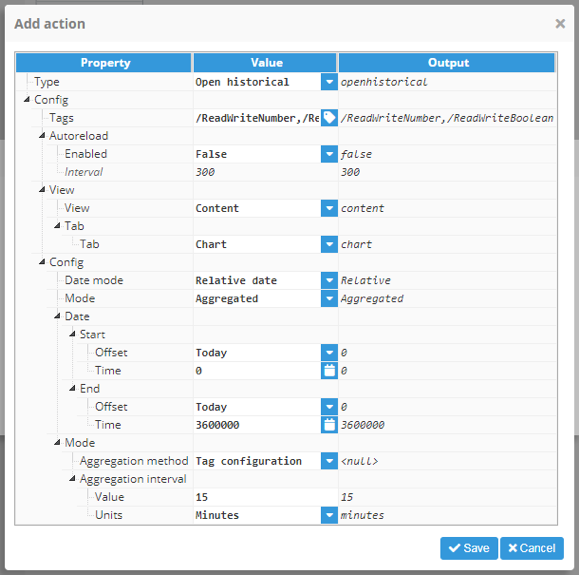
Historical popup
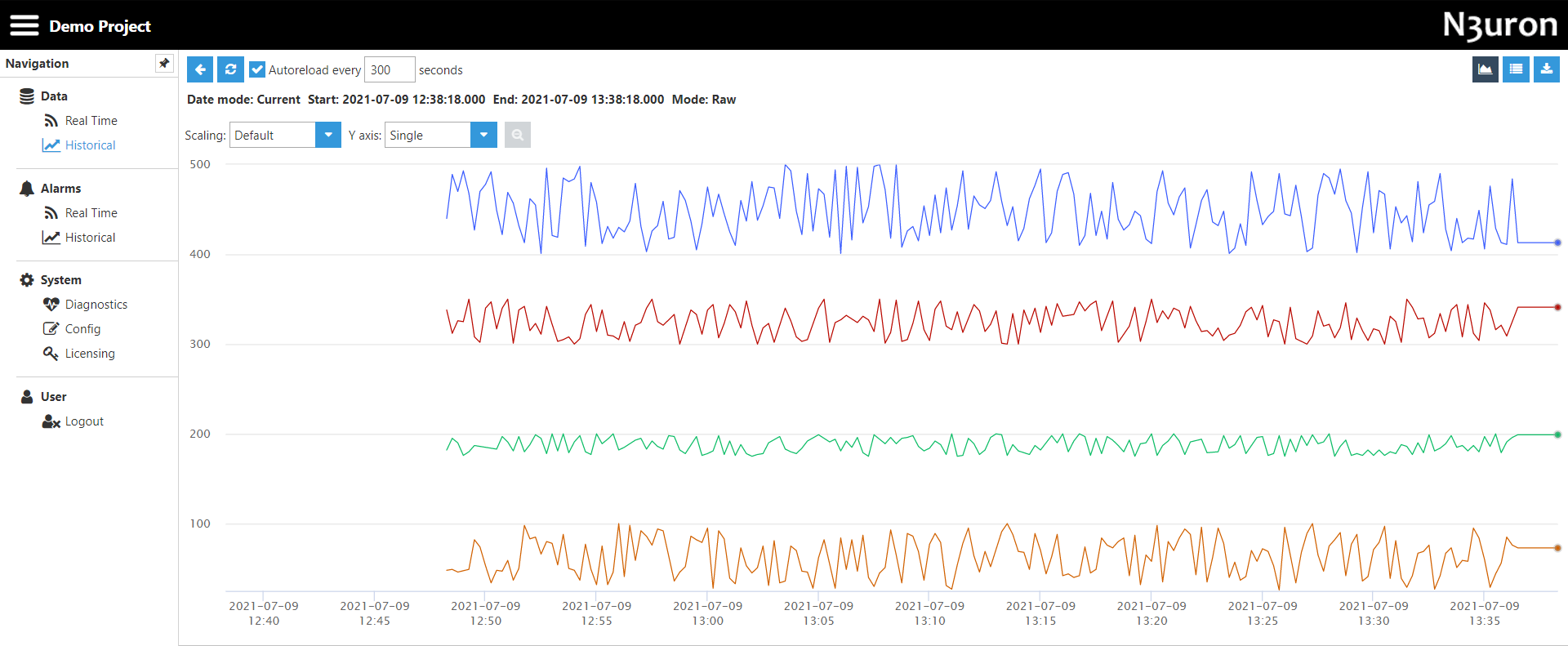
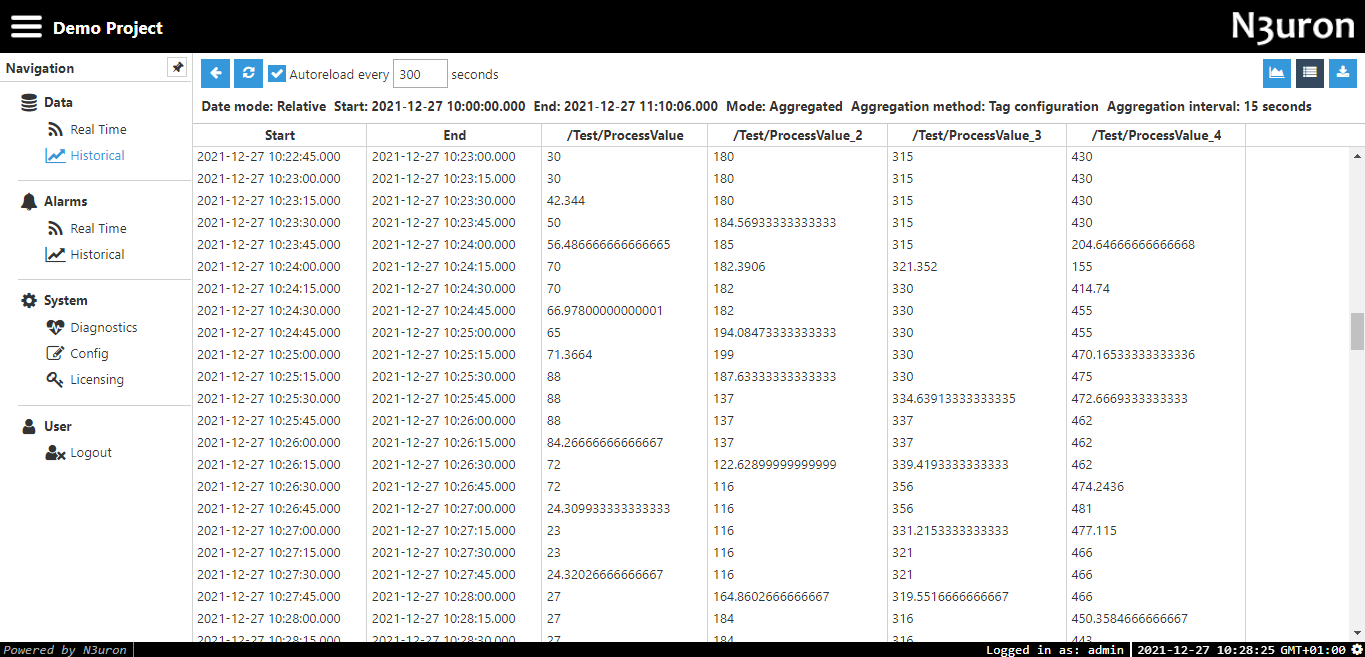
Historical popup allows users to configure the historical data displayed and view it either as a graph or a data table. The following popup viewing options are available:
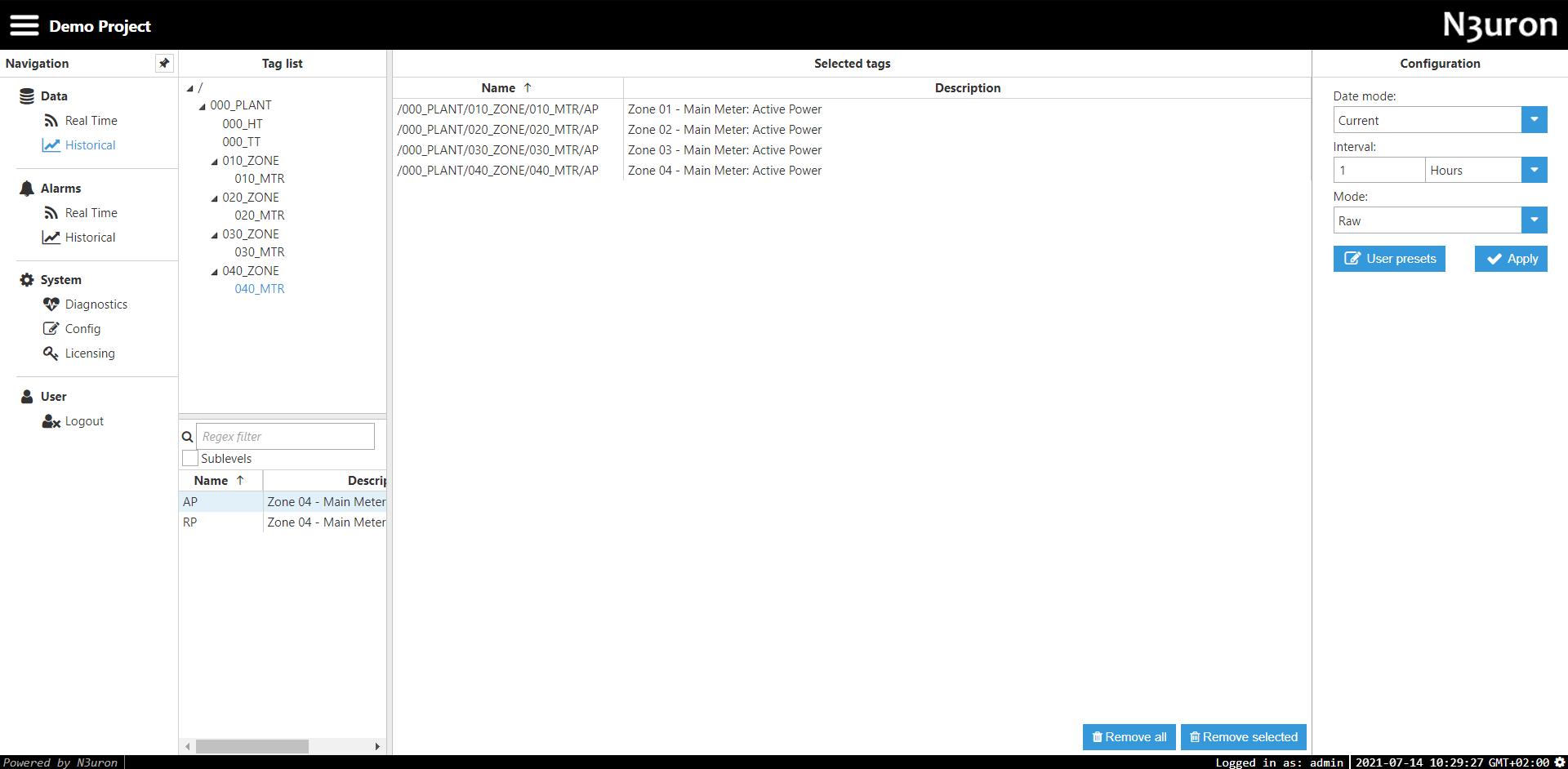
Property | Description | |
|---|---|---|
Config | This view enables users to configure the data visualization. It’s similar to setting the config in action configuration but offers a less compressed layout. | |
General |
| |
| ||
| ||
| ||
| ||
Data visualization | Can be one of two types: a graph or a table with date/value representation. | |
Load report PDF
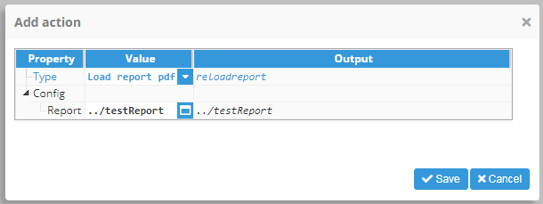
The Load report pdf action allows reports in PDF to be loaded from the backend. It has the same functionality as the load button inside the Report pdf viewer.
The Report property must point an accessible, initialized report object. Any other object is admitted as an input but will result on an error when calling the action.
Download report PDF
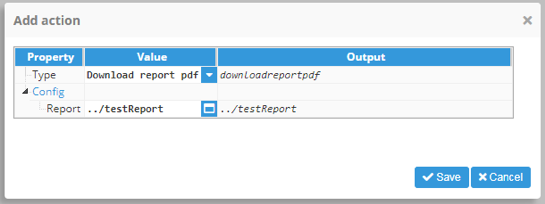
The Download report pdf action allows users to download a PDF report from the backend. It does exactly the same as the download button inside the Report pdf viewer. If the report hasn’t been loaded prior to the event, it will be loaded before downloading.
The Report property must point an accessible, initialized report object. Any other object is admitted as an input but will result on an error when calling the action.
Download table CSV
The Download table csv action allows users to download selected table data in CSV format.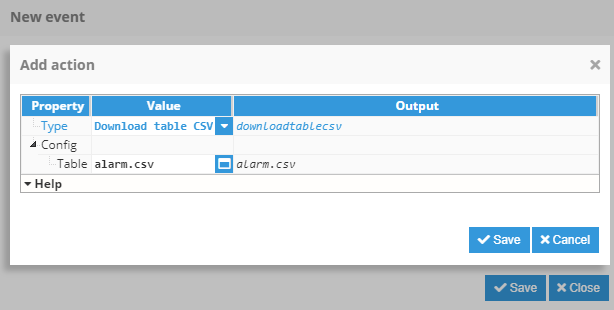
Open instance
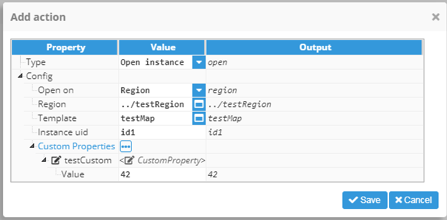
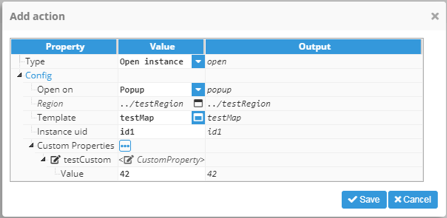
Open instance allows users to select a template and create an instance for it, which can then be opened inside a region or as a new popup window. There are two different possible behaviors, depending on the Open target (Region or popup):
Setting | Description |
|---|---|
Region | Target instance of property to be modified. |
Popup | Property to set. |
This action offers the following configuration properties:
Setting | Description |
|---|---|
Open on | Instance open target. Region or Popup |
Region | Region for inserting the instance. Disabled if “Open on” is a popup |
Template | Template to instantiate |
Instance UID | Unique identifier for the instance. Unless left null, when executing an action for the first time the UID will be added to Region or opened in a new popup. For all executions thereafter, the same instance will be refused and instead, only existing custom properties will be applied. |
Custom properties | Instance elements list. If named the same as any of the custom properties inside the selected template, the value inside the value property field will be set as the instance custom property value. |