Note:
Before starting the configuration, a new module instance must be created. Click here for more information about creating Module instances.
Upon selecting the MQTT Client instance, the following window will be shown:
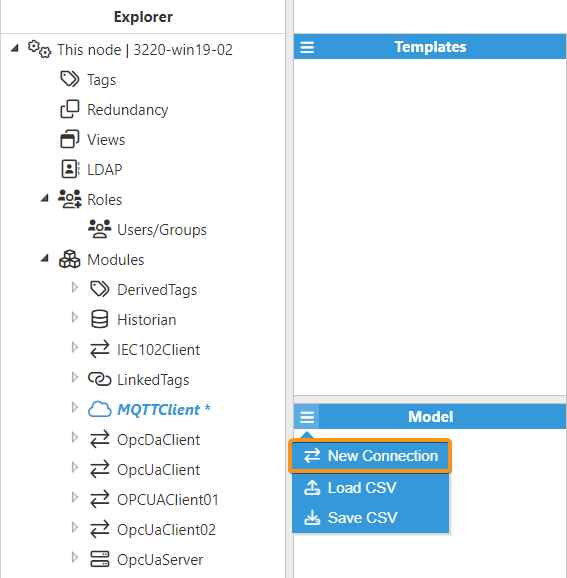
The MQTT Client module allows for unlimited connections to any number of brokers. As shown in the above screenshot, MQTT Client is configured by creating a list of named connections, where each Connection represents an MQTT connection to a specific MQTT broker. Many of the configuration options are MQTT terms and although they are briefly explained here, a more in-depth explanation can be found at OASIS organization (MQTT 3.X) or OASIS organization (MQTT 5).
Connection
A Connection object represents an MQTT connection to a specific broker. Each connection object has the following settings:

Setting | Description |
|---|---|
Enable MQTT connection | Enable or disable the MQTT connection. When disabled it will not connect to the MQTT Server. |
Version | Defines the MQTT version:
|
Destination broker | This setting is used to select which broker to target. Valid options are Microsoft Azure IoT Hub, Amazon Web Services IoT Core, Google IoT Core compatible, and Custom. Depending on which broker is selected, some options will be locked to a certain value required for that broker. When set to Custom, all options will be available. |
Client ID | This field defines the client ID for this connection. Each connection must have a unique ID, as the broker will drop any connections with duplicate client IDs. |
Pressing the refresh button generates a random Client ID.

Authentication: Refers to how the MQTT client will authenticate with the broker.
Setting | Description |
|---|---|
Authentication mode | Select one of several authentication modes: None, Password, Certificate, Password – Certificate, and JSON Web Tokens (JWT). |
Username | This field is used to specify the username used to authenticate with the broker. |
Password | This field is used to specify the password used to authenticate with the broker. |
Certificate type | Determines how certificates will be provided, either as Embedded or via File path.
|
Certificate Path | Selects the certificate used for authentication with the broker. For the Embedded certificate type, select the certificate file to embed it directly into N3uron. For the File Path type, provide the path to the certificate file, either as an absolute path or relative to data/<instance name>/cert/ folder. |
Private Key Path | Selects the private key used for authentication with the broker. For the Embedded certificate type, select the private key file to embed it directly into N3uron. For the File Path type, provide the path to the private key file, either as an absolute path or relative to data/<instance name>/cert/ folder. |
CA Certificate Path | Selects the root CA certificate used for authentication with the broker. For the Embedded certificate type, select the CA certificate file to embed it directly into N3uron. For the File Path type, provide the path to the certificate file, either as an absolute path or relative to data/<instance name>/cert/ folder. |
Reject unauthorized | If the value is set to True, the server must provide a certificate signed by a valid CA, which will be used to establish the connection. Set it to False for self-signed certificates. |
Jwt options:
Setting | Description |
|---|---|
Token duration | This field defines the period during which a token remains valid before requiring a refresh. Note that some brokers may impose a maximum limit on this duration, which is displayed in milliseconds. |
Header | |
Algorithm | It selects the algorithm used to generate the JWT. Valid options are RS256, RS384, RS512, HS256, HS384, HS512, ES256, ES384 and ES512. |
Secret | This field is used to specify a secret used to sign the JWT. Only used when the algorithm is HS256, HS384, or HS512. |
Private key | It selects a private key used to sign the JWT. Used when the algorithm is either RSXXX or ESXXX. |
Body | |
Issuer | Sets the JWT issuer claim. |
Subject | Sets the JWT subject claim. |
Audience | Sets the JWT audience claim. |
Not before | Sets the not before JWT claim. |
JWT ID | Sets the JWT ID claim. |
Additional claims | This list is only used if the broker requires additional claims in the body of the JWT. |
Connection options:
Setting | Description |
|---|---|
Protocol | It can choose between using plain MQTT or secure MQTTS. |
Broker URL | This field is used to specify the hostname or IP address of the target broker. |
Port | It selects which port to use for connecting to the broker. Default ports are 1883 for MQTT and 8883 for MQTTS. |
Clean session | Sets the clean session flag of the MQTT connection:
|
Reconnect period | This field is used to specify the period between connection attempts when a connection drops, displayed in milliseconds. |
Keep-alive interval | This field is used to specify the interval at which the client sends keep-alive packets to the broker, displayed in seconds. |
Interval between messages | This field is used to specify the time to wait between two successive messages while the buffer is emptying. Some brokers like Azure can only handle a limited number of published messages per second. Set to 0 to disable and send the next message immediately. |
Properties: This section is only available for MQTT 5.
Setting | Description |
|---|---|
Session expiry interval | This field specifies the time interval in seconds for session expiry between connections. It determines how long the broker stores session information. |
User properties | In MQTT 5, user properties are basic UTF-8 string key-value pairs that you can append to virtually any sort of MQTT packet. As long as you don’t exceed the maximum message size, you'll use a limitless variety of user properties to feature information to MQTT messages and pass info between publisher, broker, and subscriber. It's possible to add as many properties as necessary. |


Last will and testament: Sets a last will and testament for this connection, which will be sent by the broker when the connection falls unexpectedly (for example, in network failures).
Setting | Description |
|---|---|
Enable | Enables the last will and testament. |
Topic | This field specifies the topic to which the last will and testament will be sent. |
Payload | This field specifies the payload for the last will and testament. |
Quality of service | Sets the quality of service level for the last will and testament. Valid values are 0, 1, or 2. |
Retain flag | Enables the retain flag for the last will. |
Properties: This section is only available for MQTT 5.
Setting | Description |
|---|---|
Will Delay Interval | This field specifies the time delay when sending will messages, displayed in seconds. This parameter delays the sending of the will message during a brief connection interruption. Its default value is 0. |
Message expiry interval | Specifies the message expiry interval, displayed in seconds. The default value is 0. This interval defines the maximum period that the broker can store the PUBLISH message for any matching subscribers that are not currently connected. When no message expiry interval is set, the broker must store the message for matching subscribers indefinitely. When the retain=true option is set on the PUBLISH message, this interval also defines how long a message is retained on a topic. |
User Properties | In MQTT 5, user properties are basic UTF-8 string key-value pairs that you can append to virtually every sort of MQTT packet. As long as you don’t exceed the maximum message size, you'll use a limitless variety of user properties to feature information to MQTT messages and pass info between publisher, broker, and subscriber. It's possible to add as many properties as necessary. |

Setting | Description |
|---|---|
Agents | This is a list of all agents using this connection. Agents can be a Publisher or a Subscriber. |
Publisher
Important:
Before configuring the MQTT Publisher, review the limits of the target broker, especially the maximum payload size accepted per message.
The Events per message setting determines how many events are included in each Store & Forward message after a disconnection to the broker. Higher values can generate larger payloads. If the payload exceeds the broker’s maximum allowed message size, the broker will reject the Store & Forward message and the data will not be delivered.
Under normal operating conditions, when the connection to the broker is healthy, the maximum payload size may not be reached because the Maximum publishing interval may be reached before the configured Maximum Events per message setting is reached. However, during a disconnection, Store & Forward messages are created and stored according to the configured Maximum Events per message setting. Therefore, make sure the configured Maximum Events per message setting does not generate messages larger than the broker’s maximum payload size per message.
For large payloads, enabling GZip compression is recommended to reduce the message size before publishing.
A publisher is an object responsible for sending data to the MQTT broker. A connection can have multiple publishers, each associated with a single topic.
Publisher MQTT 3.X
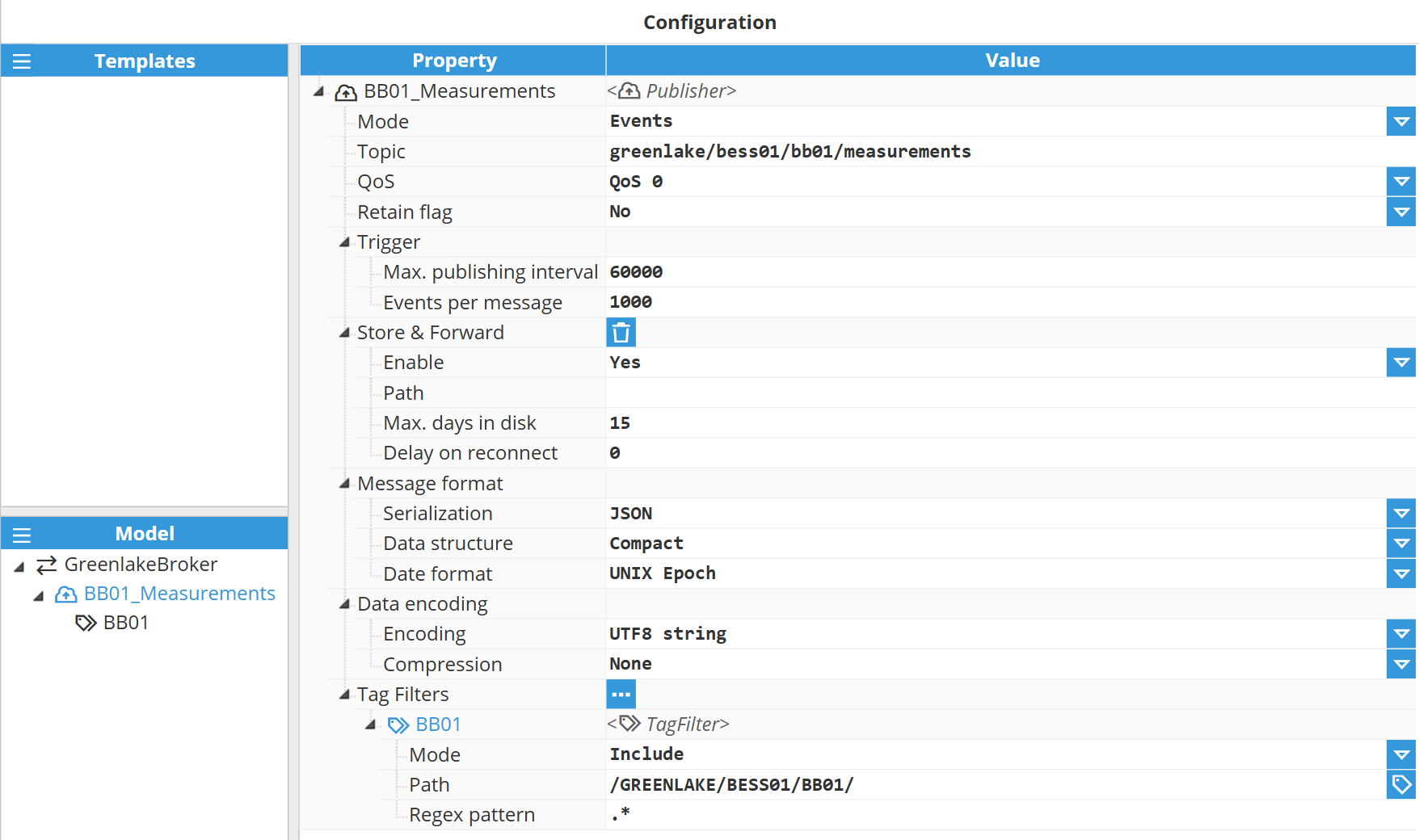
The below screenshot shows an example of the Publisher configuration settings.
Setting | Description |
|---|---|
Mode | This field specifies the publisher's operating mode. Available options are:
|
Type | This section is only available for Snapshot mode. Available options are:
Snapshots are built one at a time. When Tag condition or Tag change triggers fire while a snapshot is still being built, they are merged into a single snapshot with the latest values. |
Max. Publishing interval | Sets the interval between each data push to the MQTT broker or the disk if the connection is offline and Store & Forward is enabled. This value is displayed in milliseconds. The default value is 60000ms. The valid range is 1000ms to 3600000ms. |
Note:
Using small values of Max. Publishing interval with Store & Forward enabled, may generate many files while the connection is offline.
Setting | Description |
|---|---|
Max. events per message | This field is only available for Snapshot mode. Specifies the maximum number of events to send or save in a single message. If this number is too high, some brokers might drop the message due to size limits. The minimum value is 10 events. The default value is 1,000. |
Override timestamps | This field is only available for Snapshot mode. If enabled, the timestamp will be updated to the current time as the data is sent. |
Events per message | This field is only available for Events mode. This field specifies the number of events in a message. When this number of events is reached, a new message is generated and published. If the events per message are not reached within Max. Publishing interval, a message will be sent with the reached events. |
Topic | Specifies the MQTT topic the messages are published to. It cannot contain the wildcards + or #, which are only valid in a subscription: a publisher with them is not loaded, and the reason is logged. |
QoS | Specifies the QoS of the published message. Valid values are 0, 1, or 2.
|
Retain flag | Enables the retain flag on the published message. If True, the message will be retained by the broker and sent to all new clients who subscribe to that topic. Some brokers like AWS or Microsoft Azure don't support this feature. |
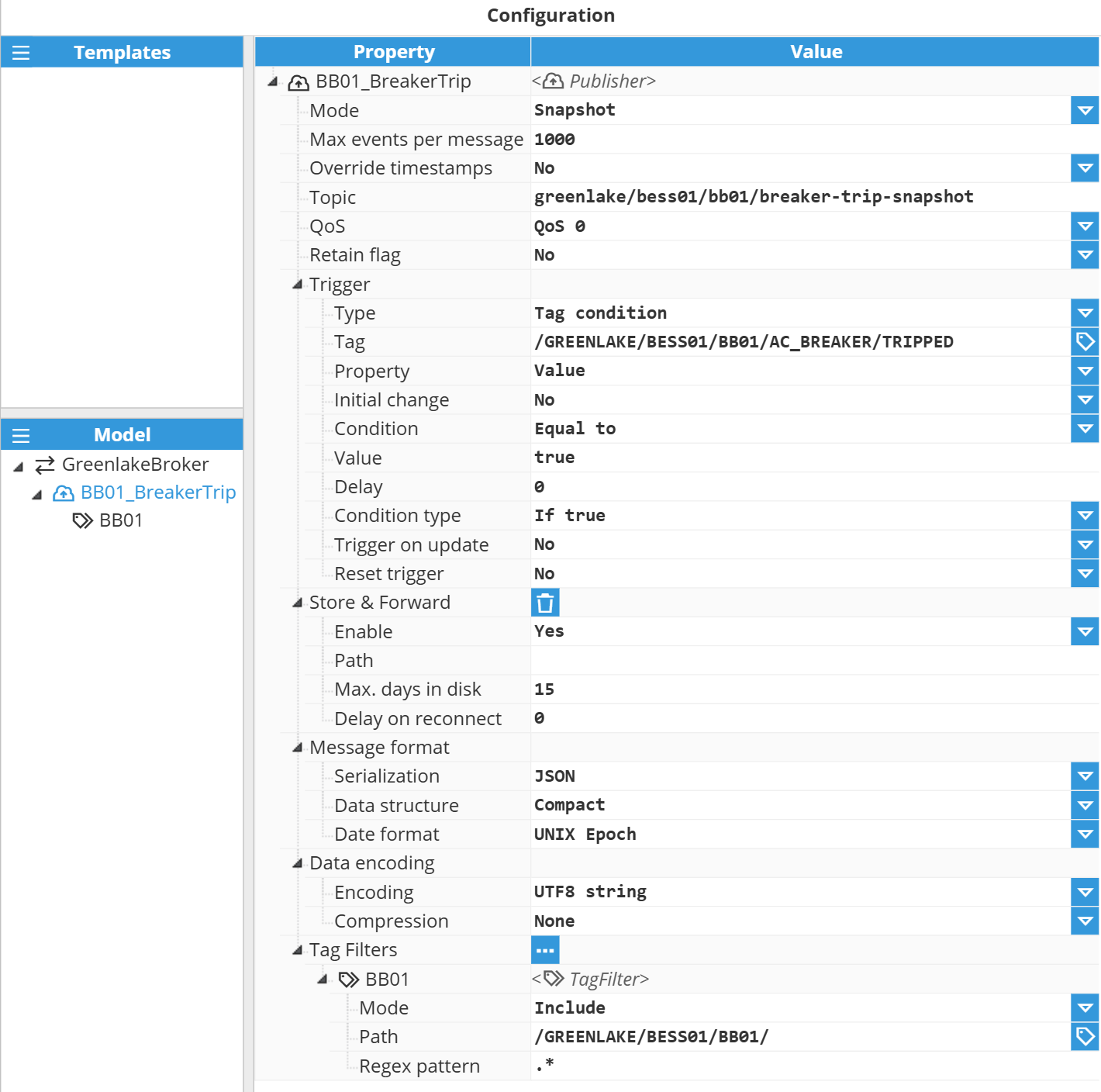
Tag condition: These settings show only when Mode is Snapshot and Type is Tag condition.
The screenshot that follows shows a publisher in Snapshot mode with a Tag condition trigger.
Setting | Description |
|---|---|
Tag | Specifies the tag whose value is evaluated to trigger the publisher. |
Property | Defines which tag property is used in the condition. Available options are Value, Quality and Timestamp. The default value is Value. |
Initial change | Determines whether the initial tag value, received after startup or reconnection, is evaluated as a valid trigger. This is useful to trigger on changes such as <null> to true after a reboot. The default value is No. With No, the initial value does not trigger a publication. It is the starting point of the condition: if the condition is already true at start, the trigger activates only after a later change makes it true again, or on each update when Trigger on update is Yes. When Condition type is While true or While false, the publisher publishes every Period from the start. |
Condition | Defines the logical comparison used to evaluate the tag value. Available options are Equal to, Not equal to, Greater than, Greater than or equal, Less than, Less than or equal, Is null and Not null. The default value is Equal to. For strings, alphabetical comparison is used. For example, aa > ab is false and ba > aa is true. |
Value | The reference value that the tag value is compared with. Accepts numbers, strings or booleans (true/false). The default value is 0. |
Delay | The time, in milliseconds, that the condition must remain true before the trigger activates. The default value is 0. |
Condition type | Defines how the condition is monitored. Available options are:
The default value is If true. |
Trigger on update | Applies only when Condition type is If true or If false. With Yes, the trigger activates on every tag update that satisfies the condition. With No, the trigger activates only once, when the condition first becomes true or false. The default value is No. |
Reset trigger | With Yes, the tag is written with the Reset value after the trigger has been executed. The default value is No. |
Reset value | Only available when Reset trigger is Yes. The value that is written to the tag after the trigger has been activated. |
Period | Only available when Condition type is While true or While false. The interval, in milliseconds, between repeated trigger executions. The default value is 30000 ms. The minimum value is 1000 ms. |
Tag change: These settings show only when Mode is Snapshot and Type is Tag change.
Setting | Description |
|---|---|
Scope | Selects the tag source of the trigger. Available options are:
The default value is Single tag. |
Tag | Only available when Scope is Single tag. Selects the tag that triggers the publication. |
Group | Only available when Scope is Tag group. Selects a tag group. The trigger activates when any tag under this group changes. The default value is /. |
Tag filters | Only available when Scope is Multiple tags (Filter). Adds the tag filters that select the tags. Each filter has the settings Mode (Include or Exclude), Path and Regex pattern. |
Property | The tag property that is evaluated for changes. Available options are:
The default value is Value. |
Initial change | Specifies whether the trigger activates on the initial subscription. The default value is No. |
Store & Forward: These settings are used to configure the Store & Forward (S&F) mechanism, which is used to save packets to disk if they are unable to be sent (for example, due to connection loss). This ensures that no data is lost.
Setting | Description |
|---|---|
Enable | Enables or disables the S&F mechanism. |
Path | Sets the folder where the S&F files are saved. Each publisher keeps its files in its own subfolder, ConnectionName/PublisherName/, so several publishers can share the same path. If left blank, the folder is <program_root>/data/MqttClientInstance/sf/, and the files of a publisher are in <program_root>/data/MqttClientInstance/sf/ConnectionName/PublisherName/. The path can be relative to the <program_root>/data/MqttClientInstance/ folder, or an absolute path.
|
Max days in disk | Selects the maximum number of days to be stored in the disk. If exceeded, older packets will be deleted to make room. |


Message format: These options control the format of the payload being sent to the MQTT broker.
Setting | Description |
|---|---|
Serialization | Selects the type of data serialization used. This can be JSON, Protocol Buffers, InfluxDB or Custom. |
Script | Available when Serialization is set to Custom. Determines the JavaScript script used to generate the outgoing MQTT payload. |
Include tag metadata | Available when Serialization is set to Custom. With Yes, each event in $.input includes a metadata property with the current configuration of the tag (engineering units, format, description, number type, scaling, etc.), so the script can use it to build the message. The metadata shows the tag configuration at the moment the message is built. Keep No if the script does not need the tag metadata. The default value is No. For details about the script input and output objects, see Custom Payload. |
Data structure | Determines how the data is organized before serialization. Valid options are Compact or Extended. More information can be found in the appendix. |
Date format | Determines how the timestamp of each event is formatted. Valid options are ISO (formatted according to ISO 8601), UNIX Epoch with milliseconds, or if the serialization is Protocol Buffer, Google Timestamp. |
Compression | Selects the payload compression (if desired). This can be set to None, Deflate, or GZip. |
Compression level | If compression is enabled, this option determines the compression level. Valid values are Best speed, Default, and Best compression. |
Encoding | Determines the encoding used when sending the payload to the broker. Valid encodings are UTF-8, Binary, Base64, and Hexadecimal. Some brokers don't accept binary encodings (such as those created from Protocol Buffers or where compression is involved) and as such, Base64 should be used to encode binary data into valid string characters. |
Tag filters: Defines and configures the filter for tags to be included in the message.
Note:
It is mandatory to add a filter even when the whole model is going to be published.
Setting | Description |
|---|---|
Mode | Selects whether the filter must include or exclude tags. |
Path | Specifies the path of the tag or group of tags to be filtered. |
Regex Pattern | This is a regular expression used to filter the tags that will be included. By default, it is set to .*, which means that no filter is applied. Readers can find further information about regular expressions at RegExr. |
Note:
Include filters are applied first and exclude filters are applied to the result of the include filters.
Publisher MQTT 5
The below screenshot shows an example of the Publisher configuration settings.

The configuration is the same as for MQTT 3.X, except that the following field is added.
Properties:
Setting | Description |
|---|---|
Message expiry interval | This field indicates the message expiry interval, expressed in seconds. When the Retain flag is enabled (set to true), this interval additionally determines the duration for which a message remains retained on a topic. |
User Properties | In MQTT 5, user properties consist of key-value pairs represented as basic UTF-8 strings. These properties can be added to any MQTT packet, allowing for a diverse range of information to be included in MQTT messages and facilitating the exchange of data between publishers, brokers, and subscribers. There's virtually no limit to the number of properties that can be added, as long as the maximum message size is not exceeded. |

Subscriber
A subscriber is an object used to receive data from MQTT-enabled devices and save this data to tags. A Subscriber acts as a data provider for a tag and as such, must provide a value, a quality, and a timestamp for each event.
Subscriber MQTT 3.X
The following screenshot shows the configuration settings for a Subscriber:

Setting | Description |
|---|---|
Topic | Selects the topic that will provide data for this Subscriber. Any valid MQTT topic is permitted, including wildcards. |
QoS | Selects the Quality of Service level for the subscription to the broker. Valid values are 0, 1, or 2. |
Keep-alive: These options are used to enable a keep-alive mechanism to check whether the device is still sending data, or if the device has stopped sending data due to a possible device error.
Setting | Description |
|---|---|
Enable | Enables or disables the keep-alive mechanism. |
Timeout | Determines the maximum delay between messages before the subscriber considers that the endpoint is experiencing a failure and has stopped sending data. If this delay is surpassed without any new messages, the quality of all tags associated with this subscriber will automatically be set to 64 (UNCERTAIN – LAST USABLE VALUE). If the subscriber receives a new message, the timer will be reset. |
Message format: Determines how the incoming message will be parsed.
Setting | Description |
|---|---|
Encoding | Determines the encoding of the incoming message. Valid values are Binary, UTF-8, Base64, and Hexadecimal. |
Compression | Selects which algorithm to use to decompress the message. Valid values are None, GZip, and Inflate. |
Serialization | Determines the serialization format of the incoming message. Valid values are None, JSON, and Protocol Buffers. If None is selected, the message will be passed to the Data parser as a binary buffer. Alternatively, it will be converted into a JS object, either by using JSON.parse or by de-serializing the Protocol Buffers message. |
Serialization options (This section is only available for Protocol Buffers deserialization):
Setting | Description |
|---|---|
Proto file type | Selects the protobuf file used to deserialize the message. This can be the Embedded-Compact, Embedded-Extended or Custom file. |
Custom file | Selects the custom protobuf file when the file type is set to custom. |
Message type | Selects the target message type when deserializing using Protocol Buffers. If an incoming message cannot be deserialized to the specified type, an error will be raised and the message will be ignored. |
Data parser: After a message is deserialized, the resulting object from the deserialization is forwarded to the data parser, which is used to extract tag data from the input object.
Setting | Description |
|---|---|
Type | Determines the type of data parser used. Valid options are MqttClient JSON, MqttClient Protobuf (both of which are compatible with any MqttClient Publisher sending either JSON or protobuf), or custom, whereby a user defined script will be used to extract the tag data from the message. |
Parser options: When the data parser is set to custom, these additional options must be configured for the data parser to work correctly.
Setting | Description |
|---|---|
Script | Determines the script used to extract the tag data from the input object (or binary buffer, if no deserialization is applied). This must be valid JavaScript code that will consume the input and produce an array of tag data objects. More information about the utilities available to scripts can be found here. Or, see here for subscriber-specific features. |
Subscriber MQTT 5.0
The following screenshot shows the configuration settings for a Subscriber:

The configuration is the same as for MQTT 3.X except that the following field is added:
Retain Handling: Specifies whether retained messages are sent when the subscription is established. This doesn't affect the sending of retained messages at any point after the subscription. This setting only applies whenever there are retained messages matching the Topic Filter.
Setting | Description |
|---|---|
At subscription time | Send retained messages at the time of the subscription. |
If a subscription is new | Send retained messages at subscribe only if the subscription does not currently exist. |
Never | Don't send retained messages at the time of the subscription. |
Properties:
Setting | Description |
|---|---|
User Properties | In MQTT 5, user properties are basic UTF-8 string key-value pairs that you can append to virtually any sort of MQTT packet. As long as you don’t exceed the maximum message size, you'll use a limitless variety of user properties to feature information to MQTT messages and pass info between publisher, broker, and subscriber. It's possible to add as many properties as necessary. |

Tag Configuration
When using MQTT Client as a tag provider via one or more Subscribers, tags must be configured separately from the module. The below screenshot shows the MQTT Client tag configuration settings:

Setting | Description |
|---|---|
Subscriber | Selects the subscriber that will provide data to this tag. The format for this input is Connection/Subscriber. If either the connection or subscriber is incorrect, an error will be raised and the tag will not receive any updates. |
Tag address | Determines an alias for this tag so that it can be referenced using this alias rather than having to use the full path. If provided, the tag can only be referenced using this alias. Alternatively, where an alias is not provided, the tag must be referenced using its full path. |
Note:
For more information about using Alias, take a look at Parsing examples.