Note:
Before starting configuration, a new module instance must first be created. Click here for more information about creating Module instances.
Tasks
A task is a collection of different actions, each with its own trigger, which can execute one or several scripts. While the scripts in each task are independent, they can share data within the same task by using $.taskLocal and between tasks by using $.global:
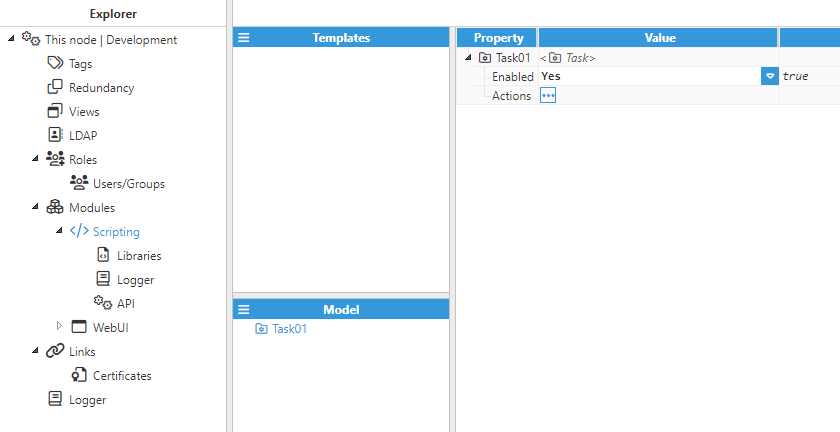
Each task can be individually enabled or disabled by configuring the Enabled option. If the task is disabled, none of the actions in the task will be triggered and the scripts will not be executed. Each task can have an unlimited number of actions.
Actions
An action is an object that can have several scripts, as well as a trigger, which will start the execution of these scripts. There are 6 different types of actions (7 from version 1.22.4), each with their own configuration settings:
Action type | Description |
|---|---|
Start-up | Executes scripts when the module starts. |
Shutdown | Executes scripts when the module shuts down. |
Periodic | Executes scripts after a configurable period. |
Change | Executes scripts when the specified tag changes. |
Condition | Executes scripts when the specified tag fulfills a condition. |
External | Never executes by itself. Will execute when called by external modules. Applies to versions prior to 1.22.4. |
Method | Never executes by itself. Like External actions, it is called by other N3uron modules, but it defines typed input and output arguments, access control, and parameters. Available from version 1.22.4, where it replaces the External action type. |
Start-up, shutdown, and external do not require any specialized configuration, whilst the others, including Method actions, will require different configuration settings to be applied.
Periodic
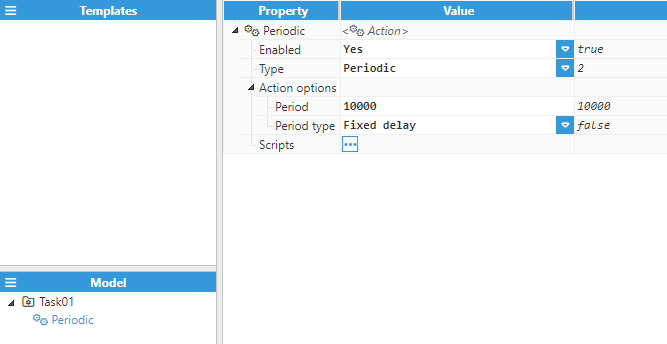
Periodic actions offer the following configuration options:
Setting | Description |
|---|---|
Period | Specifies the time period for this action, displayed in ms. The default value is 10 seconds. |
Period type | Selects how the period will be calculated. See the Period type table below for the valid values. |
The valid values for Period type are:
Period type | Description |
|---|---|
Fixed delay | The scripts trigger after the specified period in ms has elapsed since the scripts have completely finished executing. For example, if the scripts take 250 ms to complete execution, the period is set to 10,000 ms, and the current time is 00:00:00.000, the first execution will be at 00:00:10.000, the second execution at 00:00:20:250, and the third at 00:00:30.500 and so forth. |
Fixed rate | The scripts trigger after the specified period in ms has elapsed since the last trigger, independently of when the script finished its execution. For example, if the scripts take 250 ms to complete execution, the period is set to 10,000 ms, and the current time is 00:00:02.463, the first execution will be at 00:00:12.463, the second execution at 00:00:22:463, and the third at 00:00:32.463 and so forth. If the scripts don't finish before the next period triggers, the script will start as soon as the previous execution finishes. |
Fixed interval | The action starts at fixed intervals depending on the period, independently of when the script finished execution. If the specified period elapses before the script finishes, all missed intervals will be skipped. For example, if the period is 10,000 ms, the script will always execute at 00:10:00.000, 00:20:00.000, etc., independently of when the script ends. If execution of the script takes longer than the specified period, enough intervals are skipped to allow the script to execute at the next interval. |
Cron | The action starts periodically based on a cron expression. If the script doesn't finish before the next scheduled time, this execution will be skipped. |
Change
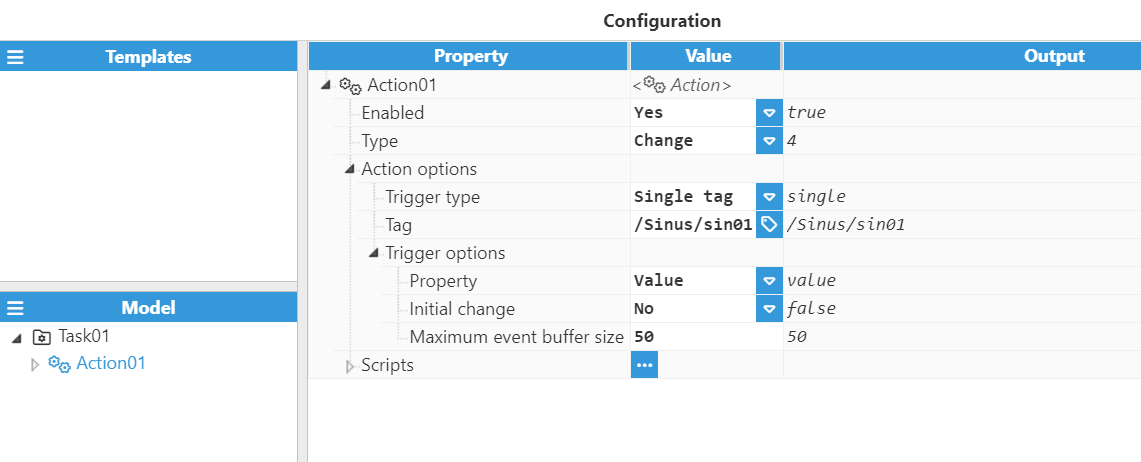
Tag change actions offer the following configuration options:
Setting | Description |
|---|---|
Trigger type | Selects between the different trigger types for the tag change action. This feature is available from N3uron version 1.21.5. See the Trigger type table below for the valid values. |
Property | Selects which of the tag's properties should be monitored for changes. The valid values are Any, Value, Quality, or Timestamp. |
Initial change | If enabled, the initial event after a tag subscription can trigger the scripts. Otherwise, the initial event is discarded. |
Maximum event buffer size | Specifies the maximum number of events that will be buffered in case the events are received faster than the script can execute. After the buffer fills up, the oldest events will be discarded. Otherwise, the script will be triggered once for each event in the buffer. The minimum value is 1, which means that the script will always execute using the last event received. |
The valid values for Trigger type are:
Trigger type | Description |
|---|---|
Single tag | This trigger type will execute the script whenever the specified tag generates a tag event. |
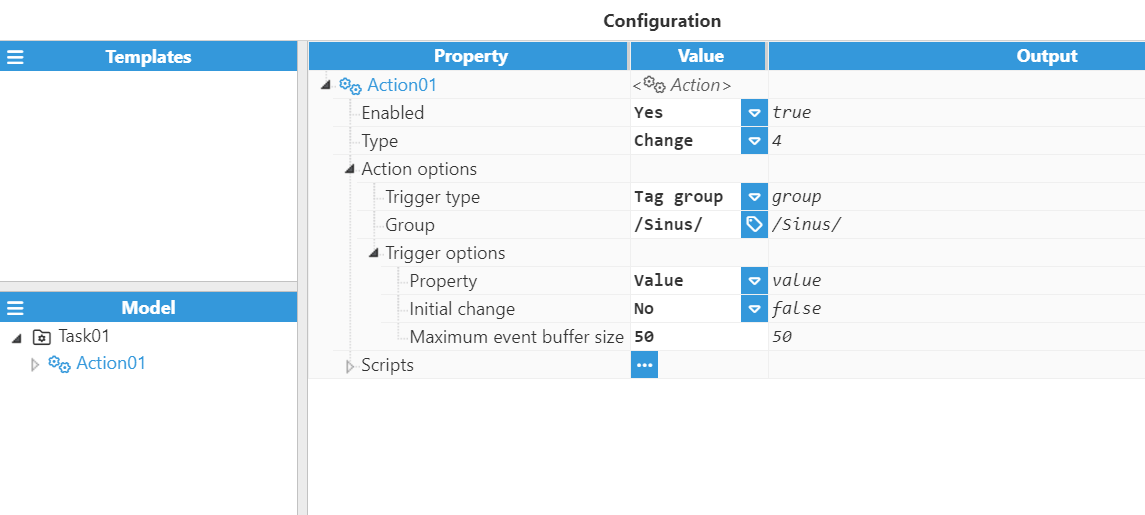
Tag group | This trigger type will execute the script whenever any of the tags within the group generate a tag event. |
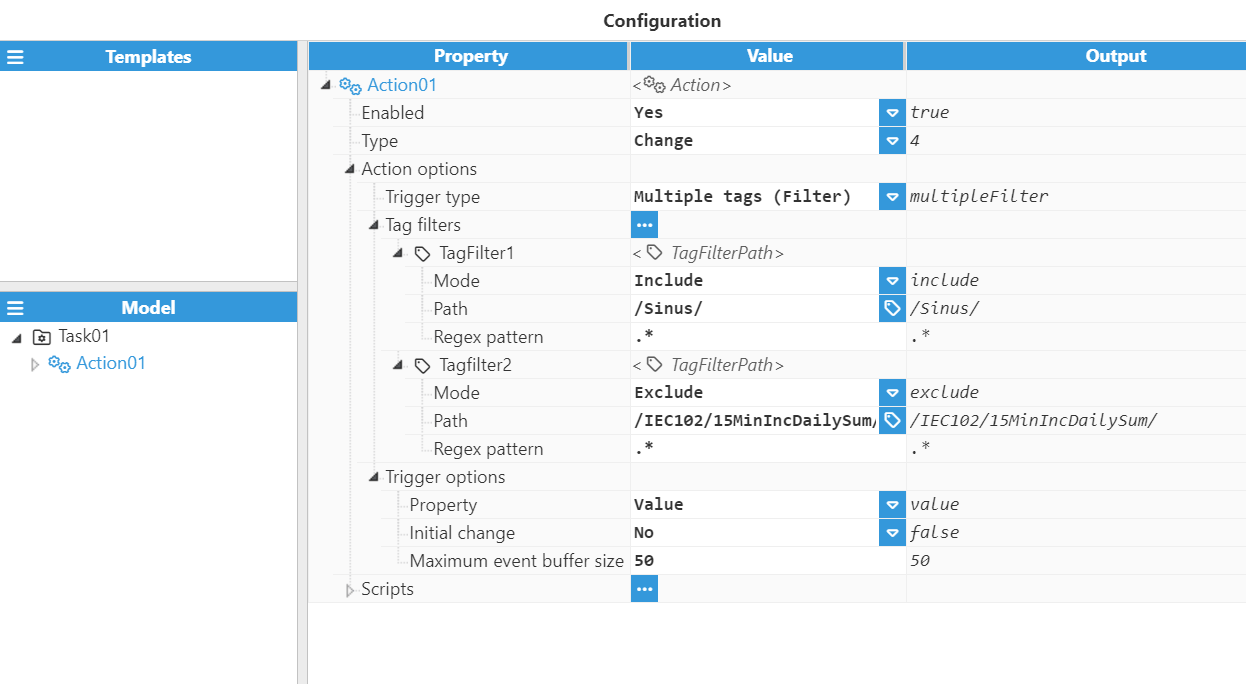
Multiple tags (Filter) | This trigger will execute the script whenever any of the tags that meet the filter conditions generate a tag event. |
Single tag trigger configuration:
Tag group trigger configuration:
Multiple tags (Filter) trigger configuration:
Condition
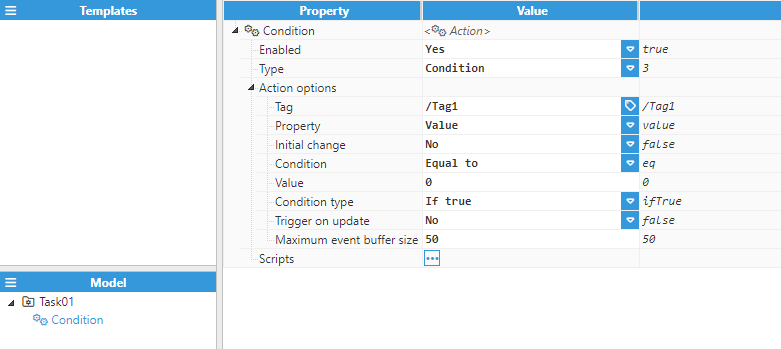
Condition actions offer the following configuration options:
Setting | Description |
|---|---|
Tag | Selects which tag will be monitored by this action. Each condition action can only monitor one tag. |
Property | Selects which tag property will be used to check the condition. The valid values are Value, Quality, and Timestamp. |
Initial change | If enabled, the initial event after a tag subscription can trigger the condition check. Otherwise, the initial event is discarded. |
Condition | Selects the condition that must be met for the scripts to trigger. See the Condition table below for the valid values. |
Value | Specifies the value that will be used along with the condition to see if the script needs to trigger. |
Condition type | Selects how the condition applies. See the Condition type table below for the valid values. |
The valid values for Condition are:
Condition | Description |
|---|---|
Null | Triggers if the tag property is null. |
Not null | Triggers if the tag property is not null. |
Equal to | Triggers if the tag property is equal to the specified value. |
Not equal to | Triggers if the tag property is not equal to the specified value. |
Greater than | Triggers if the tag property is greater than (but not equal to) the specified value. |
Greater than or equal | Triggers if the tag property is greater than or equal to the specified value. |
Less than | Triggers if the tag property is less than (but not equal to) the specified value. |
Less than or equal | Triggers if the tag property is less than or equal to the specified value. |
The valid values for Condition type are:
Condition type | Description |
|---|---|
If true | The scripts will trigger when the condition becomes true. |
If false | The scripts will trigger when the condition becomes false. |
While true | The scripts will trigger once when the condition becomes true and then trigger again periodically while the condition remains true. |
While false | The scripts will trigger once when the condition becomes false and then trigger again periodically while the condition remains false. |
If the condition type is either If true or If false, the following two additional configuration options are shown:
Setting | Description |
|---|---|
Trigger on update | If enabled, scripts will trigger every time a new tag event is received while the condition remains true. Otherwise, the scripts will not trigger again until after the condition is cleared. |
Maximum event buffer size | Specifies the maximum number of events that will be buffered in case the events are received faster than the script can execute. When the buffer becomes full, the oldest events will be discarded. Otherwise, the script will be triggered once for each event in the buffer. The minimum value is 1, which means that the script will always execute using the last event received. |
If the condition type is While true or While false, the following two additional configuration options are shown:
Setting | Description |
|---|---|
Period | Specifies the period between script executions, displayed in ms. The default value is 10 seconds. |
Period type | Selects how the period will be calculated. The valid values are the same as those described in the Period type table of the Periodic section (Fixed delay, Fixed rate, Fixed interval, and Cron). |
External
From N3uron version 1.22.4, the External action type has been replaced by the Method action type described in the next section. The information below applies to versions prior to 1.22.4.
External actions are different from normal actions, they never invoke the script, instead they wait to be called from another N3uron module, such as via OpcUaServer methods. These methods receive the arguments passed from the module that calls them and return a value back to the module that called them.
When calling an external action, it takes a single object argument containing key-value pairs, where each key is the argument name and the value is the argument value:
//Object argument when calling external script
{
  arg1: "String",
  arg2: 123,
  boolArg: true
}

//Resulting $.event object in the script
$.event = {
  arg1: "String",
  arg2: 123.
  boolArg: true
}
The return value can be anything and depends on what the calling module is expecting. For example, OPC UA Server expects the return value to be an object where each key is the output argument name and each value is the value of that output argument. More detail about the specific return values can be found in the documentation for all modules that allow calling external scripts.
Method
This feature is available from N3uron version 1.22.4. Method actions replace the External action type, adding typed input and output arguments, access control, and parameters.
Like External actions, Method actions never invoke the script by themselves. Instead, they define one or more callable methods that wait to be called from another N3uron module (for example, via OpcUaServer methods or the Call Module Method action). Each method receives a typed input argument and returns a typed output value to the module that called it.
A single Method action can expose multiple methods. Each method is added under the Methods collection and configured independently, as shown in the following screenshot:
.png)
Each method offers the following configuration options:
Setting | Description |
|---|---|
Enabled | Enables or disables this method. When disabled, the method is not exposed and cannot be called. |
Description | Optional free-text description of this method. |
Method access | Specifies whether this method requires write permission. Valid values are Read and Write. This does not limit the method access to the API; it only forces the callers of the method to call it with write permissions. Default: Read. |
Script | Contains the JavaScript code executed when the method is called. Clicking the code button opens a code editor where the user code can be entered. The input argument is available in the $.event object, and the value returned by the script is sent back to the calling module. |
Input · Data type | Data type of the input argument accepted by the method. See the Data type table below for the list of supported types. Default: Any. |
Output · Data type | Data type of the value returned by the method. See the Data type table below for the list of supported types. Default: Any. |
Runtime configuration · Inactivity timeout | Sets the inactivity timeout of the script runtime, in ms. After this period has passed, the script runtime is shut down. Shutting down the runtime helps save computer resources (especially RAM), but if the runtime holds any local data (data in $.local), that data is lost when the runtime shuts down. A value of 0 milliseconds never shuts down the runtime. Default: 10,000ms. |
Parameters | Read-only parameters passed to the method in the $.parameters object. They support the same types as script parameters (String, Number, Boolean, Array, Object, and TagPath) and can be imported or exported using Load CSV and Save CSV. |
The Input and Output arguments of a method can use the following data types:
.png)
Data type | Description |
|---|---|
None | No arguments. |
Boolean | A boolean value (true or false). |
Numeric | A numeric value. The maximum and minimum allowed values depend on the selected numeric data type: Int8, Int16, Int32, Int48, UInt8, UInt16, UInt32, UInt48, or Float64. |
Date | A JavaScript Date object. |
String | A string value. |
Fixed string | A string type that belongs to a defined list of strings. Using any other string results in an error. |
Any | An untyped value. When this data type is selected, the argument accepts any type. |
Array | A homogeneous array of a specific type. When this data type is selected, an additional dropdown appears to select the data type of the array items. |
Object | An object with a specific structure. When this data type is selected, the properties of this object must be statically defined. |
Scripts
A script is user defined JavaScript code that will execute every time an action triggers. Each action can have one or more scripts.
Each script has access to several objects and functions that are used to interface with N3uron and to share data between different scripts in the same task or between different tasks. All of these objects are detailed in the API section of this manual.
Scripts also have access to all Node.js native libraries (such as fs or net), as well as user defined libraries.
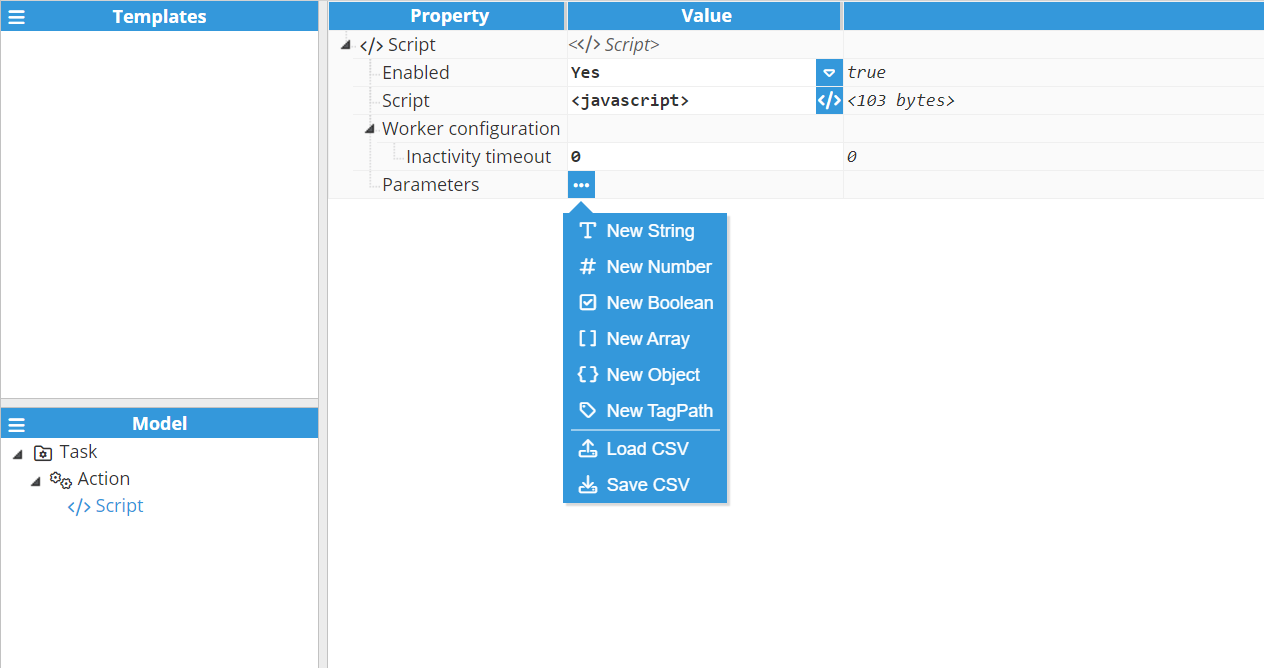
Each script has the following options:
Setting | Description |
|---|---|
Enabled | Enables and disables execution of this script. |
Script | Contains the script that will be executed. By clicking the code button, a code editor will be displayed where the user code can be entered. |
Runtime configuration · Inactivity timeout | Sets the inactivity timeout of the JavaScript worker. The worker shuts down after this timeout has passed. |
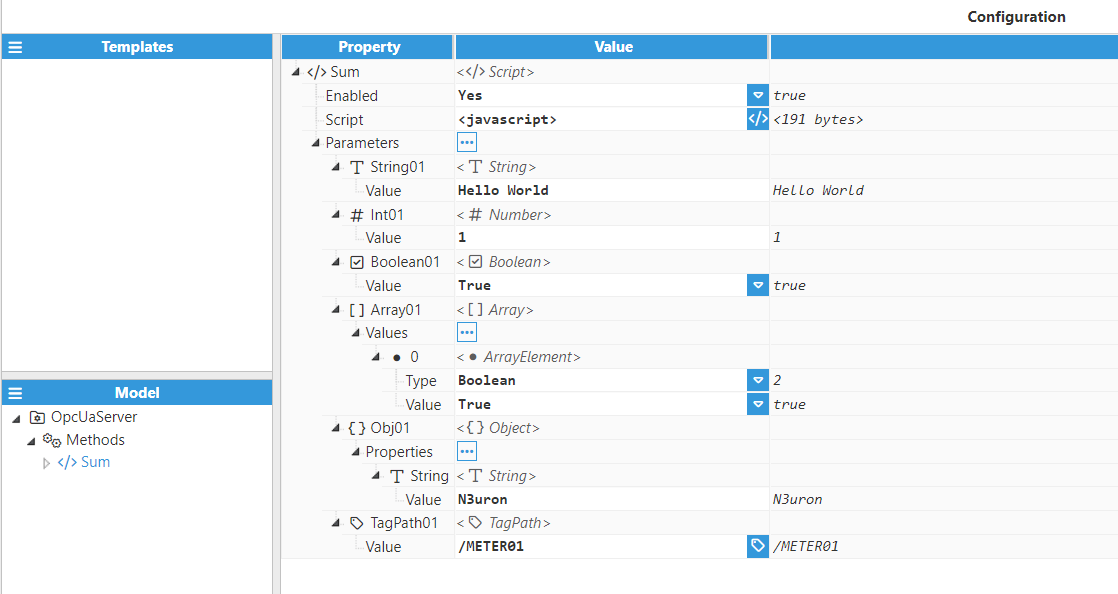
Parameters | These parameters are passed to the script in the $.parameters object. They are usually used to define a configuration that is then used for the script. For example, a parameter can be used to set a basepath that will be used in the script, or the host + port combination used to open a socket in the script. These parameters are read-only. If they are written, they will throw an exception. See the Parameter type table below for the supported types. |
Parameters can be one of the following types:
Parameter type | Description |
|---|---|
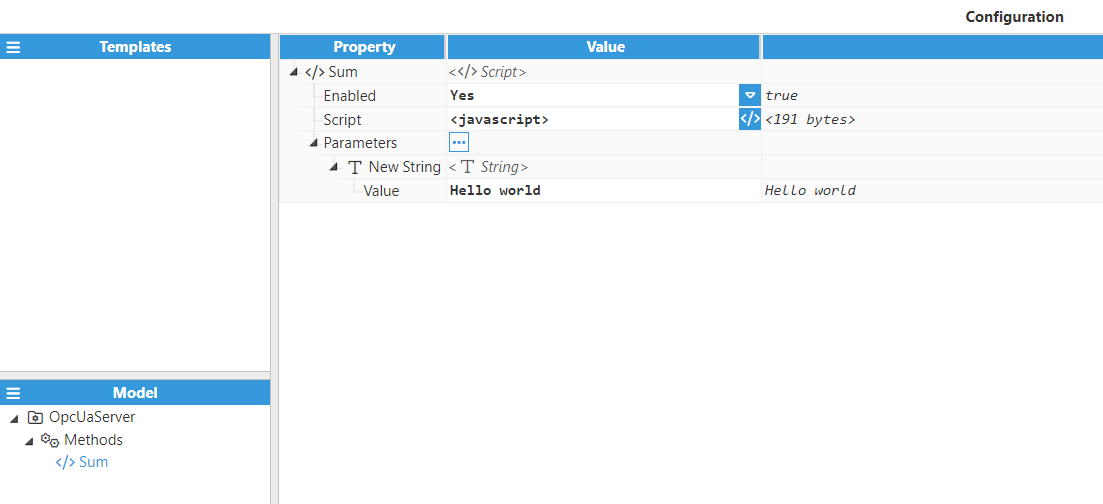
String | Represents a JavaScript string. |
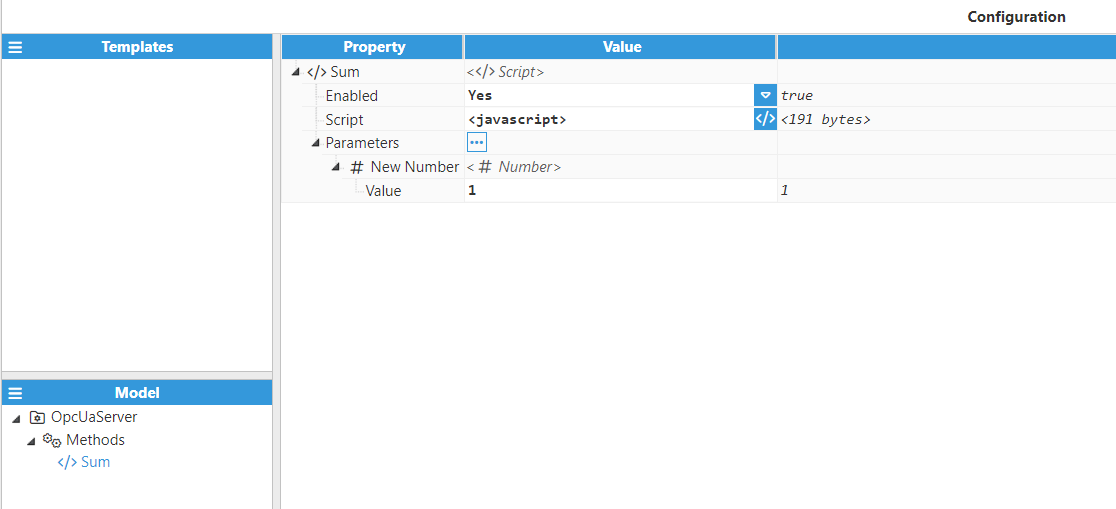
Number | Represents a JavaScript number, which is defined as a 64-bit floating point number (except that only finite values are allowed, meaning that neither NaN nor ± Infinite are permitted). |
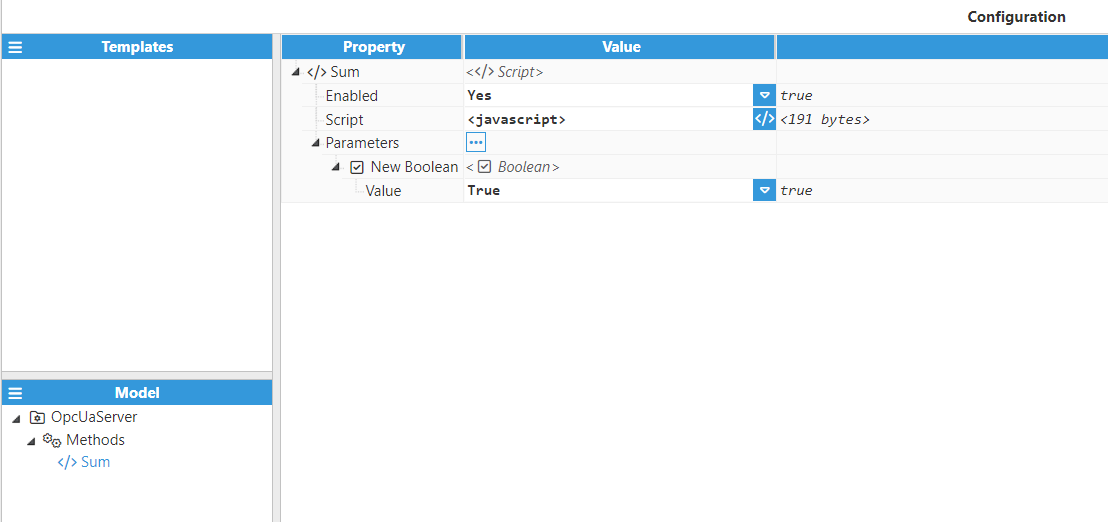
Boolean | Represents a JavaScript boolean data type, which can be either true or false. |
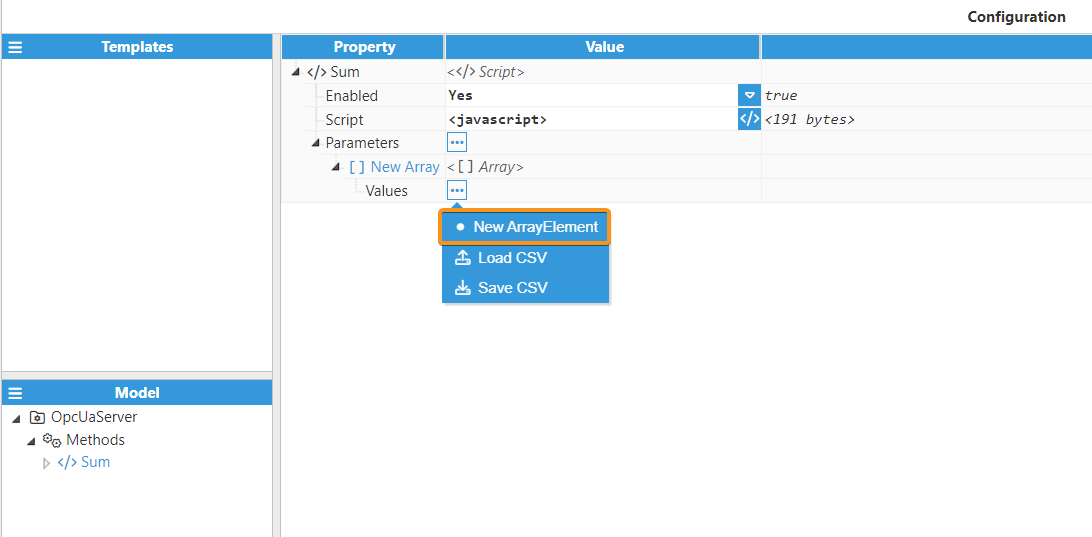
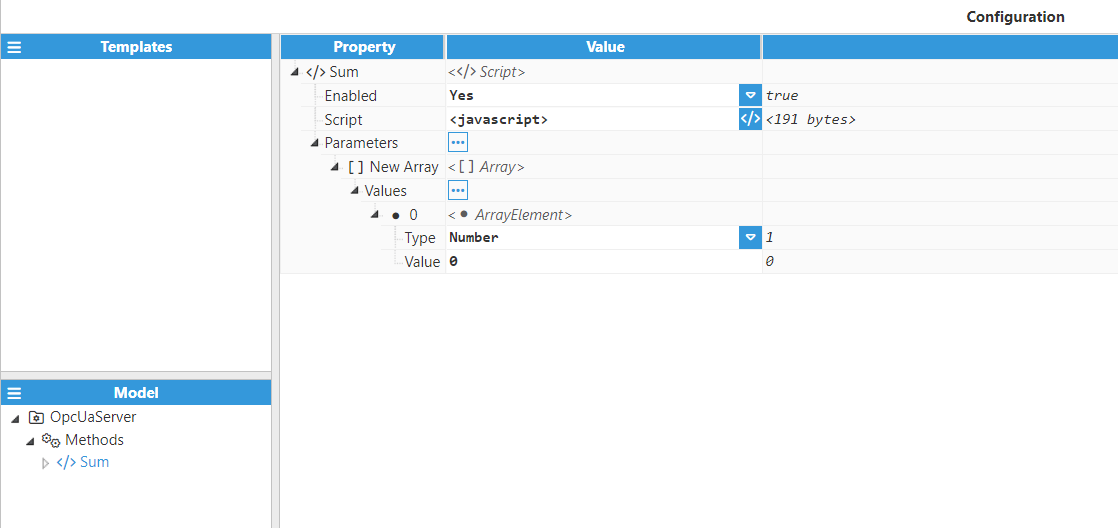
Array | Represents a JavaScript array, which is an ordered collection of elements. By clicking on New ArrayElement, users can add elements to the array, each with a specific type (including nesting arrays and objects). |
Object | Represents a JavaScript object, which is a key-value collection. Each object can have multiple properties that can be the same types as the parameters, including arrays and objects, meaning that it can be used to build nested data structures. |
TagPath | Users can select a tag previously created in the Tags section by clicking on the blue button on the right-hand side of the Value field. |
String parameter:
Number parameter:
Boolean parameter:
Array parameter:
Object parameter:
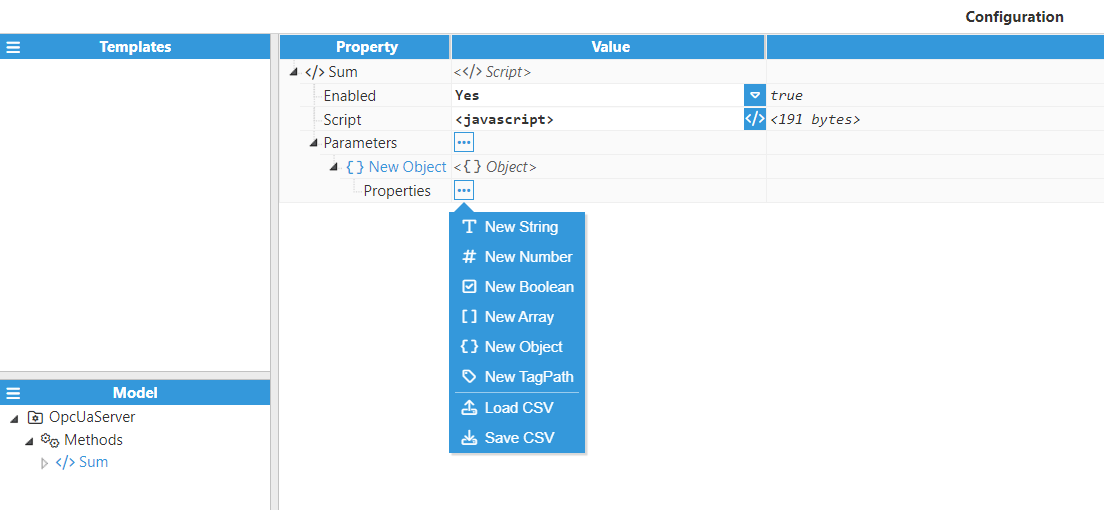
TagPath parameter:
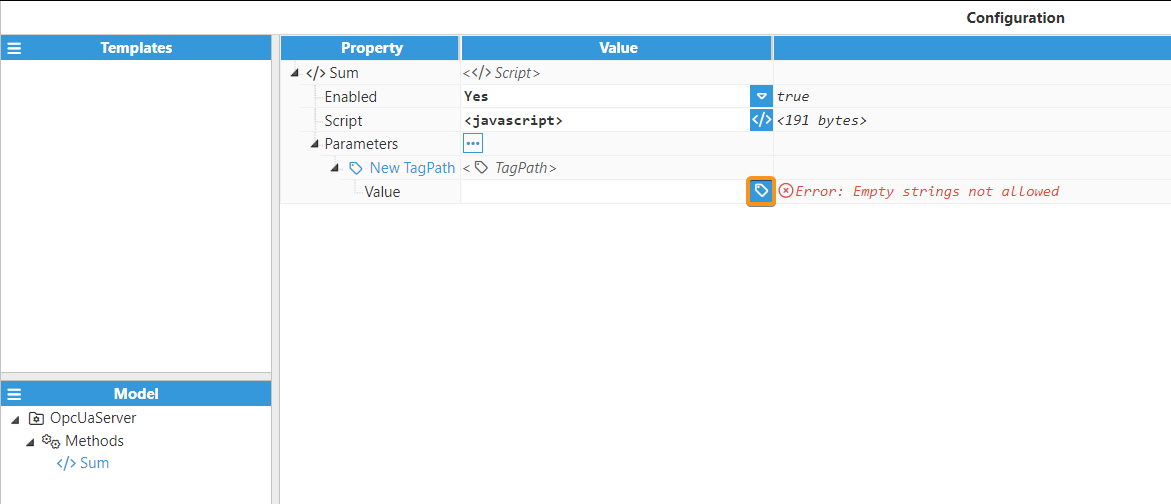
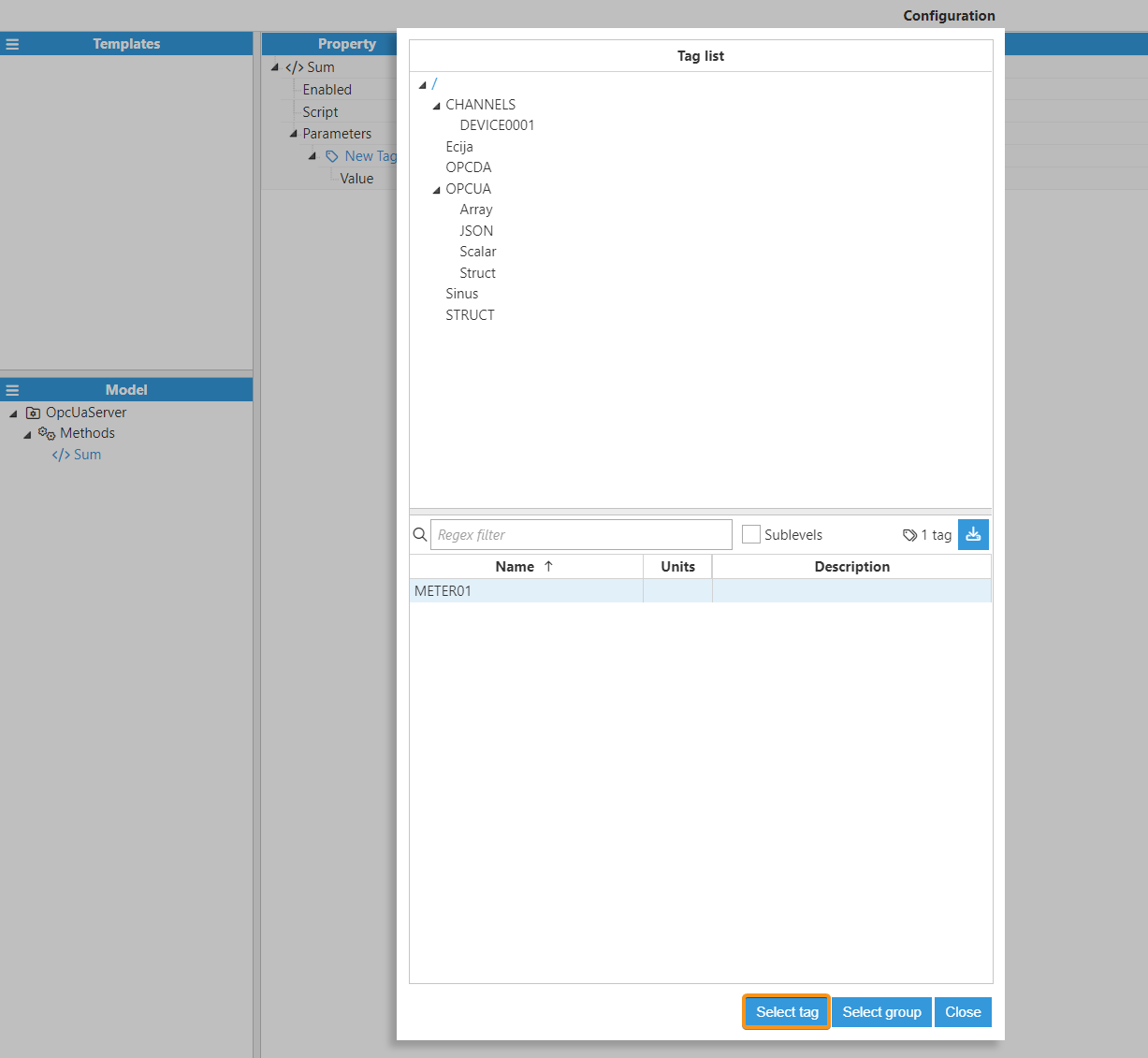
Final configuration:
Libraries
This section allows users to declare shared libraries that can then be used by all the tasks in this Scripting instance. There are three types of libraries, as seen in the following screenshot:
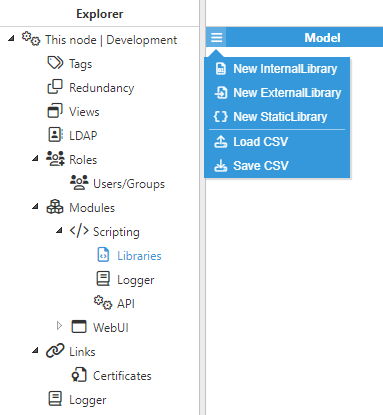
Library type | Description |
|---|---|
Internal libraries | These libraries are bundled with N3uron and as such, can be loaded directly without installing anything more. See the Internal libraries table below for the list of available libraries. |
External libraries | These libraries are external to N3uron and must be installed by the user. They can be installed manually, but the recommended method is through the Node Package Manager (npm). When using external libraries, this is either the path of the library entry point (index.js and main.js being the typical entry points) or the path to the folder containing the package.json file (typically, node_modules/LIBRARY_NAME). |
Static libraries | These libraries contain user defined code directly in N3uron. A use case for these libraries is creating one or multiple classes that are shared across different scripts. They have full access to the same API as the rest of Scripting and are also saved to N3uron backups (unlike external libraries, which are not saved). In order to export data from a static library, the module.exports syntax is used. |
Note:
External libraries must be compatible with Node.js 22. Additionally, native modules may or may not work, depending on whether they are declared as "Context-aware".
The internal libraries available to Scripting are:
Library | Description |
|---|---|
Cron | This library is used to validate a given cron expression, as well as retrieving the next time the expression has to be executed. More information can be found at cron. |
JsPDF | This library is used to generate PDF documents using JavaScript. More information can be found at JsPDF. |
JSZip | This library is used to read and write .zip files. The included version is 3.1.4. More information can be found at JSZip. |
LZ4 | This library is used to compress data using the LZ4 algorithm. The included version is 0.5.3. More information can be found at LZ4. |
Moment.js | This library is used to parse and format dates & times. This library version includes both moment (version 2.23.0) and moment-timezone (version 0.5.23). More information can be found at Moment and Moment Timezone. |
MongoDB | This library is used to connect and execute queries to a MongoDB database. The included version is 2.2.36. More information can be found at MongoDB. |
MQTT.js | This library is used to communicate with a MQTT broker using the MQTT protocol. The included version is 2.2.1. More information can be found at MQTT.js. |
MySQL | This library is used to connect to a MySQL database and execute queries. The included version is 2.17.1. More information can be found at MySQL. |
PostgreSQL | This library is used to connect to a PostgreSQL database and execute queries. The included version is 6.4.2. More information can be found at PostgreSQL. |
Protobuf.js | This library is used to serialize and parse messages using Google's Protocol Buffers format. The included version is 6.8.0. More information can be found at Protobuf.js. |
SQL Server | This library is used to connect to a SQL Server database and execute queries. The included version is 3.3.0. More information can be found at SQL Server. |
WebSockets | This library is used to create a WebSocket client and server. The included version is 1.1.0. More information can be found at WebSockets. |
XLSX Writer | This library is used to write data to XLSX files. |
Xml2Js | This library is used to serialize and parse XML. The included version is 0.4.16. More information can be found at Xml2Js. |
Source
Scripting can also act as a data provider for tags. To do this, all new tags will need to be configured with Scripting as their source, as seen in the following screenshot:
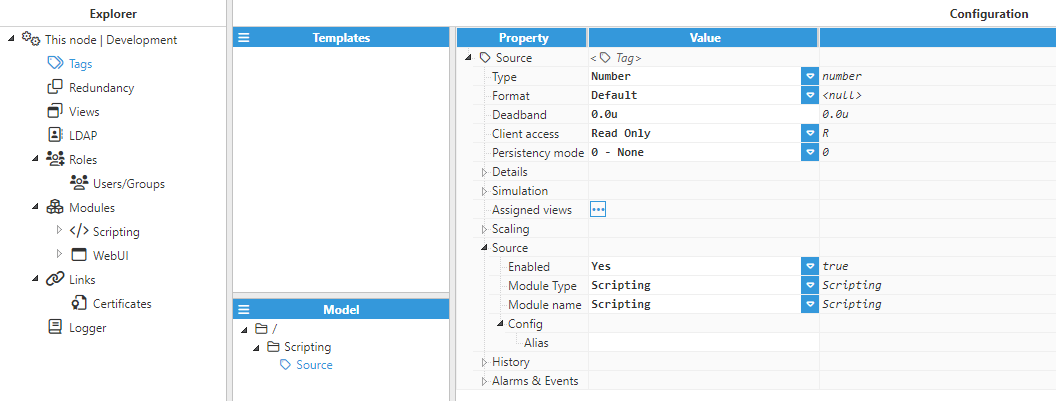
Scripting source tags accept a single optional parameter in the form of an alias that will be used to reference the tag when providing data for that tag. If provided, the tag can be updated using said alias. Otherwise, the full path will need to be used. The full path can be used regardless of whether a tag has an alias or not. In order to update a tag, the $.api.tag.update or $.api.tag.updateAlias functions must be called.