Note:
Alarm Shelving is available from N3uron version 1.22.4 onwards.
Alarm Shelving temporarily suppresses an alarm for a configurable period, preventing it from generating operator notifications, upstream notifications, and normal active-alarm propagation, while keeping it visibly marked as Shelved in the Alarms panel.
Unlike acknowledgment, which only records that an alarm has been handled, shelving suppresses the alarm from the active alarm workflow until the shelf expires, after which normal alarm evaluation resumes automatically.
Shelving is intended for bounded operational scenarios such as planned maintenance, known transient conditions, sensor calibration, or short-term situations where the condition is already understood and should be silenced without disabling the alarm definition or modifying the tag configuration.
.gif)
Operation | Behavior |
|---|---|
Shelving | Temporarily suppresses the selected alarm for a configured period. While shelved, the alarm does not generate notifications and is excluded from the normal active alarm workflow. |
Unshelving | The operator can remove the shelf before it expires by selecting Unshelve alarm from the Shelved Alarms section. |
Shelving an Alarm from WebUI
Alarm shelving is exposed in the same Alarms → Realtime view used to monitor active alarms. To shelve an alarm:
In the Navigation panel, go to Alarms → Realtime.
In the Alarms panel, locate the alarm you want to shelve. If needed, use the Tag Groups tree on the left, the regex filter, or the Active / Cleared / priority filters to narrow the list.
Click the ellipsis button (…) on the left of the alarm row to open the menu or press the mouse right button.
Select Shelve alarm. The Shelve alarm dialog opens.
Configure the shelf parameters as described below.
Click Apply to confirm, or Close to cancel.
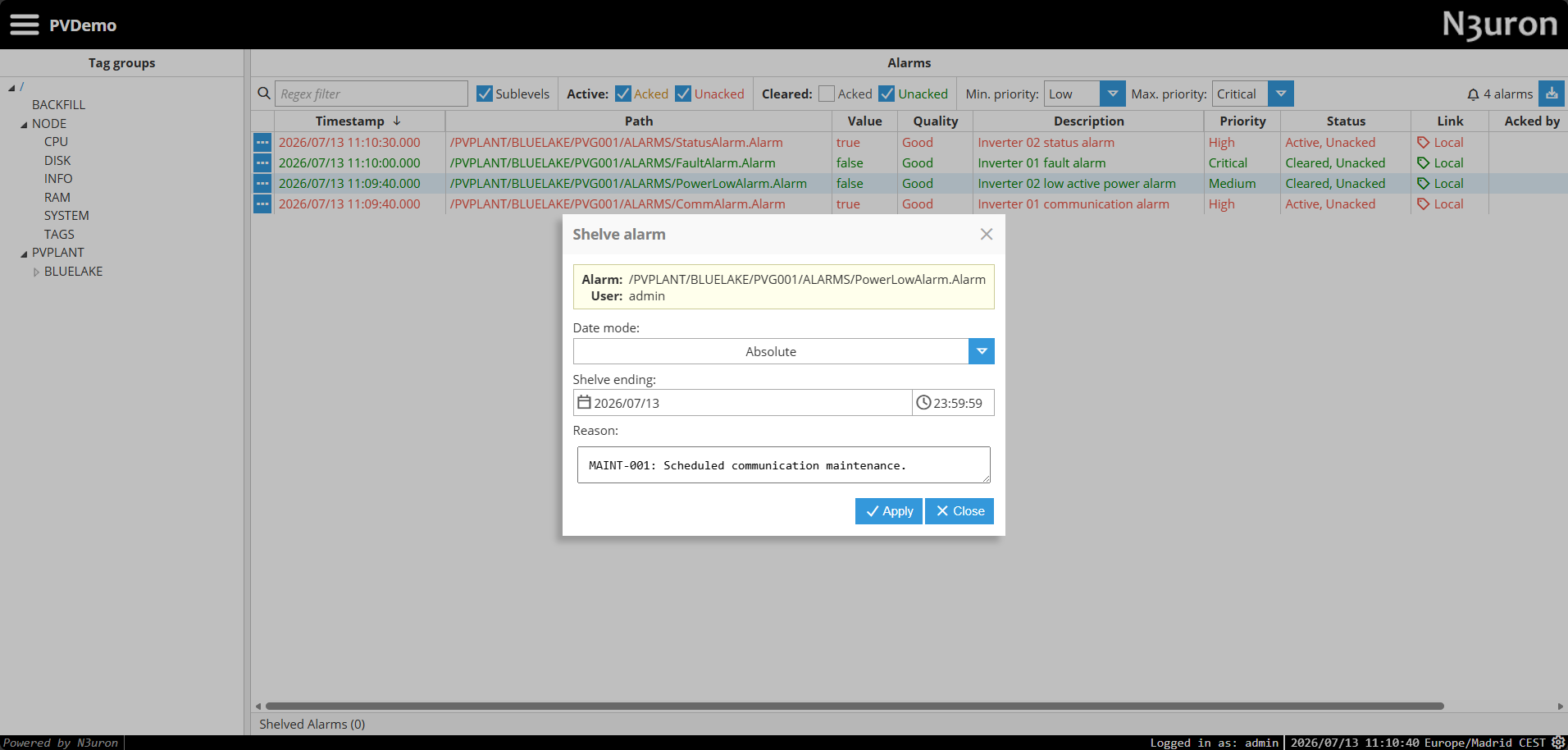
Shelve Dialog Fields
The dialog is pre-filled with read-only information about the target alarm and the current user, and exposes the configurable shelf parameters in the table below.
Field | Description |
|---|---|
Alarm | Read-only. Full tag path of the alarm to be shelved, for example: |
User | Read-only. The logged-in user performing the shelve. The user is recorded against the shelf event for audit purposes. |
Date mode | Defines how the shelving period is configured.
|
Shelve duration |
|
Reason | Free-text justification for the shelf. The reason is stored together with the shelf event and is visible in the historical alarm record. Recommended best practice: always enter a meaningful reason (for example, the work order number or a short description of the planned intervention). |
Apply / Close | Apply confirms the shelve with the configured parameters. Close dismisses the dialog without applying the shelf. |
Behavior of a Shelved Alarm
Once an alarm is shelved, the system changes how it is evaluated and presented for the duration of the shelf. The behavior applies equally to alarms that are active at the moment of shelving and to alarms that become active later.
Notification suppression
While an alarm is shelved, transitions to and from the active state do not generate notifications through the Notifier module. Email, SMS, and WebHook connectors configured for that alarm do not fire for the duration of the shelf. Once the shelf expires, normal notification behavior resumes on the next state transition.
Display in the Real-Time Alarms panel
Shelved alarms are still visible in the Alarms panel so that operators are aware that an active condition exists, but they are flagged so they cannot be confused with normal active alarms:
The Status column shows Shelved instead of the usual Active / Cleared combination.
Shelved alarms are excluded from the alarm counter and from any aggregated total that filters on active status.
The row-level ellipsis menu exposes additional actions for inspecting or revoking the shelf.
Automatic un-shelving
When the Shelve duration elapses, the shelf expires automatically and the alarm returns to normal evaluation on the next tag value update. No operator action is required to release the shelf. If the tag value is still in the alarm condition when the shelf expires, the alarm becomes active again and notifications resume from that point onward.
Tip:
Always size the Shelve duration to the expected length of the planned intervention. Shelving for longer than necessary suppresses legitimate notifications and may hide new faults that occur during the shelf window.
Visualizing Shelving in Historical Alarms
Every shelf action is recorded as an event in the alarm history of the affected tag. To inspect shelves, go to Alarms → Historical, select the alarm tag in the tree, and load the relevant time range.
The history view shows the user who shelved the alarm, the start and end of the shelf window, and the Reason that was entered when the shelf was applied. This information is preserved even after the shelf expires, providing a complete audit trail of which operator suppressed which alarm, when, and why.
Shelf lifecycle events
For each shelved alarm, the history view contains the following lifecycle entries, in order:
Shelved — emitted when the operator applies the shelf. Records user, start time, configured duration, and reason.
Unshelved — emitted when the shelf is released, either automatically at the end of the configured duration or manually by an operator before expiration.
Any subsequent Active / Cleared / Acked / Unacked transitions that occur after the alarm is released from the shelf.
.png)
Note:
When an alarm is unshelved, N3uron re-evaluates it against the most recent tag event. If the alarm state changed while it was shelved, the resulting event is written to the historian with the timestamp of the tag event that caused the change, not the time at which the shelf was released.
For example, an alarm is shelved from 12:00 to 15:00, and at 14:00 the source tag enters the alarm condition. The alarm does not become active at 14:00 because it is shelved. When the shelf is released at 15:00, N3uron picks up that last 14:00 event and generates an Activated event stamped at 14:00. As a result, the historian shows the alarm as active since 14:00, reflecting the moment the condition actually occurred, not the moment the shelf was released.
In other words, an alarm event timestamp always corresponds to the tag event that produced the state change, never to the current time. Keep this in mind when reviewing historical alarms after a shelf expires.
Permissions and Auditability
Alarm shelving is a privileged operation because it changes how the system behaves toward an active condition. As with acknowledgment, only users with the appropriate role permissions can shelve or unshelve alarms. Operators without permission do not see the Shelve alarm option in the row menu.
Every shelf action records the following information in the alarm history:
The user who applied the shelf.
The start timestamp of the shelf.
The configured Shelve duration and the resulting expiration timestamp.
The free-text Reason entered by the operator.
Whether the alarm was released automatically at expiration or manually by an operator.
Recommendation:
Restrict the role permission that allows shelving to operators who are responsible for the affected area. Shelving should never be used as a substitute for fixing the underlying condition; if an alarm needs to be silenced repeatedly, investigate the root cause or reconsider whether the alarm configuration is appropriate.
For details on how alarm events and acknowledgment work, see Alarms Overview and Configuring Alarms