Project Tree
The Project Tree contains all project templates, organized in a tree structure with system folders that distinguish between the different element types.
Datasets
Datasets are elements that represent collections of related information. There are two main types of Datasets: Historical Datasets and Derived Datasets. More detailed information about datasets can be found on Datasets section.
Historical Datasets
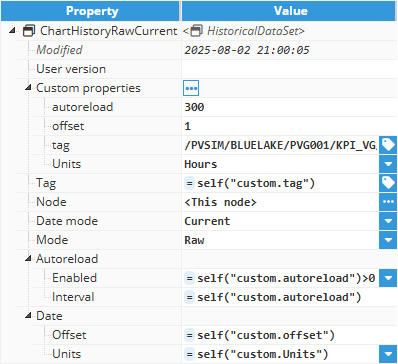
Historical Datasets display data organized into [date, value] pairs, where the date is a timestamp and the value is the value associated with that timestamp. Historical Dataset data is retrieved from N3uron Historian.
Derived Datasets
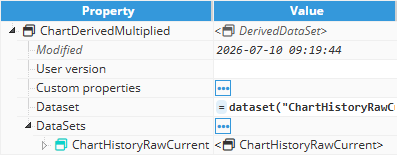
Derived Datasets can contain any type of data organized into pairs. They are used to modify the data returned by other Datasets.
Functions
Functions are elements that contain a single Script field, where an expression can be defined using n parameters for use inside any other property in Web Vision.
The parameter format argv[n] represents the nth command-line argument passed to the script. Functions are explained in more detail in a later chapter.
List of available functions.
Properties of the selected function.
Expression editor used to modify the function script.
Input assistance menu.
Tip:
Further information can be found on Function Elements, where this type of template are defined in detail.

Templates
Templates are used to create reusable elements which contains its own child elements and characteristics based on the default elements available in Web Vision. Instead of creating the same interface element multiple times, a single template can be instantiated wherever it is needed, providing a consistent appearance and behavior throughout the project.
Properties Tree
The Properties Tree displays the customization options available for each element type, including Datasets, Functions, and Templates.
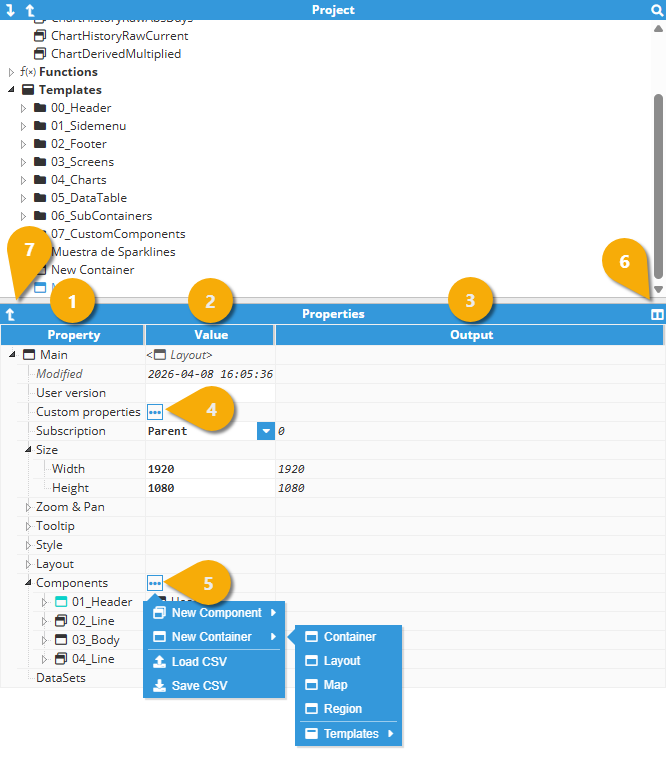
It includes the following columns and sections:
Element | Description |
|---|---|
| Tree representation of the element property. |
| Editable field for the selected element property. Input: A field where users can enter different value types, such as text, numbers, Boolean values, or expressions. |
| Result of the value field after it is processed. The Output column can be hidden using the button on the right side of the Properties Tree header. |
| Since all elements in Web Vision are based on N3uron templates with additional features, users can access the same options available in other N3uron templates. This allows custom properties to be added to certain elements. More information can be found on Custom Properties. |
| List field that allows users to add sub-elements to the selected element. |
| Allows the user to show and hide the output column inside the Property section, showing the value returned by the expression inside the Value field. |
| Collapses all the expanded properties in the current view. |
Help Viewer
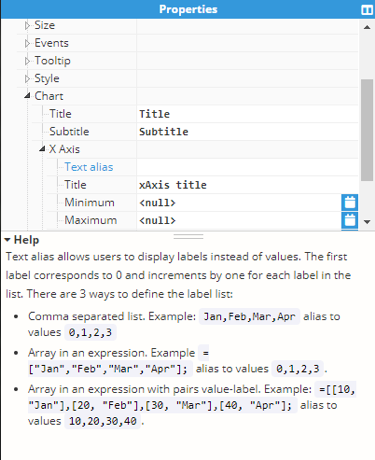
Most properties, especially those with an associated input, include a context help entry. This information can be accessed through the Help Viewer, which only appears when the selected property contains a help entry.
When a property with a help entry is selected, a bar titled Help appears at the bottom of the Properties Tree area if there is any help information available. Click Help to display the information in a resizable area.