Templates are the foundation of every Web Vision UI project. A template defines a reusable visual component that can contain its own layout, properties, logic, animations, and child elements. Instead of creating the same interface element multiple times, a single template can be instantiated wherever it is needed, providing a consistent appearance and behavior throughout the project.
This component-based approach simplifies application development, improves maintainability, and enables large projects to be built from modular, reusable building blocks.
Tip:
For a general introduction to the template system shared across the platform, see Templates Overview. This section focuses on how templates are used within Web Vision.
Templates as Components
A template should be considered a reusable UI component rather than a simple visual object. Each template encapsulates its own structure and can expose configurable properties that allow every instance to behave differently while sharing the same implementation.
For example, a single motor template can be reused hundreds of times across an application by assigning different tag bindings, colors, labels, or operating limits through its exposed properties. Any modification made to the template is automatically reflected in every instance, significantly reducing maintenance effort.
Template Types
Templates are divided into two categories depending on whether they can contain other visual elements.
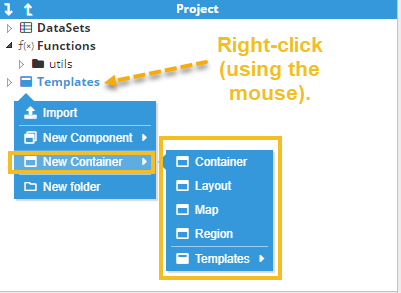
Containers: Templates that can contain other visual elements, allowing complete user interfaces to be built hierarchically. Container templates include Container, Layout, Map, and Region.
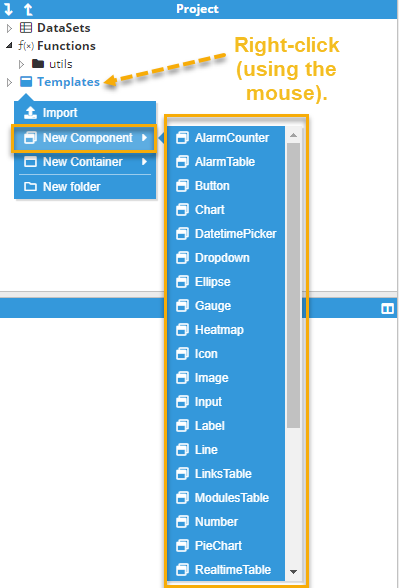
Components: Templates that provide their own graphical representation but cannot contain other visual elements. Some components can include non-visual child objects, such as configuration elements required for their functionality.
Building Reusable Interfaces
Templates can be nested inside other elements and templates, enabling complex applications to be assembled from smaller reusable components. This encourages a modular design where each template has a specific responsibility and can be combined with others to create complete screens.
For example, a dashboard template may contain several equipment templates, while each equipment template can internally reuse status indicators, gauges, buttons, alarms, and other shared components.
This hierarchical composition provides several advantages:
Centralized maintenance by modifying a single template.
Consistent user interfaces across the entire application.
Reduced development time by reusing existing components.
Simpler testing and long-term maintenance.
Custom Properties
Templates offer configurable properties that define how each instance behaves. These custom properties can be used to parameterize tag paths, text, colors, visibility, dimensions, limits, and many other settings without modifying the template itself.
When a template is reused inside another template, custom properties can also be propagated to child templates, allowing configuration values to flow through multiple levels of the component hierarchy. This makes it possible to build highly configurable libraries of reusable components that can be adapted to different applications with minimal effort.
Tip:
For a general introduction to the custom properties usage and exploitation shared across the platform, see Custom Properties.
Startup Template
One template is designated as the application startup template. This template is automatically displayed when a user opens the Web Vision UI application.
To configure the startup template, right-click the desired template and select Set as Startup. The selected template becomes the application's default entry point until another template is assigned.
Exporting and Importing Templates
Templates can be exported and imported to share reusable components between projects or maintain template libraries.
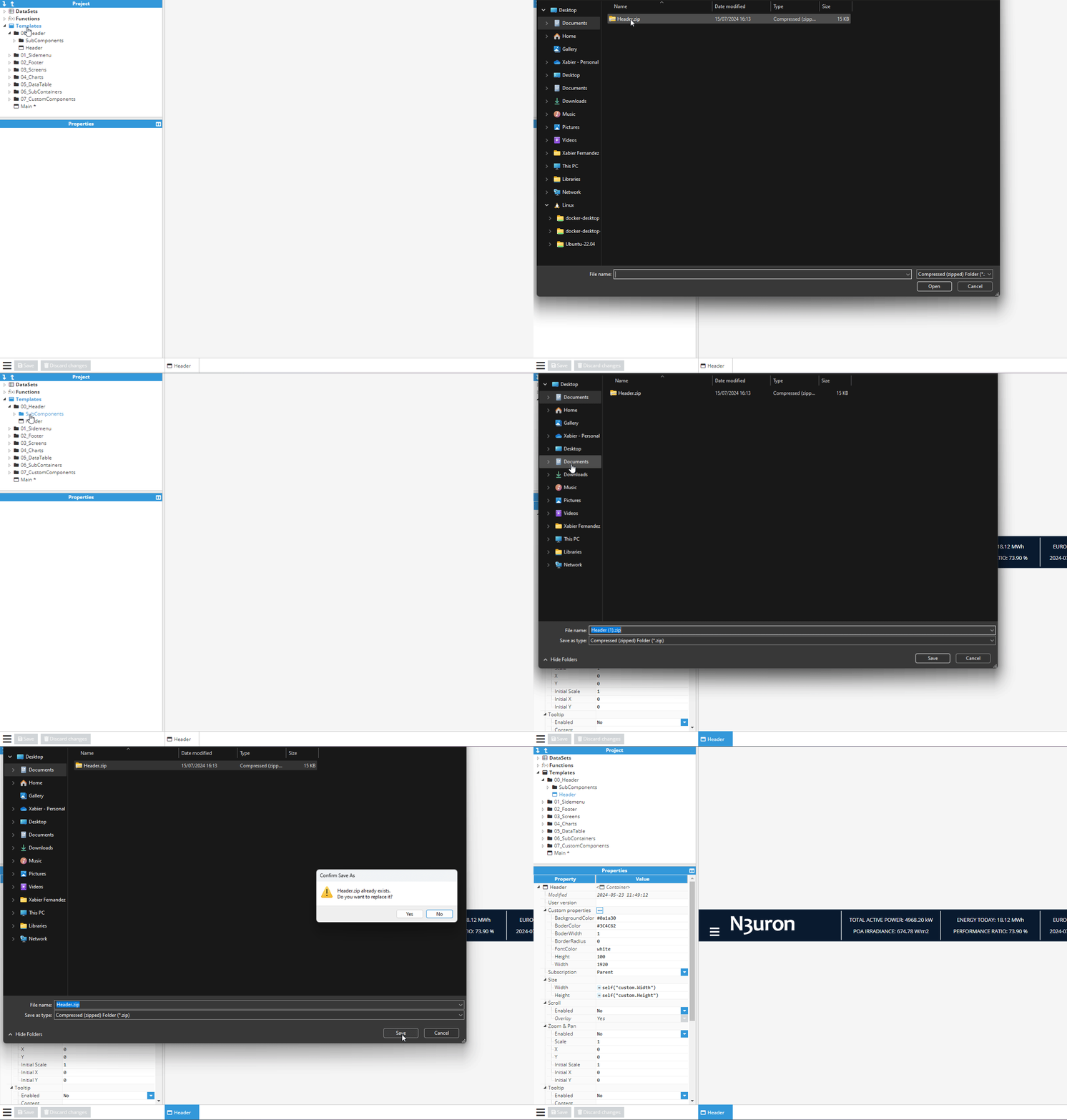
To export a template, right-click the template and select the export option.
Choose the destination folder and save the exported template.
To import a template, right-click the destination folder and select the import option.
Select the exported template file to add it to the current project.
Web Vision Full Product Details